
Introduction
A black screen on your Vizio TV can ruin a movie night in seconds. You press the power button, the logo might flash, you might even hear sound, but the picture will not come on. Before you assume the TV is dead, know that many of these issues have simple fixes you can try yourself.
This guide focuses on one main problem: your Vizio TV picture won't come on. You will learn how to quickly diagnose what is happening, check basic power and cable connections, adjust picture settings, and reset software. Then you will see how to test for more serious hardware failures and what to do if you find them. By following each section in order, you avoid guessing and move from the easiest fixes to the more advanced checks in a logical way.
If the TV still won't show a picture after these steps, you will also know exactly what to tell Vizio support or a repair technician. That information makes it easier to get help, understand repair costs, and decide whether to repair or replace your TV.
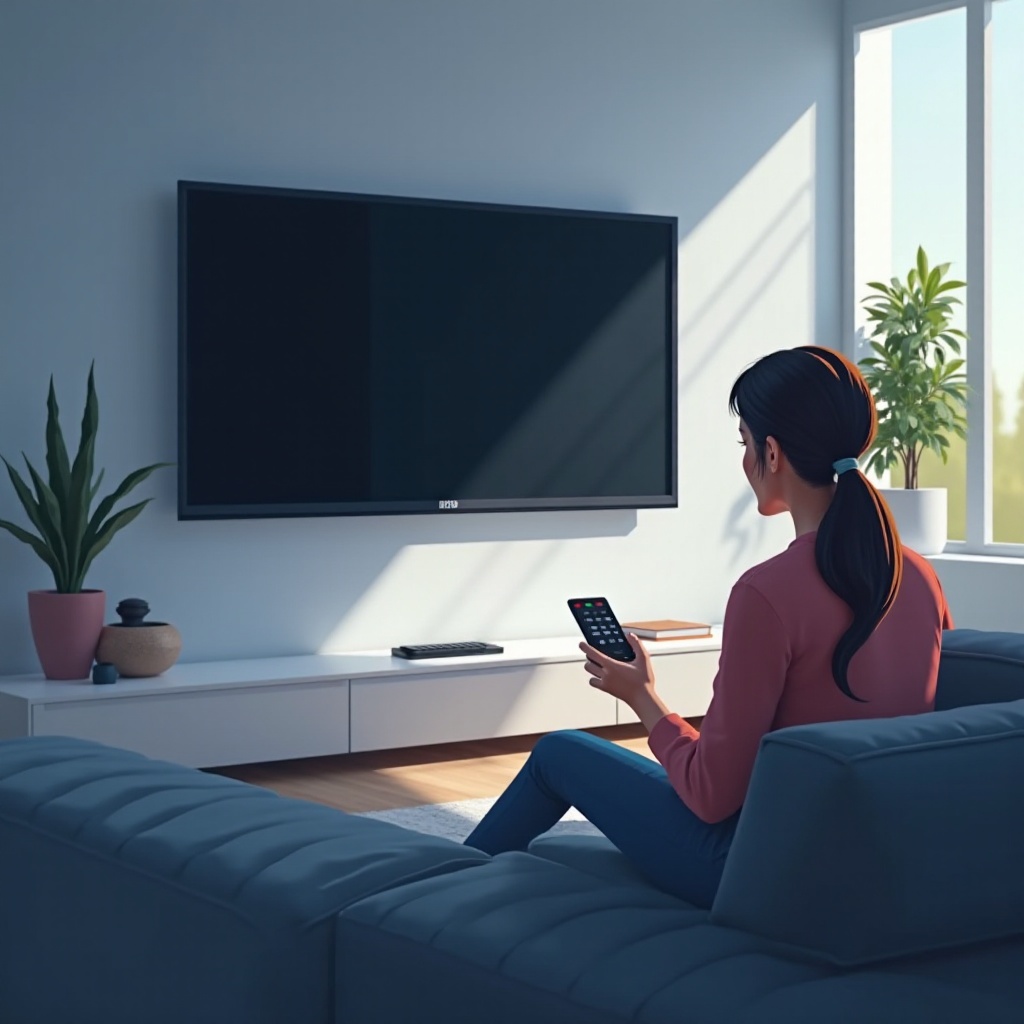
How to Quickly Diagnose a Vizio TV Picture Problem
Before you change settings or unplug cables, you need to understand the problem clearly. A quick diagnosis helps you skip steps that do not apply and focus on the most likely solution.
Start by observing what the TV does when you turn it on:
- Does the power light come on, blink, or change color?
- Do you hear sound from a channel, streaming app, or connected device?
- Is the screen completely black, or can you see a faint image if you look closely?
These basic checks help you sort the issue into one of two common situations:
- Sound with no picture: The TV is on and receiving a signal, but the image is not visible. This often points to backlight issues, incorrect picture settings, or a failing panel or board.
- No sound and no picture: The TV may not be turning on fully, or there might be a power, cable, or input issue.
While you diagnose, stay safe:
- Unplug the TV before you touch cables on the back.
- Keep liquids and metal tools away from the TV.
- Do not open the TV case. Internal parts can store dangerous electrical charge.
Once you have a rough idea of what is wrong, you can move on to the simplest and most important checks: power and connections.
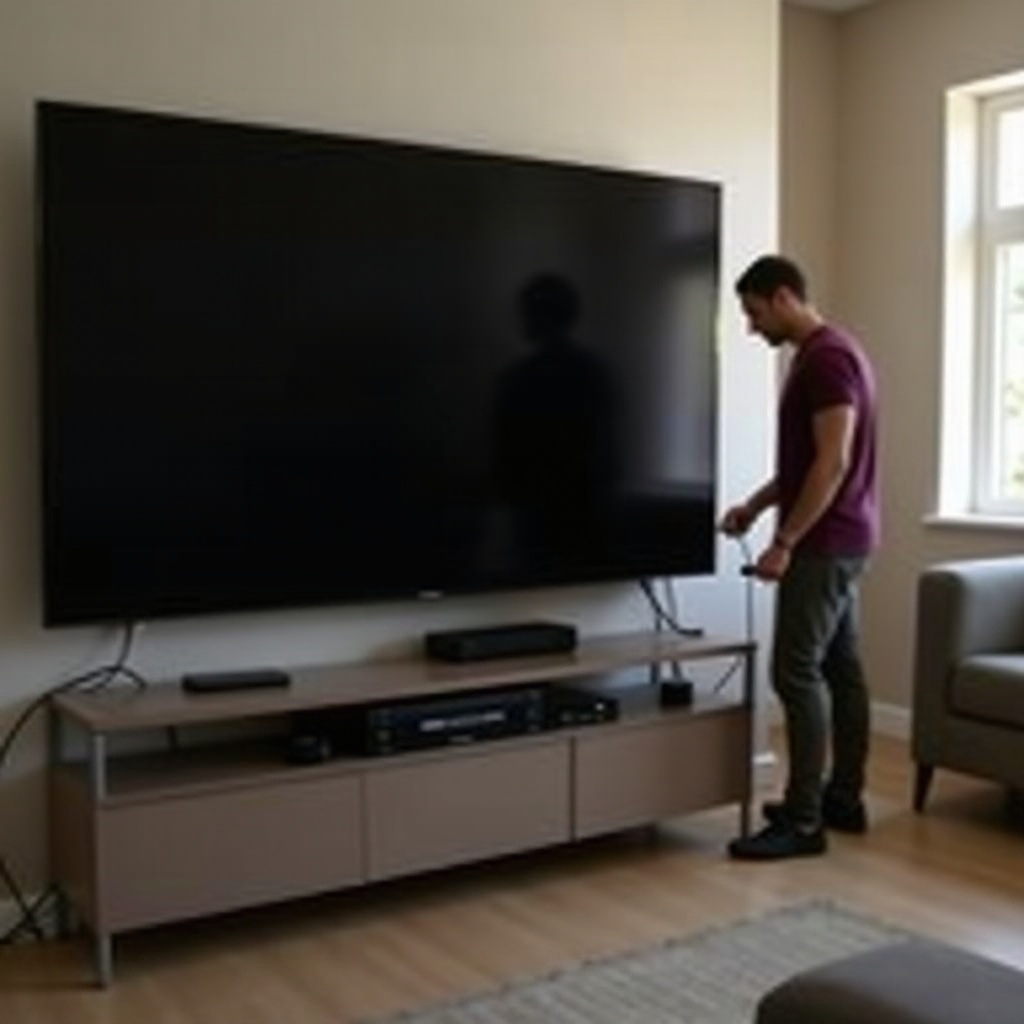
Start With the Basic Power and Connection Checks
Many 'Vizio TV picture won't come on' problems come down to basic power issues or loose cables. These are quick to check and often fix the problem without any advanced steps.
- Confirm the TV is actually powered on
- Stand near the TV and press the physical power button on the set, not just the remote.
- Watch the power light. Does it turn on, change color, or blink?
-
Listen for any startup sounds, clicks, or the slight hum of the TV powering up.
-
Check the power cable, outlet, and surge protector
- Make sure the power cord is firmly plugged into the back of the TV.
- Check the wall outlet by plugging in another device, such as a lamp or phone charger.
-
If the TV is plugged into a surge protector or power strip, try plugging it directly into the wall to rule out a bad strip.
-
Inspect HDMI, streaming devices, and cable boxes
- Confirm that your cable box, game console, or streaming stick is powered on.
- Look for indicator lights on these devices.
- Unplug each HDMI cable from both the TV and the device, then plug them back in firmly.
If your TV has power and the connected devices are on and wired correctly, the next step is to make sure you are actually looking at the right video source and that basic picture-related settings are not hiding the image.
Make Sure You're on the Right Input and Settings
Your TV can be working perfectly but still show a black screen if it is set to the wrong input or a bad HDMI port. Sometimes a simple input change brings the picture back immediately.
- Select the correct input or source
- Press the 'Input' or 'Source' button on the Vizio remote.
- Slowly cycle through the available inputs: HDMI 1, HDMI 2, HDMI 3, Component, AV, and others.
-
Pause for a few seconds on each input to see if a picture appears.
-
Test different HDMI ports and cables
- Move the HDMI cable from its current port to another port, for example from HDMI 1 to HDMI 2.
- If you have another HDMI cable that works with a different device, try that cable on the Vizio TV.
-
If only one port works, you may have a failing HDMI port, but you can still use the working one for now.
-
Reset picture mode and disable Eco or energy-saving features
If you can briefly see the menu or sometimes get a picture, you may have a settings issue. -
Press 'Menu' on the remote and go to 'Picture'.
- Choose a default mode like 'Standard' or 'Calibrated' instead of highly customized modes.
- Turn off Eco Mode, Ambient Light Sensor, or other power-saving features that might dim the screen too much or shut down the image.
After confirming you are on the correct input and that basic picture settings are not the problem, the next logical step is to clear temporary software glitches. That is where power cycling and soft resets come in.
Power Cycle and Soft Reset Your Vizio TV
Smart TVs run complex software and can freeze or lock up. A proper power cycle and soft reset clear temporary bugs that often cause a black screen or a TV that seems on but does not show a picture.
- How to properly power cycle a Vizio TV
- Turn the TV off using the remote or the physical power button.
- Unplug the TV from the wall outlet.
- Press and hold the TV's physical power button for 15–30 seconds. This discharges leftover power from internal components.
- Wait another 30–60 seconds with the TV unplugged.
-
Plug the TV back into the wall and turn it on again.
-
Soft reset using the remote and on-screen menu
If your TV still shows menus or you can see a faint image, use the built-in reset options. -
Press 'Menu' on the remote.
- Go to 'System' then 'Reset & Admin' or a similar name.
- Choose 'Soft Power Cycle' or 'Restart' if available.
-
Allow the TV to turn off and back on without unplugging it.
-
What to check after the TV restarts
- Watch for the Vizio logo and any backlight glow from the screen.
- Try switching inputs again to see if any source shows a picture.
- Open a built-in app, such as a streaming app, to test if the TV can display video from its own software.
If a power cycle and soft reset do not restore the image, you should confirm that picture-related controls like brightness and backlight are not set so low that the screen appears completely black.
Check Picture, Brightness, and Backlight Settings
Sometimes the TV appears to be 'off' because picture settings make the image too dark to see. Incorrect brightness, contrast, or backlight levels can create a black screen even when everything else works.
-
Verify brightness, contrast, and backlight are not set to zero
If you can access the menu at all, even faintly, do this first. -
Press 'Menu', then go to 'Picture'.
- Raise brightness, backlight, and contrast to medium or higher values.
-
Avoid modes that are tuned for extremely dark rooms unless you know how they behave.
-
Turn off sleep timers and auto power-off
Your TV might be shutting off the picture after a period of inactivity. -
In the menu, go to 'Timers' or 'System'.
- Look for Sleep Timer, Auto Power Off, or No Signal Power Off.
-
Turn these options off, or set them to a longer duration.
-
Restore default picture settings
If you or someone else changed many options, it may be easier to reset them. -
In 'Picture' settings, select 'Reset Picture Mode' or 'Reset to Defaults'.
- Confirm the reset and test the picture again.
After you adjust these settings and the screen still stays dark, the problem may lie deeper in the TV's software. Updating firmware and resetting smart features can help if a glitch in the operating system or apps is causing the black screen.
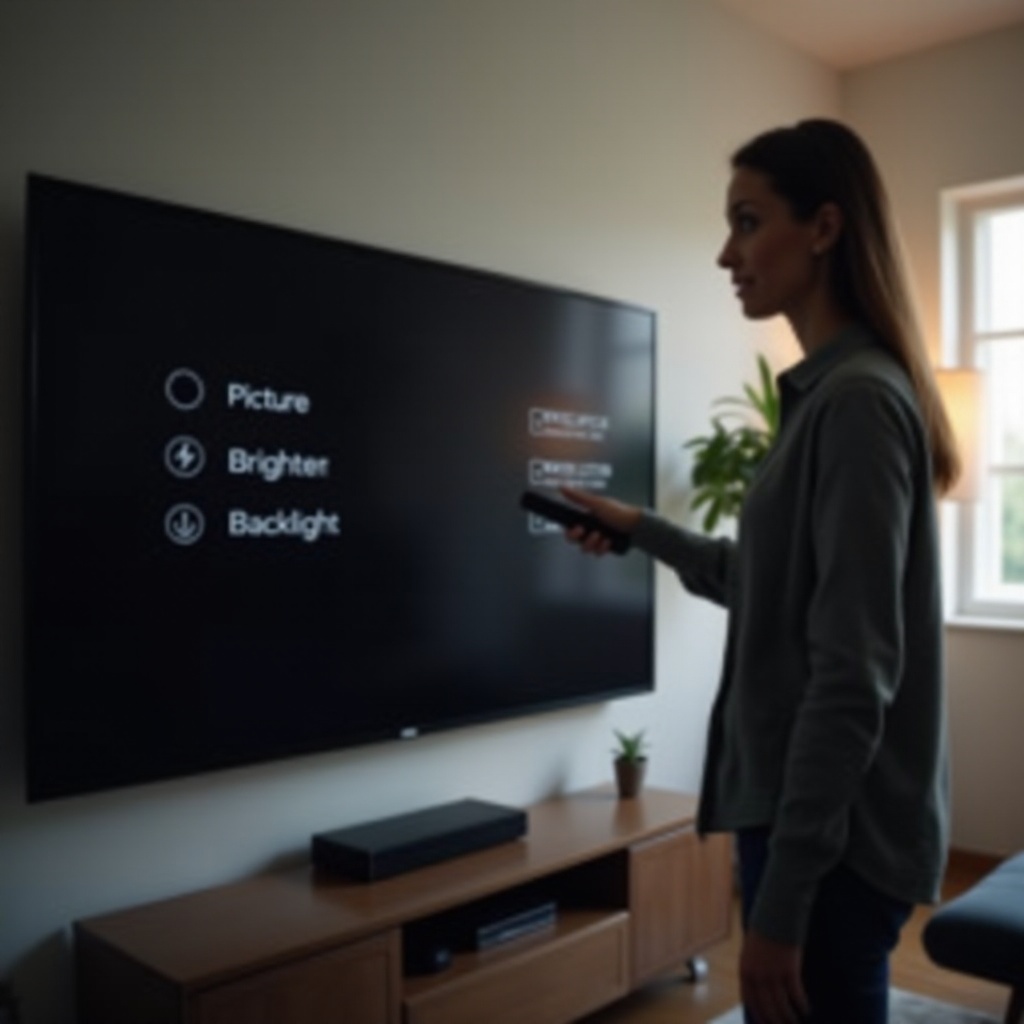
Update Firmware and Reset Smart Features
Firmware is the core software that runs your Vizio TV. If it is outdated or corrupted, it can cause black screen issues, app crashes, or freezes. Updating and resetting smart features can clear many of these problems.
- Update your Vizio TV firmware via network settings
- Make sure the TV is connected to Wi-Fi or an Ethernet cable.
- Press 'Menu', then go to 'System' and select 'Check for Updates' or 'System Update'.
- If the TV finds an update, follow the prompts to download and install it.
-
Do not unplug the TV during the update process.
-
Reboot or reinstall streaming apps
If the black screen appears only in certain apps, the problem might be app-specific. -
Open another built-in app to see if that one works.
- If your TV model allows it, force close or restart the problematic app from the app settings menu.
-
Sign out and sign back in or reinstall the app if those options are available.
-
Perform a system reset without losing everything
When issues continue, a deeper reset can help. -
Go to 'System' > 'Reset & Admin'.
- Use a 'Soft Power Cycle' or partial reset option if available to keep apps but refresh the system.
- Consider a full factory reset only after other steps fail, as this removes Wi-Fi settings, accounts, and preferences.
If firmware updates and smart feature resets do not solve the black screen, you may be facing a hardware failure. You can run a few simple tests to check for backlight, panel, or board problems before you contact support.
Test for Backlight, Panel, or Board Failures
When software and settings are no longer suspect, hardware becomes the likely cause of the 'Vizio TV picture won't come on' issue. You should not open the TV case, but you can safely perform a few tests to understand what might have failed.
- Use the flashlight test to spot a dim image
- Turn on the TV in a dark room and play something you know should show video, such as a streaming app with sound.
- Shine a bright flashlight across the screen at a shallow angle.
- Look carefully for faint menus or moving images under the beam.
-
If you see a very dim picture, your LCD panel is working, but the backlight is likely failing or not turning on.
-
Recognize signs of a failing LED backlight or display panel
Certain symptoms point to backlight or panel problems: -
The screen is very dim even when brightness is high.
- The picture shows for a second when you turn the TV on, then goes black.
- One side or section of the screen is darker than the rest.
-
The picture flickers, or you see bands of light and dark areas.
-
Watch for symptoms of T-Con or main board issues
The T-Con board and main board handle processing and signal delivery to the panel. When they malfunction, you may see: -
Random lines, blocks, or scrambled images before the screen goes black.
- Half the screen showing a picture while the other half is black or distorted.
- Repeated flickering between the picture and a black screen even after resets.
If your tests point to a backlight, panel, or board problem, a do-it-yourself repair is rarely safe or cost-effective. At this stage, your best move is to reach out to Vizio support or a trusted TV repair technician and use your findings to guide the next steps.
When to Call Vizio Support or a Professional Technician
Once you have ruled out simple fixes and suspect hardware, you need to decide whether to repair the TV or replace it. A bit of preparation will make your conversation with support or a technician smoother and more productive.
- Collect your model, serial number, and proof of purchase
- Look on the back of your TV or in the 'System' menu for the model and serial number.
- Find your receipt or digital order confirmation if you still have it.
-
Write down the symptoms and all the troubleshooting steps you have already tried.
-
Check warranty and extended protection plans
- Visit Vizio's official support website or call their support line.
- Provide the model and serial number to see whether the TV is still within the standard warranty period.
-
If you bought the TV from a major retailer, check if you purchased an extended protection plan that might cover repairs or replacement.
-
Compare repair cost vs. replacement value
- Ask for a rough estimate for common repairs like backlight, T-Con board, or main board replacement.
- Compare that estimate with the current price of a new TV of similar size and features.
- For older or budget models, a major repair often costs close to or more than a new TV, while newer or high-end models may be worth repairing.
Whether you choose to repair or replace, you can take steps to protect your next TV from similar problems. Good habits around power, placement, and updates can reduce the risk of another 'Vizio TV picture won't come on' situation.
How to Prevent Future 'Picture Won't Come On' Problems
Preventive care can extend your TV's life and lower the chances of facing another black screen. Simple habits around power, cooling, and updates make a big difference over time.
- Use quality surge protection and stable power
- Plug your TV into a reliable surge protector or power conditioner instead of directly into the wall.
- Avoid daisy-chaining multiple power strips together.
-
During strong storms or when you will be away for a long time, consider unplugging the TV to protect it from power spikes.
-
Ensure proper ventilation and avoid overheating
- Keep vents on the back and sides of the TV clear of dust, walls, and objects.
- Do not place the TV in a tightly closed cabinet without airflow.
-
If wall mounting the TV, leave enough space for air to move behind the screen.
-
Practice safe update, shutdown, and daily use habits
- Allow firmware updates to complete; avoid unplugging or cutting power while the TV updates.
- Use the remote or TV button to power off instead of turning the power strip on and off repeatedly.
- Avoid turning the TV on and off in rapid bursts, which can stress internal components.
By following these tips, you reduce the risk of power-related damage and heat buildup, both of which are common causes of long-term TV failure. Combined with the troubleshooting steps in this guide, they give you a better chance of keeping your Vizio TV working smoothly for years.
Conclusion
When your Vizio TV picture won't come on, it is easy to fear the worst. In many cases, though, the cause is simple: a loose cable, the wrong input, a dimmed backlight setting, or a minor software glitch. By starting with basic power and connection checks, then moving through input selection, power cycling, picture adjustments, and firmware updates, you cover the most common and easiest-to-fix problems.
If those steps do not restore the picture and your tests suggest a backlight, panel, or board failure, you will know it is time to contact Vizio support or a professional technician. With the information you have gathered along the way, you can describe the issue clearly, get better repair advice, and decide whether a repair or a new TV makes more sense.
Finally, by using surge protection, keeping the TV cool and well-ventilated, and handling updates and shutdowns carefully, you can lower the chances of seeing another black screen. This practical approach helps you handle 'Vizio TV picture won't come on' problems with confidence and protects your investment in the long run.
Frequently Asked Questions
Why does my Vizio TV have sound but the picture won’t come on?
When you have sound but no picture, the TV is usually powered and receiving a signal, but the image is not visible. Common causes include a failed or weak backlight, picture settings with brightness or backlight set too low, firmware glitches, or problems with the T-Con or main board. Start with a flashlight test, reset picture settings, power cycle the TV, and check for firmware updates. If the screen stays dark but you see a faint image under a flashlight, it is likely a backlight or hardware issue.
How do I reset my Vizio TV if I can’t see the menu?
If the screen is black and you can’t use the on-screen menu, try a manual power reset first. Turn the TV off, unplug it from the wall, then press and hold the physical power button on the TV for 15–30 seconds. Plug it back in and turn it on. Some Vizio models also support a button-based factory reset, often by holding a combination like Volume Down and Input on the TV itself, but the exact steps vary by model. Check Vizio’s support site for the correct button sequence for your specific TV.
Is it worth repairing a Vizio TV with no picture, or should I buy a new one?
Whether it is worth repairing depends on your TV’s age, size, and original cost, as well as the type of failure. Backlight, T-Con, or main board repairs can be expensive and may approach the price of a new budget TV. If the TV is still under warranty or is a newer, larger, or higher-end model, repair can make sense. For older or low-cost models, replacement is often more economical. Get a repair estimate first, then compare it to the cost of a similar new TV to make the best decision.