
Introduction
A Vizio TV blinking white light can turn movie night into a stressful troubleshooting session. The TV looks like it wants to turn on, but nothing happens. The logo might flash, the white light blinks a few times, and the screen stays black. You may wonder if the TV is dead or if there is a simple fix you can try at home.
This issue appears on many recent Vizio models, especially smart TVs that depend on both software and hardware working correctly. The blinking white light usually means the TV is stuck in a process: trying to power on, boot software, or recover from an error. The good news is that many of these problems have straightforward solutions that do not require opening the TV or paying a technician.
This guide walks through nine practical fixes, from easy checks like power cycling and cable inspection to more advanced troubleshooting steps. You will learn what the blinking white light actually means, how to narrow down the cause, and when it is time to contact Vizio support or consider a repair. Follow each step in order to give yourself the best chance of solving the problem without replacing your television.
What Does the Blinking White Light on a Vizio TV Mean?
The white light on the front of your Vizio TV acts as a status indicator. It does more than show whether the TV is on or off; it also hints at what the TV is trying to do in the background. When that light blinks instead of turning solid, the TV is usually struggling with power, software, or a hardware error.
Understanding this behavior will guide the rest of your troubleshooting. If you know what the different light patterns mean, you can avoid random guessing and move through fixes in a logical order.
Solid White vs. Blinking White: Key Differences
Knowing the difference between a solid white light and a blinking one can save a lot of time:
- Solid white light
- Usually means the TV is powered on and has completed its startup process.
- You should see a picture or at least a Vizio logo splash screen.
-
If you have a solid white light and no picture, the issue is often with the screen, backlight, or image signal.
-
Slow blinking white light
- Often indicates the TV is in the middle of turning on or off.
- The TV may be booting software or trying to wake from standby.
-
If it keeps blinking for more than a minute or two, it may be stuck in a boot loop.
-
Fast blinking white light
- Can signal an error or failed startup.
- The TV may have a power issue, firmware problem, or internal fault.
- Sometimes this pattern appears right before the TV shuts itself down.
Watch the light closely and note how long it blinks and whether the screen shows anything at all. That pattern will guide which fixes to try first and how serious the problem might be.
Common Causes of the Blinking White Light Issue
Several common problems can trigger a Vizio TV blinking white light:
- Power glitches: A sudden outage, surge, or loose connection can interrupt the startup and leave the TV stuck.
- Software or firmware errors: Failed updates or corrupted firmware may stop the TV from booting correctly.
- External devices: Faulty HDMI devices or cables can cause the TV to freeze at startup.
- Backlight or display issues: The TV can power on with a white light, but a dead backlight leaves the screen black.
- Internal hardware faults: Power boards, main boards, or T‑Con boards can fail and trigger blinking light behavior.
With the basics in mind, the next step is to rule out simple issues before assuming a serious hardware failure. The first and easiest fix is a proper power cycle.
Step 1 – Perform a Proper Power Cycle (Soft Reset)
A power cycle, also called a soft reset, drains leftover electricity from the TV and clears minor glitches. Many Vizio TVs that seem dead or stuck with a blinking white light start working again after this simple step.
You should always try a power cycle before anything more advanced. It is quick, safe, and often enough to clear small software or power problems.
How to Power Cycle Your Vizio TV
Follow this process carefully:
- Turn off the TV using the remote or the power button on the TV.
- Unplug the TV from the wall outlet or surge protector.
- Press and hold the TV's physical power button for 15–20 seconds.
- Release the button and leave the TV unplugged for at least 1–2 minutes.
- Plug the TV directly into a wall outlet, skipping power strips for now.
- Turn the TV on and watch the white light and screen.
This clears residual charge and forces the TV to restart its internal circuits. If the blinking stops and you see the logo or picture, you have likely fixed a temporary glitch.
When a Soft Reset Is Enough
A soft reset may be all you need if:
- The TV now turns on with a solid white light and a normal picture.
- The blinking white light no longer appears during startup.
- The TV responds to the remote and buttons again without delay.
If the white light still blinks or the screen remains black, the next step is to ensure that the TV is receiving clean power commands and that the controls are not causing the issue.
Step 2 – Check Remote, Power Button, and Indicator Behavior
If a power cycle does not fix the issue, confirm that the TV is actually receiving power commands and is not stuck because of a remote or button problem. A stuck power button or a faulty remote can make the TV appear dead or trapped in a loop.
By confirming that the basic controls work as expected, you avoid chasing complex causes when the issue might be as simple as a bad remote.
Testing with the TV's Physical Power Button
To rule out remote problems:
- Remove the batteries from the remote.
- Locate the physical power button on the TV (bottom, side, or back).
- Press and hold the button for several seconds to turn the TV on.
- Watch the white light and listen for any startup sound.
If the TV responds to the physical button but not the remote, the remote is likely the problem. Replace the batteries and try again. If the remote still fails, consider replacing or re-pairing it.
Remote Control Issues That Mimic TV Failure
A failing remote can:
- Send repeated power commands that confuse the TV.
- Fail to send any signal, making it seem like the TV will not power on.
- Trigger odd behavior through stuck or damaged buttons.
Check for:
- Stuck or sticky buttons.
- Cracked casing or signs of impact.
- Interference from other remotes or devices in the room.
Once you are confident the TV receives proper power commands, the next logical step is to look at how the TV gets its electricity: the outlet, power cable, and any surge protection devices.
Step 3 – Verify Power Source, Cables, and Surge Protectors
Power problems are one of the most common causes of a Vizio TV blinking white light. Even if other devices work on the same outlet or strip, the TV might be more sensitive to minor drops or noise in the power line.
By confirming the outlet and power path, you remove another common cause from the list before diving into software or hardware concerns.
Testing Outlets and Power Strips
To rule out power source issues:
- Unplug the TV from its current outlet or power strip.
- Plug a smaller device (like a lamp or phone charger) into that same outlet to confirm it works.
- Plug the TV directly into a different wall outlet, avoiding power strips or surge protectors for the test.
- Turn the TV on and check the white light behavior.
Surge protectors and power strips can fail silently. Bypassing them helps you confirm whether the problem lies in the power path or the TV itself.
Inspecting the Power Cable and Connections
Next, check the TV's power cable:
- Ensure the plug fits snugly in the wall outlet.
- Make sure the cable is firmly seated in the TV's power socket.
- Look for frayed, bent, or damaged cable sections.
- Avoid tight bends or pinched spots behind furniture.
If the TV still shows a blinking white light after confirming solid power and connections, the cause may be an external device confusing the startup process, which leads into the next step.
Step 4 – Disconnect HDMI Devices and External Accessories
External devices can cause the TV to hang while turning on. A bad HDMI cable or a malfunctioning streaming box, game console, or soundbar may stop the TV from finishing its startup sequence and leave the white light blinking.
Removing every external device lets you see whether the TV itself can boot correctly, without extra signals interfering.
How Faulty HDMI Devices Trigger Blinking Light Problems
Vizio TVs communicate with connected devices over HDMI. Features like CEC allow devices to turn each other on and off. When something goes wrong, you may see:
- The TV trying to power on and off repeatedly.
- The white light blinking as the TV waits for a signal or handshake.
- No image because the TV is stuck on a problematic input.
A shorted HDMI cable or failing device can interrupt this process and lock the TV in a loop.
Testing with a Single Known‑Good Source
To isolate the problem:
- Turn off the TV and unplug it.
- Disconnect all HDMI, USB, and audio devices from the TV.
- Plug the TV back into the wall and power it on with no devices attached.
- If the TV starts normally, connect one known‑good device, such as a trusted streaming stick, with a reliable HDMI cable.
- Test again and see if the blinking white light returns.
If the TV misbehaves only when certain devices are connected, those devices or cables may need replacement. If the issue persists even with no devices, the next suspect is the TV's software and firmware.
Step 5 – Check for Software or Firmware Glitches
Smart features add convenience but also introduce new failure points. A Vizio TV blinking white light can signal that the software is stuck or a firmware update did not finish correctly. If you can get any picture at all, even briefly, you should check for updates.
Addressing possible software issues now helps you avoid needless concern about hardware until you know the system software is current and stable.
Updating Vizio Smart TV Firmware from the Settings Menu
If the TV boots far enough to show the menu:
- Press the Menu button on the remote.
- Go to System.
- Select Check for Updates or System Update.
- Allow the TV to download and install any available updates.
- Do not unplug the TV during this process.
A successful update can fix known bugs that cause boot loops or blinking indicator issues.
Signs Your TV Is Stuck in a Boot or Update Loop
You may be dealing with a software loop if:
- The Vizio logo appears and disappears repeatedly.
- The white light blinks for a while, then the TV restarts by itself.
- You recall starting an update before the TV froze or lost power.
If updates do not solve the issue, or you cannot reach the menu at all, a factory reset is the next step.
Step 6 – Factory Reset Your Vizio TV (With and Without Picture)
A factory reset erases your settings and returns the TV to its original state. This can clear deep software problems that a simple power cycle cannot fix. Use it when the TV still blinks a white light after previous steps.
Because a reset wipes your preferences, it is wise to try it only after you have checked power, connections, and firmware. If the blinking persists, clearing the software stack may be the only way to move forward.
Factory Reset Using On‑Screen Menus
If you can see the menu:
- Press Menu on the remote.
- Go to System.
- Select Reset & Admin or a similar option.
- Choose Reset TV to Factory Defaults.
- Enter the PIN if asked (the default is often 0000 unless changed).
- Confirm and wait for the TV to restart.
After the reset, you will need to set up Wi‑Fi, apps, and picture settings again. If the blinking white light stops, the reset likely cleared a corrupted setting or app.
Hard Reset Using Buttons When the Screen Is Black
If you have no picture at all, try a button-based reset (note that exact steps can vary by model):
- Unplug the TV from the wall.
- Locate the Volume Down and Input buttons on the TV (not the remote).
- Press and hold both buttons at the same time.
- While holding, plug the TV back into the wall.
- Continue holding for 10–15 seconds, then release.
On some models, this triggers a reset or brings up a basic reset prompt when the TV starts. If your model does not support this method, you may need Vizio support for model-specific reset steps.
If the TV still shows a blinking white light with no picture after a reset, you may be dealing with a hardware problem like a backlight failure.
Step 7 – Identify Backlight and Screen Issues
When the TV powers on but stays dark, the backlight may have failed. The screen looks black, but the TV itself might be running. The white light may still blink or turn solid, which can be confusing.
Checking the backlight now helps you decide whether the issue lies in the display system rather than in software or inputs.
Using the Flashlight Test to Check the Backlight
You can quickly test the backlight with a flashlight:
- Turn on the TV and wait for a minute.
- Darken the room if possible.
- Shine a bright flashlight at the screen from a very close distance.
- Look carefully for faint images or menu outlines.
If you see a dim picture, the backlight is likely dead or very weak. The TV is on, but the light that makes the picture visible has failed.
When the TV Is 'On' but You Still See No Picture
Other signs the TV is on despite no visible picture include:
- You hear startup chimes or app sounds.
- Volume and channel changes produce sound.
- The TV shows up on your network or casting devices.
Backlight and panel issues are hardware failures. They rarely respond to software fixes. If you suspect this type of issue, it is time to consider internal components and possible repairs.
Step 8 – Internal Hardware Problems to Consider
If all external checks, resets, and backlight tests fail, the Vizio TV blinking white light likely points to a hardware fault inside the TV.
Understanding the main internal parts and what they do will help you speak clearly with a technician or support agent about what might be wrong.
Power Board vs. Main Board vs. T‑Con Board
Several boards work together inside your TV:
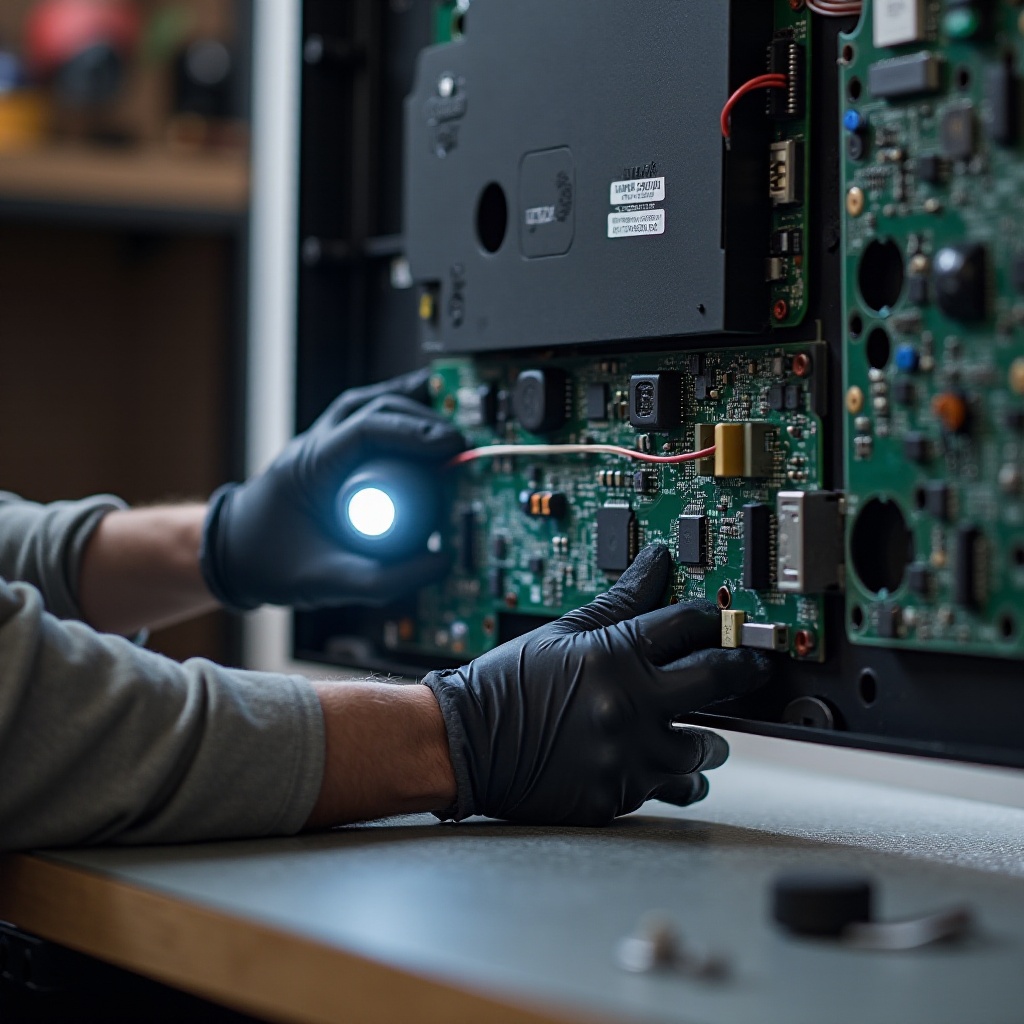
- Power board: Converts AC power from the wall into the voltages the TV needs. Faults here can cause blinking lights, clicking, or sudden shutdown.
- Main board: Handles processing, HDMI inputs, smart features, and overall control. A failing main board can cause boot loops and constant blinking white lights.
- T‑Con board: Controls timing and image data sent to the panel. Problems can cause no picture or distorted images, even when the light looks normal.
Diagnosing which board is bad usually requires tools, experience, and sometimes access to service manuals or schematics.
Why Most Users Should Avoid DIY Internal Repairs
Opening the TV and replacing boards might look simple in online videos, but it carries real risks:
- Electric shock from stored charge in capacitors.
- Damage to delicate connectors and ribbon cables.
- Voiding any remaining warranty.
- Buying incorrect or low-quality replacement boards.
For most people, it is safer and often more cost-effective to let a professional handle internal repairs. Before you decide, check your warranty and support options.
Step 9 – When to Contact Vizio Support or a Repair Technician
Once you have tried power cycling, checking cables, removing external devices, updating firmware, and performing a reset, and the Vizio TV blinking white light persists, it is time to involve experts.
At this stage, further DIY attempts may not add much value and could introduce new problems. Support staff and technicians can confirm whether repair or replacement makes more sense.
Checking Warranty and Support Options in 2024
Before you call a technician:
- Check your purchase date and warranty terms.
- Look for extended coverage from the retailer or your credit card.
- Visit Vizio's support site and enter your model number.
If your TV is still under warranty, Vizio may offer repair, replacement, or a refurbished unit at reduced or no cost. Even out of warranty, some users receive discounted service or special offers.
What Information to Collect Before Calling Support
To speed up support and avoid repeating steps:
- Write down the TV's model and serial number (usually on a label at the back or side).
- Note exactly what the white light does: solid, slow blinking, fast blinking, or repeated patterns.
- List all troubleshooting steps you have already tried.
- Capture a short video of the blinking behavior and TV screen.
Having this ready helps support staff diagnose the problem faster and recommend the right solution.
With support options clear, it is also worth thinking about how to avoid seeing that blinking white light again in the future.
How to Prevent Future Blinking White Light Issues
Prevention can extend your TV's life and reduce the chance of another Vizio TV blinking white light event. Simple habits and low-cost accessories often make a big difference.
By investing a little effort in protection and daily care, you reduce the risk of repeating the same frustrating problem.
Protecting Your TV from Power Surges and Outages
To shield your TV from power problems:
- Use a high-quality surge protector rated for home theater use.
- Consider a battery backup (UPS) if you live in an area with frequent outages.
- Avoid plugging the TV into overloaded power strips.
- Unplug the TV during severe storms if possible.
Stable power reduces stress on the power board and other components.
Safe Usage Habits and Proper Ventilation
Daily habits also matter:
- Leave space around the TV for airflow; avoid tight cabinets.
- Keep dust away from vents by wiping surfaces regularly.
- Do not block the back or sides of the TV with fabric or objects.
- Use the remote or power button to shut the TV down instead of pulling the plug.
These practices help keep the TV cool and stable, reducing the risk of hardware failures that lead to blinking white light issues.
Conclusion
A Vizio TV blinking white light does not always mean your television is finished. In many cases, the problem comes from something simple: a power glitch, a bad cable, a stuck device, or a minor software error. By working through the steps in this guide—power cycling, checking buttons and cables, removing external devices, updating firmware, and performing a factory reset—you can solve many common causes at home.
When those fixes do not work, the flashlight test and the behavior of the indicator light help you pinpoint deeper hardware issues like backlight, power board, or main board failures. At that point, checking warranty coverage and contacting Vizio support or a qualified technician becomes the smartest move.
Use this guide as a structured checklist. Start with the easiest steps and work your way up. With patience and a logical approach, you will either restore your TV or know with confidence when it is time for professional help or replacement.
Frequently Asked Questions
Why is my Vizio TV blinking white but not turning on?
A blinking white light without turning on usually means the TV is stuck during startup. Common causes include power glitches, a failed firmware update, bad HDMI devices, or internal board issues. Start with a power cycle, check the power source, remove all external devices, and attempt a factory reset. If the TV still will not turn on, there may be a hardware fault that needs professional diagnosis.
Can a firmware update fix the blinking white light on a Vizio TV?
Yes, in some cases. If the blinking white light comes from a software bug or incomplete update, installing the latest firmware can fix it. When you can access the menu, go to System and select Check for Updates, then install any available update. Do not turn the TV off during this process. If you cannot reach the menu, try a factory reset or contact Vizio support for further guidance.
When is it cheaper to replace a Vizio TV instead of repairing the blinking white light issue?
Replacement often makes more sense when the TV is older, out of warranty, and the repair involves major hardware like the power board, main board, or backlight. If a repair quote approaches 50–60% of the cost of a comparable new TV, replacing is usually the smarter choice. Always compare repair estimates, new TV prices, and any available discounts or offers from Vizio support before deciding.