
Introduction
A smart doorbell should make life easier, not add stress. When your Vivint doorbell is not working, you lose live video, motion alerts, and that sense of control over who comes to your door. Many issues, though, come from simple causes like weak Wi‑Fi, low power, or incorrect settings that you can fix without a service call.
This guide walks through the most common ‘Vivint doorbell not working’ problems and shows you how to troubleshoot them step by step. You will learn how to check power, solve offline and Wi‑Fi errors, fix recording, video, and sound issues, reset your doorbell, and decide when you need help from Vivint or an electrician.
Each section builds on the previous one, so follow the order as much as possible. Start with quick checks, then move into deeper tests of power, network, and settings. By the end, you should either have a working doorbell or clear proof that the hardware needs professional repair or replacement.
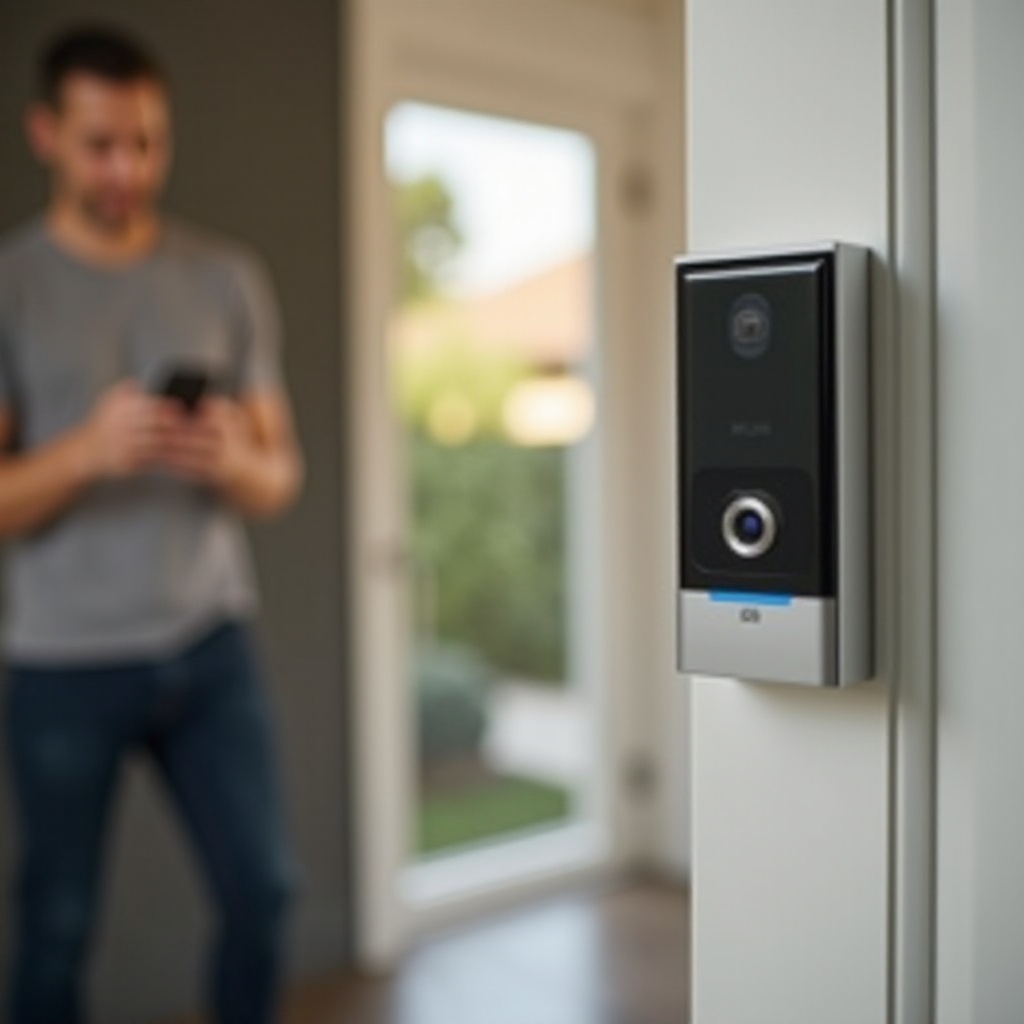
How Vivint Doorbells Work (and Why They Stop Working)
Before you start changing settings or touching wires, it helps to know how your Vivint doorbell fits into the rest of your system. Understanding the basic pieces makes it easier to spot where things go wrong.
Key components of a Vivint doorbell system
A typical Vivint doorbell setup includes:
- Vivint doorbell camera – The device at your front door with the camera, button, microphone, and speaker.
- Vivint Smart Hub – The panel inside your home that connects to the doorbell, sensors, and Vivint services.
- Wi‑Fi router and modem – Your home network that carries video and alerts between the doorbell, hub, and your phone.
- Existing doorbell wiring and transformer – Low‑voltage wiring and a transformer that provide power to the doorbell.
- Vivint app on your phone – The app where you see live video, recordings, and notifications.
If any of these pieces fail or lose connection, your Vivint doorbell may stop working, show offline, or lose features such as recording, audio, or indoor chimes.
Common symptoms when a Vivint doorbell is not working
Homeowners usually describe problems in similar ways, such as:
- Doorbell does not turn on or light up at all
- Doorbell shows ‘Offline’ in the Vivint app
- Live view will not load or shows a black screen
- Motion alerts do not arrive on the phone
- Doorbell rings outside but not inside the house
- No recording or missing clips on the timeline
- Audio is choppy, delayed, or completely silent
Each symptom points in a different direction. Power issues cause shutdowns and dead devices. Network issues cause offline errors and lag. Settings and storage issues affect recording, alerts, and how the video looks.
Safety and tools checklist before you start
Before you handle wiring or reset devices, keep safety in mind and get basic tools ready:
- Turn off power at the breaker before touching any exposed wires.
- Avoid working on wiring in wet or damp conditions.
- Do not attempt complex electrical work if you are unsure; call an electrician instead.
Useful tools include:
- Small screwdriver (Phillips and flathead)
- Smartphone with the Vivint app installed and updated
- Access to your Wi‑Fi router and network name and password
- A flashlight for checking labels, wiring, and tight spaces
With the overall system in mind and safety covered, you can now start with simple checks. These basic steps resolve many ‘Vivint doorbell not working’ cases in just a few minutes.
Quick Checks to Try First (Easy Fixes)
You do not need to open walls or rewire your home to clear many common issues. A few quick checks often fix temporary network glitches or software bugs.
Confirm internet and Wi‑Fi are working
First, make sure your home internet is not the real problem:
- Test other devices, such as phones, laptops, or smart TVs. If they cannot reach the internet, your doorbell will not either.
- Run a speed test on your phone near the router. Note the upload speed; video streaming depends on it.
- If nothing connects or speeds are very low, reboot your modem and router and wait a few minutes.
When your internet is down or unstable, your Vivint doorbell will show offline or fail to stream video until the connection improves.
Check doorbell power and panel status lights
Next, look at the doorbell and the Vivint Smart Hub:
- Check whether the doorbell shows any LED lights.
- Press the doorbell button and see if anything happens.
- Look at the Smart Hub; confirm that it is powered on and shows normal status lights (no obvious error indicators).
If both the doorbell and hub are dark, you may have a breaker or power issue. If the hub works but the doorbell is dead, the problem most likely sits in the doorbell wiring, transformer, or the unit itself.
Restart the Vivint app, doorbell, and router in order
Simple restarts clear a surprising number of issues:
- Force close the Vivint app on your phone and reopen it.
- Unplug your router for about 30 seconds, then plug it back in.
- If your doorbell has a removable faceplate or easy power connector, briefly disconnect and reconnect it.
- Wait a few minutes so everything can boot up and reconnect.
If the doorbell comes back online after these steps, you likely had a temporary network or software glitch. If it does not, you need to dig deeper into power and connection details.
As you move past quick checks, the next logical area to review is whether your doorbell is getting stable power and staying on without random shutdowns.
Vivint Doorbell Not Turning On or Randomly Shutting Off
If your Vivint doorbell has no lights, fails to respond, or turns off by itself, power should be your first focus. Weak or unstable power from the transformer or wiring can cause many of these symptoms.
Verify breaker, transformer, and voltage requirements
Vivint doorbells need a specific voltage range to operate reliably. To verify this:
- Go to your electrical panel and check whether the breaker for the front of the house or doorbell circuit is tripped. Reset it if needed.
- Find your doorbell transformer. It is often near the electrical panel, the furnace, or inside a junction box.
- Read the label on the transformer. Vivint doorbells typically require a transformer in the 16–24V AC range and enough VA (power) to support the camera.
- If you have a multimeter and know how to use it safely, measure the output voltage.
If the transformer is underpowered or very old, the doorbell may never work correctly, even if everything else is fine. In that case, a licensed electrician should replace it with a compatible unit.
Inspect doorbell wiring, terminals, and mounting bracket
Wiring issues at the door can also cause power drops or random restarts:
- Turn off power at the breaker before handling any wires.
- Gently remove the Vivint doorbell from its mounting bracket.
- Inspect the wires for fraying, corrosion, or damage.
- Make sure the wires are firmly attached to the correct terminals and that no bare wire is touching another metal part.
- Check that the doorbell sits snug against the mounting bracket and that any contacts are clean.
Loose or corroded connections can interrupt power, especially when someone presses the button, leading to shutdowns or reboots.
Signs of hardware failure that require replacement
Sometimes the doorbell hardware itself is faulty. Typical signs include:
- The device never powers on despite correct voltage and solid wiring.
- The doorbell overheats or feels unusually hot during normal use.
- It restarts constantly even when the network is stable.
- Soft and factory resets do not change the behavior.
If you see these symptoms after confirming your power setup is correct, contact Vivint support. The doorbell may need repair or replacement under warranty or a protection plan.
Once you are confident the doorbell powers on consistently, the next challenge is keeping it connected to your network and avoiding offline errors.
Vivint Doorbell Offline or Not Connecting to Wi‑Fi
Many ‘Vivint doorbell not working’ complaints come from offline status or frequent disconnects. These issues usually relate to Wi‑Fi signal strength, router configuration, or changes to your home network.
Check Wi‑Fi signal strength at the doorbell location
Wi‑Fi can be strong near the router but weak at the front door. To test this:
- Stand near the doorbell with your phone connected to your home Wi‑Fi.
- Check the Wi‑Fi signal bars.
- Run a speed test and pay attention to upload speeds.
If signal is weak or upload speed is poor near the door, your doorbell will struggle to stay online or stream video smoothly. Moving the router, adding a Wi‑Fi extender, or installing a mesh Wi‑Fi node closer to the door can make a big difference.
2.4 GHz vs 5 GHz networks and compatibility
Many smart doorbells work best on 2.4 GHz Wi‑Fi because it covers longer distances than 5 GHz. To avoid connection problems:
- Make sure your router broadcasts a 2.4 GHz network.
- If you use separate network names (SSIDs), connect the doorbell to the 2.4 GHz one.
- Avoid unusual characters in your network name and password that could cause pairing errors.
If you recently changed your Wi‑Fi name, password, or router, you must update the doorbell connection in the Vivint app.
Reconnecting the Vivint doorbell to Wi‑Fi and the Smart Hub
If the doorbell shows offline in the Vivint app but has power:
- Open the Vivint app and go to the list of devices or cameras.
- Select the doorbell and look for a ‘Reconnect’ or ‘Troubleshoot’ option.
- Follow the on‑screen steps to reconnect the doorbell to your Wi‑Fi network.
- Confirm that the Vivint Smart Hub has a stable network connection as well, either via Ethernet or Wi‑Fi.
During reconnection, keep your phone close to the doorbell and router so the process completes quickly and without interference.
Fixing issues after a power outage or router change
After a power outage, router replacement, or internet provider switch, devices may struggle to reconnect. A clean restart sequence often helps:
- Power cycle your modem and router.
- Restart the Vivint Smart Hub.
- Finally, restart the doorbell camera by disconnecting and reconnecting power or using its reset button.
This order allows the network to come online first, then the hub, and then the doorbell. If you changed routers, make sure the doorbell uses the new network name and password.
Once your doorbell stays online, the next question is whether it actually records and stores useful footage when someone approaches your door.
Vivint Doorbell Camera Not Recording or Missing Clips
Your doorbell may be online and streaming live video, yet fail to capture events. Problems with recording rules, motion detection, or storage limits are often to blame.
Make sure the doorbell is added and active in your system
First confirm that the system recognizes your doorbell as an active camera:
- Open the Vivint app or Smart Hub and view your list of devices.
- Make sure the doorbell appears and shows an active or online status.
- If it is missing, follow Vivint’s instructions to add it again through the panel or app.
An unlinked or inactive doorbell will not save clips, even if it appears to work when you press the button.
Check recording rules, motion detection, and clip length
Recording rules tell your system when to save footage. To tune them:
- Confirm that motion detection is turned on for the doorbell.
- Raise motion sensitivity if the camera misses visitors.
- Set activity zones to focus on your porch and ignore the street or sidewalks.
- Increase clip length if recordings stop too quickly.
After changes, test the setup by walking toward the door and pressing the bell. Then check your timeline to confirm that clips were created.
Storage limits, smart clips, and subscription considerations
Vivint systems often depend on cloud storage plans for recordings:
- Check whether your subscription is active and supports doorbell recordings.
- Look for any storage or clip limit notices inside the app.
- If your plan only keeps a limited number of clips, older ones will be deleted as new ones arrive.
If recording used to work and then stopped, a lapse in the subscription or a change in your plan might explain the difference. Confirm your account status with Vivint if you are unsure.
When your doorbell records events reliably, the next step is to make sure the video is clear and smooth enough to be useful.
Video Problems: Blurry, Laggy, or Black Screen
Even when the doorbell is online and recording, you might see blurry images, heavy lag, or a black screen in the app. Video quality depends on both camera settings and network performance.
Adjusting video quality to match your upload speed
High‑resolution video requires strong upload bandwidth. To match quality to your network:
- Run an upload speed test on your phone while connected to your home Wi‑Fi.
- Open the Vivint app and look for video quality or resolution options for your doorbell.
- If your upload speed is low, choose a lower resolution or frame rate.
Reducing video quality may seem like a downgrade, but it often delivers a smoother and more reliable live stream, especially on slower or shared connections.
Fixing night vision and low‑light visibility issues
Doorbell cameras need extra help in the dark. To improve night video:
- Gently clean the doorbell lens to remove dust, dirt, or spider webs.
- Avoid bright exterior lights aimed directly at the camera, which can cause glare.
- Check the settings to make sure infrared (IR) night vision is enabled.
If night footage looks washed out or too dark, adjust any available brightness or exposure controls in the app. Small changes can significantly improve clarity after sunset.
Reducing buffering and stream delays in the app
If your live view freezes, pauses, or feels very delayed:
- Close other apps and devices that stream video or use heavy bandwidth.
- Use Wi‑Fi on your phone instead of mobile data when viewing the camera at home.
- Move closer to your router or access point during testing.
- Restart the Vivint app and your phone if lag continues.
If other devices stream fine but the doorbell does not, the cause is likely signal strength at the door or the doorbell’s link to the Smart Hub, not your entire network.
When video works well, the next piece of the puzzle is sound, chimes, and alerts, which make sure you actually know when someone is at the door.
Sound, Chime, and Notification Issues
Sound problems can make a working camera feel broken. You might see visitors but never hear them, or the doorbell might fail to ring inside your home or send alerts to your phone.
Doorbell rings outside but not inside the house
If the outside button lights up or plays a tone, but your indoor chime stays silent:
- Confirm that your indoor chime is powered, intact, and not muted.
- Check chime settings in the Vivint app or Smart Hub to ensure the doorbell is set to trigger the chime.
- If you rely on the Vivint panel as a chime, make sure its volume is turned up and doorbell alerts are enabled.
A simple misconfiguration can cause a silent house even when the camera itself seems to work.
Mechanical vs digital chimes and using the Vivint panel as a chime
Your home may have a mechanical or digital chime, and each type behaves differently:
- Mechanical chimes use physical plungers that strike chime bars to make sound.
- Digital chimes play tones through electronic speakers and sometimes need specific wiring or modules.
Some older or unusual chimes may not work well with a smart doorbell. In that case, you can:
- Use the Vivint Smart Hub as your primary indoor chime.
- Ask Vivint which chime types and modules work best with your doorbell model.
Fixing no sound or low audio volume in two‑way talk
Two‑way talk lets you speak with visitors, but only if both audio paths work:
- In the Vivint app, check volume and microphone permissions for the doorbell.
- On your phone, make sure media volume is up and not muted.
- Test with another phone or tablet to rule out a problem with one device.
- Stand close to the doorbell and speak clearly during tests.
If audio is always distorted, very quiet, or missing even with correct settings and strong Wi‑Fi, there may be a problem with the doorbell’s microphone or speaker.
Push notifications not working on iOS and Android
Missed alerts can make it seem like the doorbell is not working, even when it records normally. Check notification settings on both the app and your phone:
- In the Vivint app, confirm that notifications are enabled for the doorbell and for motion or ring events.
- On iOS, go to Settings → Notifications → Vivint and allow alerts, banners, and sounds.
- On Android, open Settings → Apps → Vivint → Notifications and enable all relevant permissions.
- Turn off Focus or Do Not Disturb modes that silence alerts.
If notifications start working after these changes, your system was likely fine; your phone settings were blocking the alerts.
If problems remain after you adjust power, Wi‑Fi, video, and sound, a reset may clear deeper software issues that normal restarts cannot fix.
How to Reboot or Factory Reset a Vivint Doorbell
Reboots and factory resets should not be your first move, but they can solve stubborn problems that ignore other fixes. Use them in order, from the least disruptive to the most.
When a simple power cycle is enough
A power cycle clears many random glitches while keeping your settings intact:
- Turn off power to the doorbell at the breaker, or disconnect it from its mounting bracket if it has a quick‑disconnect.
- Wait 30–60 seconds.
- Restore power and wait a few minutes for the doorbell to start.
Check the Vivint app to see whether the device comes back online and behaves normally after the restart.
Step‑by‑step soft reset instructions
A soft reset usually refreshes the device without wiping all settings:
- Find the reset or pairing button on the doorbell (often on the side or back of the unit).
- Press and hold it for the amount of time specified in Vivint’s instructions for a soft reset.
- Watch the LED status; it should change to show the reset is in progress.
- Open the Vivint app to confirm that the doorbell reconnects and remains in your device list.
Always follow model‑specific instructions from Vivint, as reset details can vary.
Step‑by‑step factory reset and re‑pairing with the system
Only use a factory reset if other steps fail or you suspect corrupted settings:
- Hold the reset button for the longer period required for a full factory reset.
- Wait for the LEDs to show that the device has reset to factory state.
- Open the Vivint app or Smart Hub and choose the option to add a new doorbell camera.
- Follow the prompts to connect the doorbell to Wi‑Fi and pair it with the hub.
After a factory reset, you must set up recording rules, motion zones, video quality, and notifications again. If problems continue even after this clean start, hardware or wiring is the likely cause.
At this point, you have tried both configuration fixes and deep resets. If your Vivint doorbell still is not working, professional help becomes the safest and most efficient option.
When to Contact Vivint Support or an Electrician
DIY troubleshooting solves many issues, but some problems call for expert help. Knowing when to stop and call a professional saves time and protects your home.
Problems that point to hardware defects
Reach out to Vivint support if you notice:
- The doorbell will not power on despite proper voltage and wiring.
- The device overheats, smells burnt, or shows clear physical damage.
- Camera, microphone, or speaker never work, even after resets and setting changes.
- Frequent resets do not fix offline or performance issues.
When you contact support, share details about your setup, what you tested, and any error messages or LED patterns. This helps the agent diagnose faster and decide whether to send a technician or a replacement.
Transformer and high‑voltage issues that need a pro
Do not take risks with your home’s electrical system. Call a licensed electrician when:
- You need to upgrade the doorbell transformer to meet Vivint’s requirements.
- Wiring in the wall looks damaged, unsafe, or confusing.
- Breakers trip repeatedly when the doorbell operates.
An electrician can install a proper transformer, clean up old wiring, and make sure everything meets code.
Using warranty, support, and professional installation options
If your system is under warranty or covered by a Vivint service plan:
- Ask about on‑site technician visits to diagnose persistent issues.
- Confirm what hardware failures are covered for repair or replacement.
- Consider professional re‑installation if you have upgraded your transformer, chime, or network and want everything configured correctly.
Professional support can quickly turn a frustrating ‘Vivint doorbell not working’ situation into a stable, reliable setup that you do not need to think about every day.
Conclusion
Most ‘Vivint doorbell not working’ problems fall into four main areas: power, Wi‑Fi, settings, or hardware failure. By going step by step, you can narrow down the cause and avoid random guesswork.
Start with quick checks: confirm your internet works, restart the Vivint app, router, hub, and doorbell, and make sure the device has power. Then verify that the transformer and wiring meet the doorbell’s needs. Once power is solid, focus on network strength at the door, Wi‑Fi band compatibility, and proper reconnection to your Smart Hub.
When your doorbell is online, refine recording rules, motion zones, and storage to capture important events. Adjust video and night vision settings to match your upload speed and lighting. Fix sound, chime, and notification settings so you never miss a visitor. Use resets only when needed, and do not hesitate to call Vivint support or an electrician when safety or hardware is in question.
With a clear, methodical approach, you can restore your Vivint doorbell to stable, reliable service and keep your front door protected around the clock.
Frequently Asked Questions
Why does my Vivint doorbell keep going offline even with good Wi‑Fi?
Frequent offline issues can still happen with good Wi‑Fi if signal at the door is weak, the transformer is underpowered, or the doorbell firmware is glitching. Test Wi‑Fi strength right next to the door, confirm that the transformer meets Vivint’s voltage and power requirements, and power cycle the router, Smart Hub, and doorbell in that order. If the problem continues, try a soft reset and check for router firmware updates. Persistent drops even after these steps may point to a hardware problem that needs Vivint support.
Can I use a Vivint doorbell without a subscription if it is not working correctly?
Some basic features, such as live view and indoor chime, may still work without a full subscription, depending on your specific setup and account. However, cloud recording, smart clips, and many advanced alerts usually require an active plan. If your Vivint doorbell is not working correctly, focus first on fixing power and connection issues, then confirm which features are available without a subscription by checking your account details or contacting Vivint. That way you know whether you are seeing a technical limit or a plan limit.
How do I know if my Vivint doorbell transformer needs to be upgraded?
Signs of an underpowered transformer include a doorbell that will not turn on, restarts when someone presses the button, or goes offline often even after network fixes. Check the transformer label and compare its voltage and VA rating with Vivint’s recommendations for your doorbell model. If the rating is too low, the transformer is very old, or it feels hot or noisy, ask a licensed electrician to test it and, if needed, replace it with a compatible unit that can reliably power your Vivint doorbell.