
Introduction
A silent doorbell causes missed visitors, deliveries, and a lot of frustration. Many Vivint users face the same problem: the camera works, the app shows video, but the Vivint doorbell is not ringing inside the house. The good news is that this issue usually has a clear cause and a straightforward fix.
This guide walks you through everything that can stop your Vivint doorbell from ringing indoors. You will see how Vivint doorbell chimes work, the most common reasons the indoor chime goes quiet, and exact steps you can follow before you call support or an electrician.
You do not need advanced technical skills for most of these checks. You only need your phone with the Vivint app, some patience, and basic safety awareness around electrical parts. By the end of this guide, you should know whether the issue is a quick settings change, a connection glitch, or a hardware problem that needs a professional.
First, you need to understand how the indoor ring actually works in a Vivint setup. Once you know the path from button press to indoor sound, the rest of the troubleshooting will feel logical and much easier to follow.
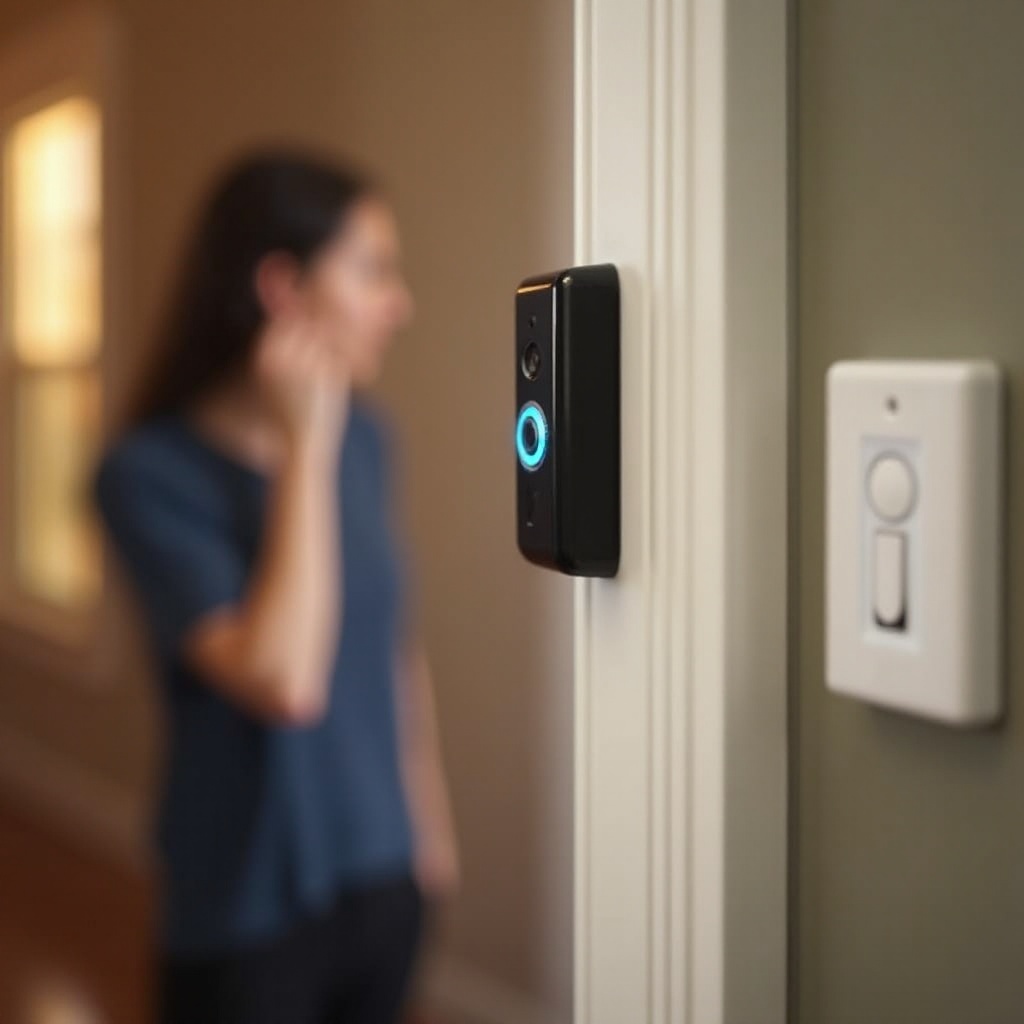
How a Vivint Doorbell Rings Inside Your Home
Vivint systems use several devices to turn a simple press of the doorbell button into an indoor chime or alert. Knowing these pieces helps you pinpoint where things might be going wrong and avoid guessing.
Components of a Vivint Doorbell System
A typical Vivint doorbell setup involves three main parts:
-
The Vivint doorbell camera
This device at your front door detects button presses and motion, and sends video and audio to the Vivint system.
-
The Vivint Smart Hub (panel)
This touchscreen panel connects your doorbell, sensors, and other smart devices into one system. It can also chime or notify you when someone presses the doorbell.
-
Indoor chime or speakers
Depending on your setup, this might be:
- A traditional wired chime box on the wall.
- The Vivint Smart Hub’s built‑in speaker.
- Additional wireless speakers or chime devices compatible with your system.
These components rely on power, Wi‑Fi or system connections, correct wiring, and proper configuration. A failure in any of these areas can lead to a Vivint doorbell not ringing inside.
Difference Between Indoor Chime and Phone Notifications
Many people get confused when the doorbell sends alerts to their phone but does not ring inside. Here is the key difference between the two types of alerts:
- Indoor chime
This is the sound you hear inside your home from the panel speaker or a chime box. It relies on:
- Correct chime settings in the app and panel.
- Proper wiring or internal panel connections.
-
Adequate power and transformer capacity (for wired chimes).
-
Phone notifications
These are push alerts on your smartphone. They rely on:
- The Vivint app running on your phone.
- Your account permissions and notification settings.
- Internet access and mobile data.
Because the signal paths are different, you can have phone alerts working while the indoor chime stays silent. Understanding these separate paths helps you narrow down the real source of the problem.
Now that you know how the system should work when things go well, the next step is to look at the most common reasons a Vivint doorbell is not ringing inside.
Most Common Reasons a Vivint Doorbell Is Not Ringing Inside
When a Vivint doorbell is not ringing inside, the issue usually falls into a few familiar categories. Knowing these categories helps you troubleshoot faster and avoid random trial and error.
Muted or Misconfigured Chime Settings
One of the most frequent causes is a simple settings mistake. Common examples include:
- The indoor chime option is toggled off in the Vivint app.
- The chime volume is set to a very low level.
- ‘Do Not Disturb’ or quiet hours are active on the panel or app.
- The main account changed settings that affect all users and devices.
Because app updates and profile changes happen often, settings can shift without you noticing. This is why a quick review of chime options should always be one of your first steps.
Power or Transformer Problems
A weak or failing transformer can make your chime unreliable or completely silent. Typical signs include:
- The chime clicks but does not fully ring.
- The doorbell works sometimes but not consistently, especially when pressed firmly.
- The transformer feels very hot, hums loudly, or looks discolored.
Smart doorbells draw more power than old push‑button models. If your transformer is undersized or failing, the indoor chime may stop working even though the camera still powers on and the app shows video.
Wiring, Connection, or Firmware Issues
The rest of the common causes involve the system’s connections and software:
- Loose or corroded wires at the doorbell, chime box, or transformer.
- Poor Wi‑Fi signal or intermittent internet near the front door.
- Software or firmware glitches in the doorbell, panel, or app.
- The doorbell is no longer properly synced with the Vivint Smart Hub.
These issues may develop over time as equipment ages, networks change, or firmware updates introduce unexpected bugs.
With the most likely causes in mind, you can now move through a clear step‑by‑step process. You will start with simple checks anyone can do, then move toward more advanced steps if needed.
Step 1 – Check Basic Power, Internet, and System Status
Before you dig into wiring and transformers, confirm that the basics are in good shape. Many ‘Vivint doorbell not ringing inside’ problems come from power or connectivity issues that you can fix in minutes.
Confirm the Vivint Panel Is Online and Active
Start with your Vivint Smart Hub:
- Look at the screen and status icons on the panel.
- Make sure it powers on without error messages or warnings.
- Check for any alerts about devices being offline, especially the doorbell camera.
If the panel shows the doorbell as offline, your issue likely comes from connectivity or power to the doorbell itself. If the panel seems frozen or unresponsive, restart it following Vivint’s instructions, then test the doorbell again.
Verify Wi‑Fi Signal Strength at the Doorbell
The doorbell needs a stable network to communicate with the system and cloud services:
- Open the Vivint app and find the doorbell device in the device list.
- Check the signal strength or online status if the app shows it.
- Stand near the door and check your phone’s Wi‑Fi quality as a rough guide.
If the signal is weak, you may see delays or failures in the system response. Improving Wi‑Fi coverage near the door can also improve chime reliability, especially when the system routes alerts through the cloud.
Make Sure Your Vivint Account and App Are Working
Account or app issues can sometimes look like doorbell problems:
- Log out of the Vivint app and log back in with the correct account.
- Confirm that you can view the live doorbell feed without errors.
- Try arming and disarming the system from the app to confirm control.
If the app cannot connect to your system at all, the problem is likely with your network or Vivint service, not the doorbell alone. Once you know your system and internet are stable, you can focus on the software settings that control the indoor chime.
Step 2 – Inspect Vivint App Chime and Notification Settings
With power and basic connectivity confirmed, it is time to check whether your Vivint doorbell is simply configured not to ring indoors. This is often the quickest fix when a Vivint doorbell is not ringing inside.
Ensure Indoor Chime Is Enabled in the App
Vivint allows you to customize how the system responds to a doorbell press. To check this:
- Open the Vivint app and select your doorbell camera from the device list.
- Go into the device settings or configuration menu for that doorbell.
- Look for options related to ‘chime’, ‘indoor chime’, or similar wording.
- Make sure the chime is enabled for doorbell presses.
If you recently changed settings, reset them to defaults and test the doorbell again to see if the chime returns.
Check Volume, Mute, and Do Not Disturb Options
Next, review sound levels and quiet modes:
- Confirm that chime or alert volume sliders are not set near zero.
- Check for any ‘Mute’ toggles specific to the doorbell or panel.
- Look for ‘Do Not Disturb’, ‘Quiet mode’, or night‑time scheduling that may silence sounds.
Ask others in your home if anyone recently changed notification or sound settings. A muted chime is easy to miss, especially if you rely on phone notifications most of the time.
Compare Settings Across Different User Profiles
Vivint lets multiple users connect to the same system. Each user can have different settings:
- If you are not the main account holder, ask them to review global chime settings.
- Compare your app notification and chime settings with theirs.
- Make sure no profile has set rules that turn off the chime during certain hours.
If the main account made changes, those changes can affect all devices and users. Once app and profile settings look correct, the next step is to confirm that the panel and indoor chime are also configured and behaving properly.
Step 3 – Review Indoor Chime and Panel Sound Settings
Your Vivint doorbell can use different devices to ring inside. You need to know which one your system uses so you can test it and adjust it correctly.
Identify Whether You Use a Wired Chime, Panel Chime, or Both
Walk around your home and check:
- Do you have a traditional chime box on a wall, usually near the front door or hallway?
- Does the Vivint Smart Hub usually play a chime when someone presses the doorbell?
- Did Vivint install any extra chime devices or speakers during setup?
If you are unsure, ask household members how the doorbell used to sound inside. Knowing your typical chime path helps you focus on the correct device during troubleshooting.
Confirm Panel Sound Modes and Quiet Hours
On the Vivint Smart Hub:
- Open the settings or system menu on the panel.
- Look for sound mode, volume, and chime preferences.
- Check if the panel is in a quiet or reduced‑volume mode, or if quiet hours are active.
Some systems let you silence the panel at night or at specific times. If your doorbell stopped ringing inside after you changed schedules or sound profiles, you may have unintentionally silenced the chime.
Test a Doorbell Press While Watching the Panel
Stand at the panel and have someone press the doorbell, or press it yourself and move quickly to the panel:
- Watch for visual indicators such as notifications, pop‑ups, or icons on the screen.
- Listen closely for any chime, even a faint one.
- Note whether the panel records a doorbell press event.
If you see the panel react but hear no sound, you may have a panel speaker or volume problem. If the panel shows nothing at all when you press the doorbell, the button press may not be reaching the system. That points toward hardware or wiring issues, which you will check in the next step.
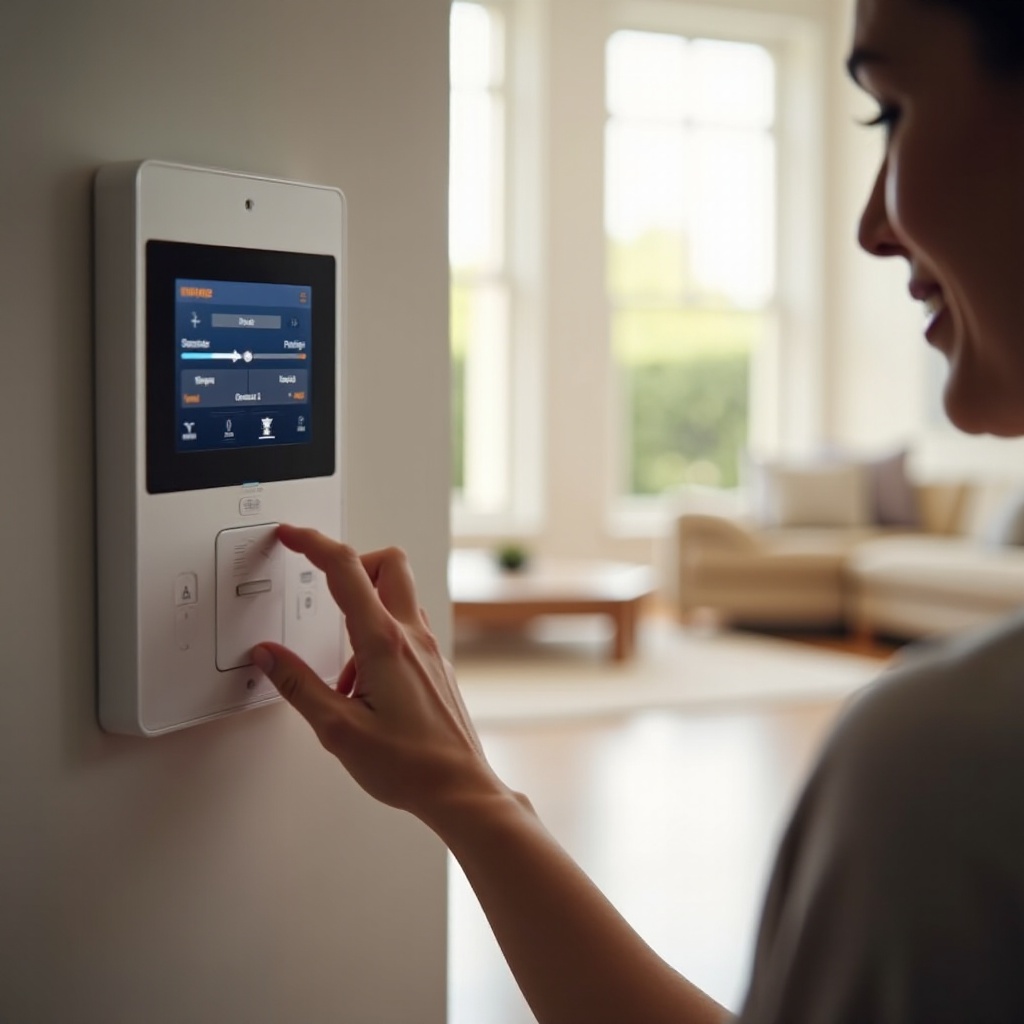
Step 4 – Test the Doorbell Hardware at the Front Door
Now that you have checked system settings and panel behavior, it is time to look closely at the doorbell device itself. This helps you decide whether the problem starts at the front door or later in the chain.
Press, Hold, and Observe LED and Camera Response
Walk to the doorbell and run a few simple tests:
- Press the button quickly and then press and hold it for a second or two.
- Watch for LED lights changing or flashing on the doorbell when you press.
- Check your phone for any instant notification or event.
If the LED lights up and the app records a press, the doorbell is detecting input. That suggests the problem is further along the signal path and not with the button itself.
Look for Physical Damage or a Stuck Button
Inspect the doorbell closely:
- Check for cracks, water damage, or signs of impact on the housing.
- Press around the edges of the button and make sure it moves freely and returns quickly.
- Clean any visible dirt or debris around the button that could block movement.
A sticky or damaged button can fail to register presses or only register them sometimes. If the button feels stuck, spongy, or does not move, you may need a replacement unit from Vivint.
Confirm Live View and Event History in the Vivint App
Open the Vivint app again:
- Start a live view from the doorbell camera and confirm video and audio work.
- Check the event history for recent doorbell presses and motion events.
- Compare what you see in the app with what you just tested at the door.
If you see events and live video but the doorbell still is not ringing inside, the problem is not with the basic function of the doorbell. It is more likely related to wiring, power delivery, or software, which you will examine next.
Step 5 – Check Wiring and Transformer (With Safety in Mind)
If everything above looks normal, you may be dealing with a wiring or power issue. These can stop an indoor chime while the camera still seems to work. Always prioritize safety when inspecting electrical components.
Turn Off Power Before Inspecting Any Wires
Before you touch any wires or open chime boxes:
- Turn off power to the doorbell circuit at the breaker panel.
- Double‑check that the doorbell no longer powers on or lights up.
- Use a non‑contact voltage tester if you have one and know how to use it.
If you do not feel comfortable working near electrical wiring, skip the hands‑on inspection and move directly to the section about calling a professional.
Inspect Doorbell and Chime Wiring for Loose or Damaged Connections
If you are comfortable continuing and the power is off:
- Remove the doorbell from its mounting plate to see the rear wiring clearly.
- Check that each wire is firmly connected to the proper terminal and not frayed or corroded.
- Open the indoor chime box cover and inspect the connections there as well.
Look for:
- Loose screws on terminals that allow wires to wiggle.
- Wires barely making contact or hanging free.
- Corrosion, rust, or discoloration on metal parts and terminals.
Tight, clean connections are essential for the chime to ring correctly. Do not over‑tighten screws, as this can break delicate wires. If anything looks unsafe or confusing, stop and call a professional.
Understand Transformer Requirements for Vivint Doorbells
The transformer steps down your home’s voltage to a level suitable for doorbells. Smart doorbells like Vivint often require a specific voltage and power range. If the transformer is too weak:
- The camera may still power on, but the chime might fail or sound weak.
- The chime may be very soft, incomplete, or intermittent.
- The system may behave differently when the button is pressed repeatedly.
If you know how to use a multimeter, you can measure the transformer’s output and compare it to Vivint’s recommended range for your model. If the reading is below the recommendation, or if the transformer is old, buzzing, or hot, contact an electrician or Vivint to discuss a compatible replacement.
Once you have ruled out obvious wiring and power problems or noted issues for a professional, you should also rule out software and connection glitches that can cause the same ‘Vivint doorbell not ringing inside’ symptom.
Step 6 – Fix Connectivity and Firmware Glitches
Sometimes the hardware is fine, but software or connection issues keep the chime from working as it should. These problems are common after network changes or updates.
Restart Router, Vivint Panel, and Doorbell in the Right Order
A simple restart sequence can clear many glitches:
- Restart your home router and wait until it is fully online and stable.
- Restart the Vivint Smart Hub according to Vivint’s instructions.
- Power‑cycle the doorbell, if possible, by removing it from power for a short time and then reconnecting.
After everything comes back online, test the doorbell again and see if the indoor chime returns. Watch for delays or missed events, which can signal ongoing network issues.
Check for and Apply Vivint Firmware Updates
Manufacturers release firmware updates to improve performance and fix bugs that can affect chime behavior:
- Open the Vivint app and check the doorbell and panel for any update prompts.
- If an update is available, follow the instructions to install it without interruption.
- Keep your mobile app updated through your device’s app store.
After updates, verify that your chime and notification settings did not reset or change. Run a test press and confirm that the system reacts normally.
Re‑Sync the Doorbell with the Panel if Needed
If the panel shows inconsistent status for the doorbell, or events do not appear correctly:
- Check in the panel’s device list to see if the doorbell is fully linked and online.
- If the status is ‘offline’ or shows an error, follow Vivint’s instructions to re‑sync the device.
- Confirm that the doorbell appears as an active device in both the app and the panel.
Once the doorbell and panel are clearly connected and stable, perform a test press. If the chime still does not work as expected, a deeper reset might be necessary.
Step 7 – Reset and Re‑Add the Vivint Doorbell (Advanced)
A factory reset removes configuration issues that might be blocking the indoor chime. Use this step carefully, as it requires a full setup afterward.
When a Factory Reset Makes Sense
Consider a reset if:
- You have tried all earlier steps with no success and the chime still does not ring inside.
- The app shows odd behavior or incomplete device information for the doorbell.
- The doorbell frequently goes offline without clear power or Wi‑Fi problems.
If you see these signs, a clean start can resolve stubborn software glitches that normal restarts do not fix.
How to Remove and Re‑Add the Doorbell in the Vivint App
Before you reset:
- Write down any custom settings or rules you want to reapply later.
- In the Vivint app, remove the doorbell from your device list if the app requires that step.
- Use the reset button or procedure described by Vivint for your specific doorbell model.
- Once the device resets, add it back to the system using the app’s guided setup flow.
Follow each prompt carefully, especially when the app asks about chime behavior and notification preferences. Make sure you enable any options related to indoor chimes during setup.
Retest Indoor Chime and Notifications After Setup
After re‑adding the doorbell:
- Confirm you can see live video and motion events in the app.
- Press the doorbell and listen for the indoor chime from the panel or chime box.
- Adjust chime volume and notification options until you get a clear, audible indoor ring.
If a full reset and reinstall do not restore an indoor ring, you are likely dealing with hardware damage or a power setup that needs professional attention rather than more DIY tweaking.
When to Call Vivint Support or an Electrician
Not every ‘Vivint doorbell not ringing inside’ problem should be solved with DIY work. At some point, professional help becomes the safest and most efficient option.
Signs of Hardware Failure or Unsafe Electrical Issues
Stop troubleshooting and seek help if you notice:
- Burning smells or scorch marks on the transformer, chime box, or wiring.
- Sparking, buzzing, or unusual heat from any doorbell component.
- No LED on the doorbell and no response, even after power and reset checks.
These signs suggest a serious issue that could damage your system or create safety risks. Do not continue to test or reset devices if you see or smell anything unusual.
Information to Gather Before Contacting Support
Before you call Vivint support or an electrician, collect:
- Your Vivint account information and doorbell model details.
- A list of troubleshooting steps you have already tried and what happened.
- Photos of the doorbell, chime box, transformer area, and any visible wiring.
This information helps the technician diagnose the issue faster and reduces repeated tests. It also proves that you have already ruled out the most common, simple causes.
What to Expect From Professional Troubleshooting
A professional may:
- Test voltage at the transformer, chime, and doorbell using proper tools.
- Inspect wiring with safe methods and identify hidden faults or shorts.
- Replace faulty hardware, such as the transformer, chime, or doorbell unit.
- Confirm that your setup matches Vivint’s power and wiring requirements.
After a professional resolves any underlying power or hardware issues, you can focus on keeping your system stable so the chime keeps working reliably.
Tips to Prevent Future ‘Not Ringing Inside’ Problems
After you fix a silent chime, a few simple habits can keep your Vivint doorbell ringing reliably inside your home. Prevention saves you time and avoids surprise issues later.
Schedule Quick Quarterly Chime and Notification Checks
Every few months:
- Press the doorbell and confirm the indoor chime and panel sound are clear and audible.
- Check the Vivint app to ensure doorbell press events appear correctly and quickly.
- Ask household members if anyone changed sound or notification settings recently.
This simple routine catches problems early, before you miss important visitors or deliveries.
Keep Wi‑Fi Strong and Equipment Updated
Strong connectivity and current software make your system more reliable:
- Use a good Wi‑Fi router and, if needed, a range extender near the front door.
- Keep the Vivint app, panel software, and doorbell firmware up to date.
- Restart network equipment occasionally to clear minor glitches.
Stable connections reduce delays, missed events, and other issues that can make it seem like the Vivint doorbell is not ringing inside even when the hardware is fine.
Avoid DIY Changes to Transformers Without Expertise
Transformers and wiring carry risk if handled incorrectly:
- Do not upgrade or move the transformer unless you are qualified and understand electrical safety.
- When in doubt, hire a licensed electrician or work directly with Vivint support.
- Keep documentation of any electrical changes made for future reference and troubleshooting.
Proper power and safe wiring are the backbone of a consistent indoor chime. Respecting those limits helps you avoid repeat issues with your Vivint doorbell not ringing inside.
Conclusion
A Vivint doorbell not ringing inside does not always mean you need new equipment. In many cases, the cause is something simple: a muted chime, a quiet mode on the panel, weak Wi‑Fi, or a minor software glitch. By starting with basic checks and moving through settings, hardware tests, wiring, and firmware, you can usually find the exact point of failure.
If you reach the limits of what feels safe or comfortable, do not hesitate to involve Vivint support or an electrician. Electrical safety and system reliability matter more than any DIY attempt. A few photos and a clear list of steps you already tried will help them help you faster.
Once your indoor chime works again, take a few minutes to set reminders for regular tests and keep your system updated. A handful of quick checks each year help ensure that when someone presses your Vivint doorbell, you always hear it ring inside your home and never miss an important knock at the door.
Frequently Asked Questions
Why does my Vivint doorbell send phone alerts but not ring inside?
Phone alerts and indoor chimes use different paths. Phone notifications rely on the Vivint app and internet, while the indoor chime depends on panel settings, wiring, and power. If your Vivint doorbell is not ringing inside but still sends alerts, review chime settings in the app, panel sound modes, and any wired chime or transformer issues first.
Can a bad transformer cause my Vivint doorbell not to ring inside?
Yes. A weak or failing transformer might still power the camera, so video works, but it may not deliver enough power for a consistent chime. The chime may click, sound weak, or stop working completely. If your transformer runs hot, hums loudly, or is very old, have an electrician or Vivint technician test and replace it with a compatible model.
What should I try before calling Vivint if my doorbell isn’t ringing indoors?
Before calling support, you should confirm the Vivint panel and Wi‑Fi are online, check chime and volume settings in the app and on the panel, test the doorbell button and live view, and inspect for obvious wiring issues only if you feel safe doing so. Then restart your router, panel, and doorbell, check for firmware updates, and run another chime test. If the doorbell still does not ring inside, contact Vivint or an electrician.