
Introduction
A TCL TV that won’t turn on can ruin movie night and cause instant stress. You press the power button, and nothing happens. Maybe a light blinks. Maybe you hear a click. Or maybe the screen stays black with no sign of life at all.
The good news: in many cases, the issue is simple and fixable at home. You may be dealing with a loose cable, a stuck software process, a confused input setting, or a remote that no longer sends a strong signal. Only a small portion of ‘tlc tv wont turn on’ problems end up being serious hardware failures.
This guide walks you step by step through the most effective fixes, from basic power checks to more advanced resets. The goal is to help you:
- Find out whether your TCL TV has a power, software, or display issue.
- Try safe fixes before spending money on repair.
- Know when it’s time to call TCL support or replace the TV.
Start with the first steps and move down the list. Each section builds on the last, so you can narrow down the cause logically and avoid guessing. Once the basic power path is clear, you can look more closely at the TV itself.
Step 1 – Basic Power Checks
Before you dive into advanced troubleshooting, confirm that your TCL TV actually receives power. Many ‘dead’ TVs come back to life after a simple outlet or strip check.
1. Verify the wall outlet and circuit
Plug another device into the same wall outlet, such as a phone charger or lamp. If that device does not work either, the problem might be:
- A tripped breaker on your electrical panel
- A faulty wall outlet
- A loose plug in the socket
Reset the breaker if needed and test again. If the outlet fails with multiple devices, use a different outlet on a different wall to rule out electrical issues.
2. Check power strips and surge protectors
If your TCL TV plugs into a power strip or surge protector:
- Make sure the strip’s power switch is on.
- Look for an indicator light on the strip that shows it is working.
- Reset the strip if it has a reset button or breaker.
Old or cheap surge protectors can fail quietly. They may look fine but no longer pass power. Try plugging the TV directly into a wall outlet so you know the TV sees full power.
3. Test the outlet with another device
To be certain, test the exact outlet you want to use with a known working device, such as:
- A small fan
- A laptop power adapter
- A phone charger
Once you know the outlet works, reconnect your TCL TV and move on. If the TV still shows no signs of life, continue to the next step. Now that you’ve ruled out household power issues, you can focus on the TV’s own hardware path.
Step 2 – Inspect the Power Cord and TV Connections
If the outlet is fine and your TCL TV still won’t turn on, focus on the physical connections at the back of the TV and the power cord itself. Loose or damaged cords are common and easy to miss.
1. Ensure the power cord is fully seated
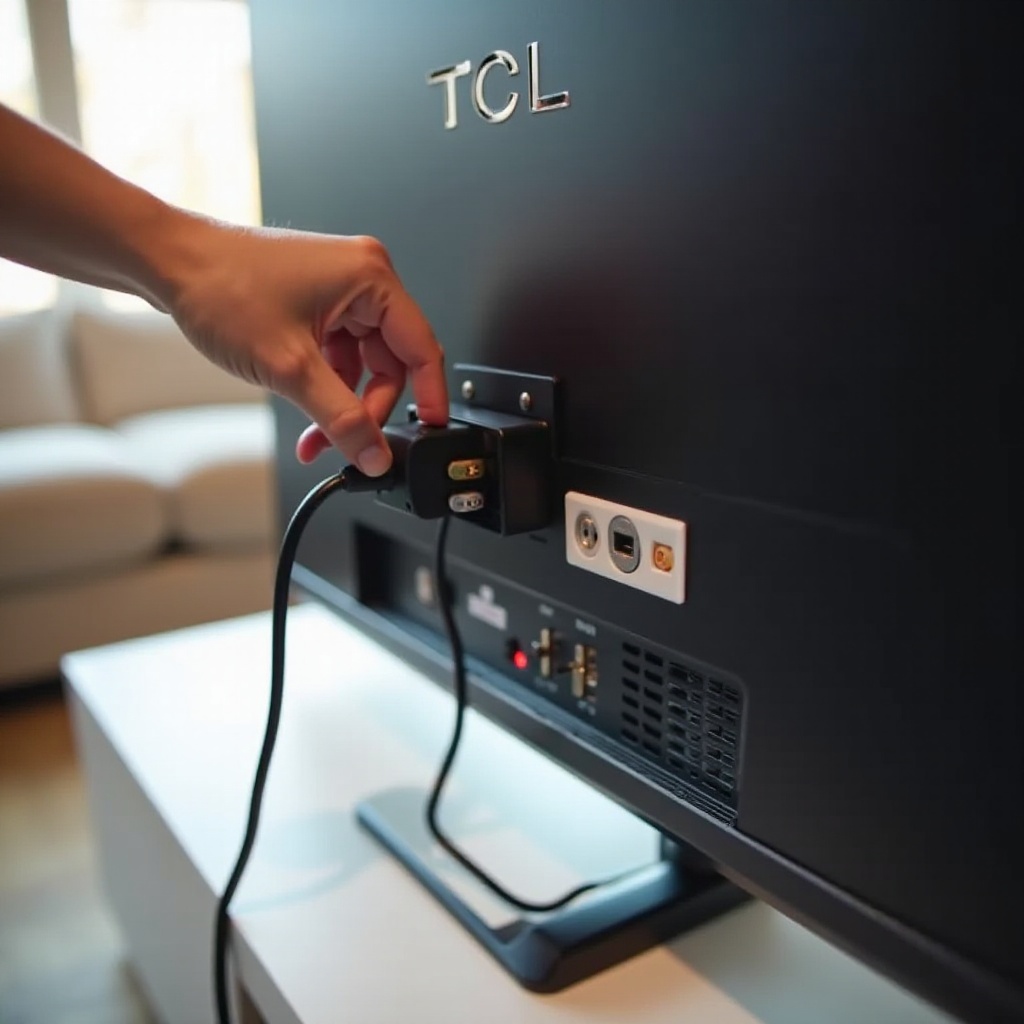
Most TCL TVs have a removable power cable that plugs into a socket on the back of the TV. Gently but firmly:
- Push the connector all the way into the TV’s power socket.
- Check that the plug in the wall is fully inserted and not hanging partway out.
Many users find that a TV ‘magically’ turns on once the connector is pushed in firmly.
2. Look for damage, fraying, or loose plugs
Inspect the entire length of the power cord:
- Look for cuts, exposed wires, or melted plastic.
- Check for bent prongs on the plug.
- Gently wiggle the cord where it meets the TV; if it feels loose or makes crackling sounds, stop using it.
Do not use a damaged cord. It can cause shocks, fires, or further damage to the TV.
3. Try a different compatible power cord
Many TCL TVs use a standard figure‑8 (C7) or PC‑style (C13) power cord. If you have another compatible cord from a monitor, computer, or device:
- Swap the cord and plug it into the TV.
- Test the power again.
If the TV starts working with a different cord, you have found the problem. Replace the faulty cord and keep the TV on a quality surge protector to prevent future issues.
Once you’ve confirmed that power cables and connections are solid, the next logical step is to clear out any residual power or software glitches that might keep your TCL TV stuck in a non‑responsive state.
Step 3 – Power Cycle Your TCL TV
Electronics can lock up just like phones and computers. A TCL TV that seems dead may simply be stuck in a bad state. A power cycle drains residual power and forces the TV to start fresh.
1. What a power cycle does and why it often works
When you turn a TV off with the remote, it stays in standby. Some circuits remain active. Over time, software or power management systems can hang. A hard power cycle:
- Clears temporary glitches.
- Forces all chips to reset.
- Refreshes internal circuits.
This simple step fixes many ‘tlc tv wont turn on’ complaints where the hardware is actually fine.
2. How to properly power cycle a TCL TV
Follow this exact sequence:
- Turn the TV off with the remote if it responds at all.
- Unplug the TV from the wall outlet.
- If your TV has a physical power button, press and hold it for 10–15 seconds to discharge residual power.
- Leave the TV unplugged for at least 60 seconds (2–3 minutes is even better).
- Plug the TV back into a known working wall outlet, ideally without a strip or surge protector for this test.
- Try turning the TV on using the physical power button on the TV, not the remote.
3. When to repeat the power cycle and when to move on
If nothing happens, repeat the power cycle once more, giving it a full 2–3 minutes unplugged. If the TV still shows no sign of life:
- You may have a deeper hardware or remote issue.
- Move on to checking the remote and power buttons.
You’ve now ruled out the most common power and standby glitches. The next step is to make sure your TV actually receives the command to power on, either from the remote or from its own buttons.
Step 4 – Check the Remote and Physical Power Button
Sometimes the TV itself is fine, but the remote fails to send the ‘power on’ signal. Testing the TV’s own power controls will show if the remote is the culprit.
1. Test the TV’s physical power button
Find the physical button on your TCL TV. It may be:
- Under the TCL logo.
- On the bottom edge or back of the set.
- On a small joystick‑style control under the bezel.
Press and hold the power button for a few seconds. If the TV turns on, the problem lies with the remote, not the TV.
2. Replace remote batteries and re‑pair smart remotes
Weak or dead batteries cause intermittent power issues. To rule this out:
- Remove the remote batteries.
- Press every button once to discharge any stored power.
- Insert fresh, high‑quality batteries.
- Point the remote directly at the TV’s IR sensor and press power.
For TCL Roku or TCL Google TV models with pairing, re‑pair the remote if needed following TCL or Roku on‑screen instructions.
3. Use the TCL/Roku/Google TV mobile app as a backup remote
If your TV connects to Wi‑Fi and has powered on before, you can often control it with:
- The Roku mobile app (for TCL Roku TV).
- Google TV / Android TV control apps (for TCL Google TV models).
If the TV responds to the app but not the remote, you’ve confirmed a remote problem. Replace or repair the remote while you keep using the app as a temporary solution.
If neither the physical button nor any remote can wake the TV, look at what the power light is telling you next. That small LED can point you toward either a simple standby issue or a deeper hardware fault.
Step 5 – Understand TCL TV Power Light Indicators
The small LED on the front of your TCL TV offers clues about what’s wrong. Pay attention to whether it’s off, solid, or blinking.
1. No light at all: possible power supply issues
If there is no light on the front of the TV:
- The TV may not receive power.
- The internal power supply board may have failed.
- The front LED itself might be broken (less common).
You’ve already checked the outlet and cord. A completely dark TV after those steps hints at a hardware issue, especially if it used to show a light.
2. Solid red or white light: standby vs fault condition
On many TCL TVs:
- A solid red or white light usually means the TV is in standby.
- Pressing the power button should turn off the light and turn on the screen.
If the light stays solid and the screen never turns on, the TV might:
- Fail to leave standby due to a software or main board issue.
- Be confused by a connected device via HDMI‑CEC.
You will address HDMI and CEC issues in the next step.
3. Blinking power light codes and what they mean
Some TCL models use blink patterns to signal errors. Count the blinks:
- Repeating patterns (for example, 2 blinks pause, 2 blinks) may indicate a specific fault.
- Check TCL’s support site or your manual for your model’s blink code meanings.
If you see a repeating blink code and basic steps don’t help, you may need support. Before you call, though, it’s smart to remove possible interference from HDMI devices and input settings that can make a working TV look dead.
Step 6 – Rule Out Input, HDMI, and CEC Problems
Sometimes your TCL TV actually turns on, but shows a black screen because it’s on the wrong input or stuck in an HDMI‑CEC loop with another device. These issues are especially common with multiple consoles, soundbars, and streaming boxes.
1. Confirm the correct input source
Press the INPUT or SOURCE button on your remote or TV, then:
- Cycle through HDMI1, HDMI2, AV, TV, and other inputs.
- Pause a few seconds on each to see if a picture appears.
If you see overlays, logos, or menus, your TV is on. It just wasn’t showing the device you expected.
2. Disconnect all HDMI devices and test again
HDMI devices like game consoles, streaming sticks, or soundbars can cause conflicts. To test:
- Turn off the TV.
- Unplug all HDMI and USB devices from the TV.
- Turn the TV back on with only power connected.
If the TV now starts up normally, one of your devices or cables caused the problem. Reconnect them one by one to find the culprit.
3. Disable HDMI‑CEC to avoid power conflicts
Features like HDMI‑CEC allow devices to control each other’s power (for example, a console turning the TV on). But they can also cause:
- The TV to power on and off unexpectedly.
- The TV to fail to wake if a linked device misbehaves.
Once the TV is on, go into Settings and:
- Look for CEC, HDMI‑CEC, or similar options.
- Disable them and test whether power behavior improves.
If you’ve ruled out input and HDMI issues but still see a black screen, you may be dealing with a backlight or display problem rather than a pure power issue. The next step helps you tell the difference.
Step 7 – Identify Backlight or ‘No Picture’ Problems
A TCL TV can turn on internally while the screen stays dark. In this case, it’s not that the TV won’t turn on; it’s that the picture never appears.
1. Check for sound or menu clicks with a black screen
Turn on the TV and:
- Press the volume buttons on the remote.
- Press the Home or Menu button several times.
If you hear clicks, startup sounds, or streaming audio, the TV is on and responding. The problem lies with the display, not the power.
2. Use the flashlight test to detect a faint image
To test for a bad backlight:
- Turn the TV on and wait 30–60 seconds.
- In a dark room, shine a bright flashlight at the screen from up close.
- Look carefully for faint images or menus in the light beam.
If you see a very dim image, the LCD panel works but the backlight is not. This is a common hardware failure in LED TVs.
3. Distinguish between backlight failure and main board issues
If you:
- Hear sound and see faint images with the flashlight, the backlight likely failed.
- Hear no sound, see no image, and the power light behaves oddly, the main board or power board may be faulty.
Backlight and board repairs require opening the TV and handling fragile components. Before you decide on repair, you should still try software‑level restarts and resets in case a firmware issue is preventing proper startup.
Step 8 – Restart, Update, and Reset Your TCL Smart TV
Software glitches on TCL Roku TV or TCL Google TV models can stop the TV from booting correctly or waking from standby. If you can get any kind of picture, even briefly, use these options to stabilize the system.
1. Soft restart from settings or remote commands
On many TCL Roku TVs, you can:
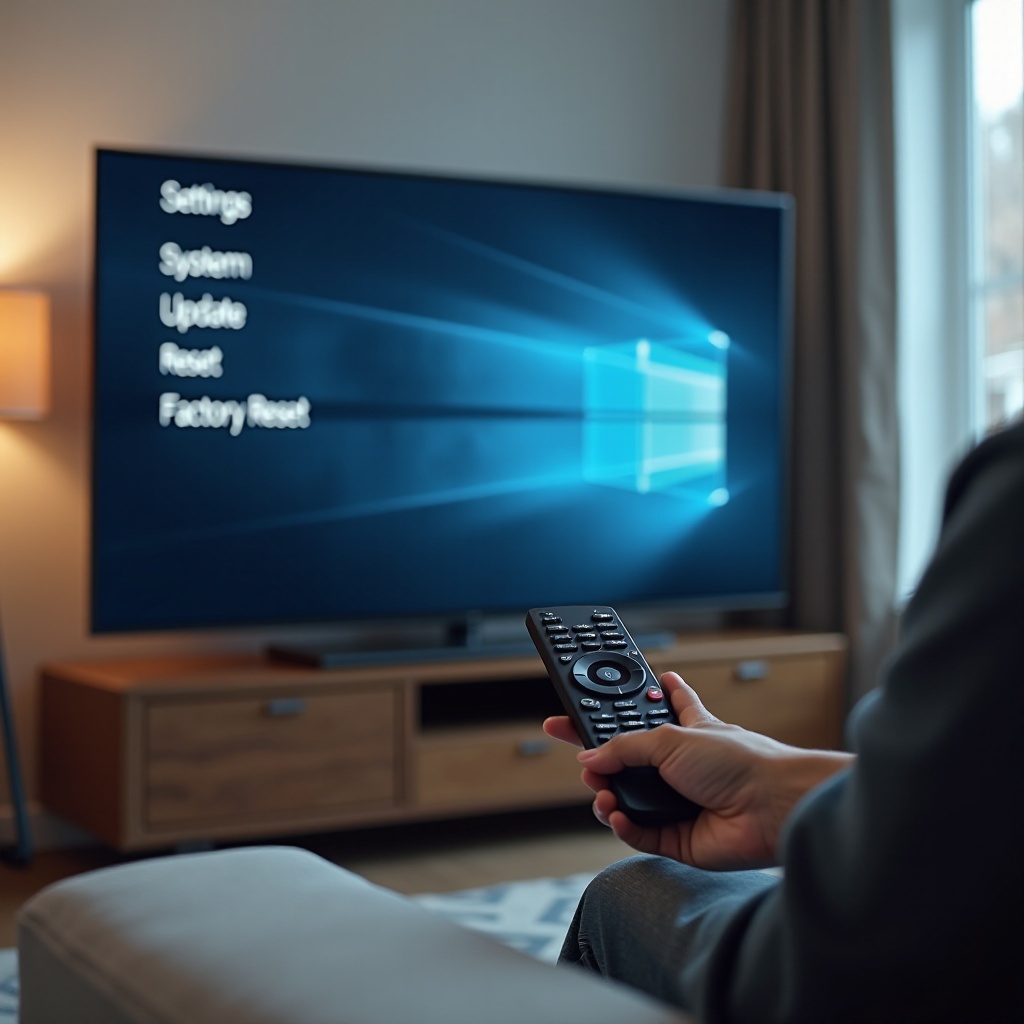
- Perform a system restart from Settings → System → Power → System restart.
- Use a specific remote key sequence to restart (check TCL or Roku support for your exact model).
On TCL Google TV models:
- Go to Settings → System → Restart to reboot the TV safely.
A soft restart clears memory without erasing your apps or settings.
2. Check for firmware updates after the TV powers on
Once the TV runs again:
- Connect it to a stable internet connection.
- On TCL Roku TV: go to Settings → System → System update → Check now.
- On TCL Google TV: go to Settings → System → About → System update.
Install any available updates. Firmware updates often fix power, sleep, and HDMI‑CEC bugs that may cause ‘tlc tv wont turn on’ symptoms.
3. Perform a factory reset using buttons or reset pinhole
If problems persist and you can’t rely on the TV:
- Try a factory reset.
- On many TCL models, there’s a small reset hole on the back or side.
To reset with the pinhole:
- With the TV powered on, insert a paper clip into the reset hole.
- Press and hold for about 10–15 seconds until the TV restarts.
- Follow the on‑screen setup process again.
Note: A factory reset erases your apps, Wi‑Fi settings, and customizations. Use it as a last resort before assuming a hardware failure.
If power, picture, and software steps have all failed, it’s time to weigh hardware repair against replacement and see what your TCL warranty can do for you.
Step 9 – Hardware Failures, Warranty, and Repair Options
After you’ve tried all the DIY steps, a persistent ‘TCL TV won’t turn on’ problem likely points to hardware.
1. Common hardware culprits: power board, T‑Con, and backlight
Technicians often see failure in:
- Power supply board: TV has no power or shuts off quickly.
- Main board: TV light comes on, but nothing else happens.
- T‑Con or panel: picture problems, sometimes blank screen.
- Backlight strips or inverter: sound but very dark or black picture.
These parts sit inside the TV and require careful disassembly to diagnose and replace.
2. When repair costs more than replacement
For many modern TCL TVs, especially budget models, repair costs can approach or exceed the price of a new TV. Consider:
- Age of the TV.
- Size and original price.
- Local labor rates for TV repair.
If your TV is several years old and needs major parts, upgrading may make more sense than repairing.
3. How to check warranty and contact TCL support
Before you decide:
- Find your TV’s model and serial number on the back label.
- Check your original receipt or retailer account for the purchase date.
- Visit TCL’s official support website and check warranty coverage.
If your TV is still under warranty, contact TCL support and:
- Explain that your TCL TV won’t turn on.
- Describe the power light behavior and what troubleshooting you already tried.
Support may offer repair, replacement, or credit depending on the situation and coverage. If the warranty has expired, you can ask for estimated repair costs and decide whether to proceed or buy new.
Once you have a plan for repair or replacement, it’s worth taking a moment to prevent the same problem from happening again with your current TV or a new one.
Step 10 – Preventing Future ‘TCL TV Won’t Turn On’ Issues
Once your TCL TV is working again—or you’ve replaced it—you can reduce the chance of power problems in the future with a few simple habits.
1. Use quality surge protection or a UPS
Protect your TV from power spikes and outages by:
- Using a reputable surge protector with a suitable joule rating for electronics.
- Considering a small UPS (uninterruptible power supply) if your area has frequent outages.
These devices help shield your TV’s power board from sudden surges that can cause failure.
2. Avoid frequent plug‑unplug power cycling
Constantly unplugging your TV to turn it off or move it can stress connectors and circuits. Instead:
- Use the remote or physical power button for everyday use.
- Reserve unplugging for storms, travel, or troubleshooting.
3. Keep the TV cool, clean, and well‑ventilated
Heat shortens the life of electronic components, especially backlights and power boards. To help your TV last longer:
- Leave space around the TV for airflow.
- Keep vents free of dust by gently cleaning them.
- Avoid placing the TV above hot fireplaces or in direct sun.
By caring for your TV and its environment, you lower the risk of seeing ‘tlc tv wont turn on’ issues again.
Conclusion
You now have a clear plan to deal with a TCL TV that won’t turn on. You started with simple power and outlet checks, then moved through power cycling, remote testing, LED indicator clues, HDMI and input issues, backlight tests, and software resets. Each step helped narrow the problem from quick fixes to potential hardware faults.
If your TV powered on again, take a moment to add protection with a good surge protector and keep its software updated. If it still refuses to start, check your warranty and contact TCL support to discuss repair or replacement options.
With this structured approach, you avoid random guessing, save time, and give yourself the best chance of bringing your TCL TV back to life without unnecessary cost.
Frequently Asked Questions
Why does my TCL TV have a red light but won’t turn on?
A solid red light usually means the TV is in standby. If the light stays on but the screen is black, try the physical power button, then power cycle the TV by unplugging it for a minute. Disconnect all HDMI devices and test again. If the red light starts blinking in a pattern, it may signal a hardware error, such as a power or main board failure. Check TCL support for blink code meanings and contact support if basic fixes do not work.
What should I do if my TCL Roku TV won’t turn on after a power outage?
After a power outage, unplug the TV from the wall and wait 2–3 minutes. Plug it into a known good outlet and try the physical power button. If it powers on, go to Settings → System → System update and install any pending updates. If there is no light or response, the surge may have damaged the power board. Test with a different outlet and cord, then contact TCL support or a repair shop if the TV remains unresponsive.
Is it worth repairing a TCL TV that won’t turn on, or should I buy a new one?
It depends on the TV’s age, size, and the repair cost. If the TV is still under warranty, repair or replacement through TCL is usually worthwhile. For a large, newer TCL TV with a minor issue, repair can make sense. For older or smaller budget models that need a power board, backlight, or main board, a new TV may cost only slightly more than repair. Get a repair quote and compare it to the price of a similar new TCL TV before deciding.