
Introduction
A TCL TV not showing picture can be frustrating, especially when sound still works or the power light is on. The good news: many black screen and ‘no picture’ issues come from simple problems you can fix yourself at home.
This guide walks through the most common causes of a TCL TV not showing picture and gives you practical, step-by-step solutions. You will learn how to:
- Confirm the TV is powered on correctly
- Check inputs, cables, and external devices
- Run quick tests to spot backlight or panel problems
- Adjust picture and power-saving settings
- Update software and perform a factory reset
- Decide when to contact TCL support or replace the TV
We will start with basic checks and move toward more advanced troubleshooting. Follow the steps in order. That way, you avoid wasting time and reduce the risk of damaging your television.
Step 1 – Confirm Your TCL TV Is Actually On
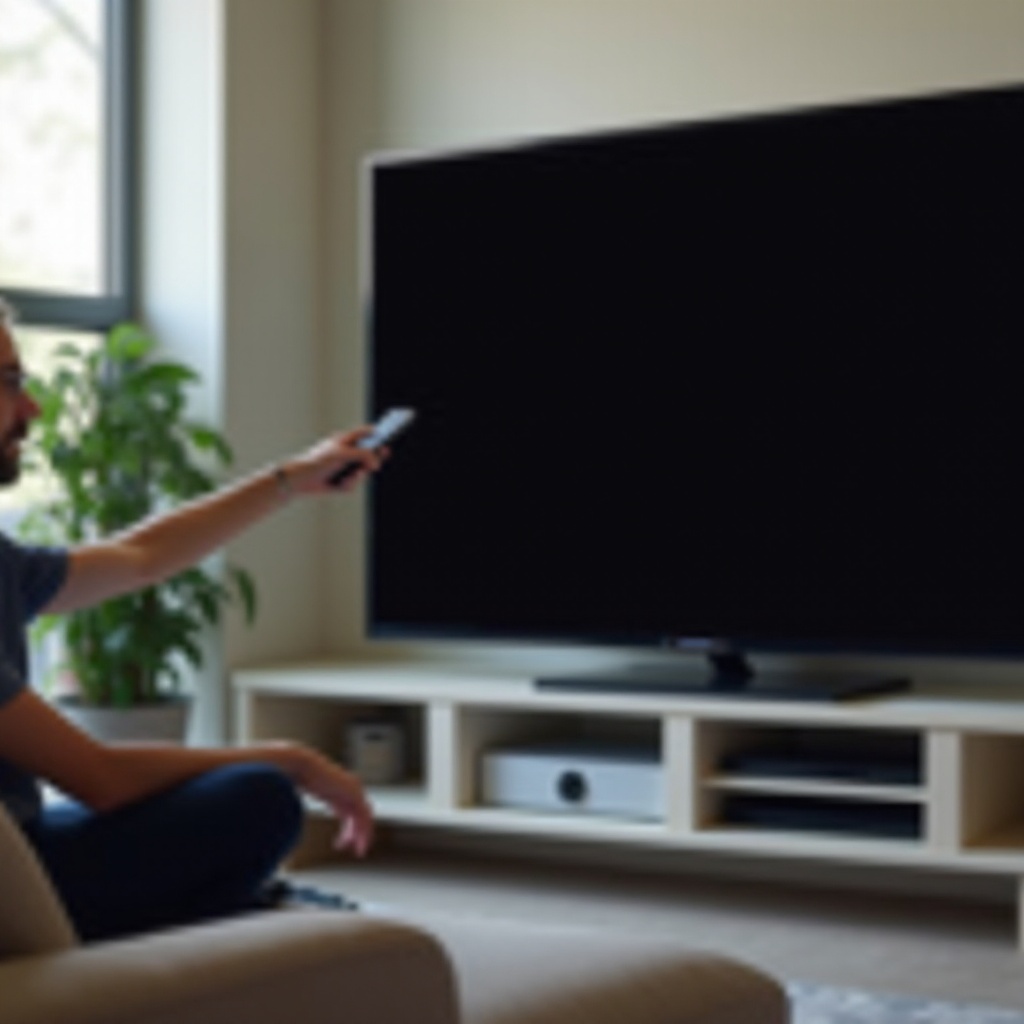
Before digging into settings or opening menus, make sure the TCL TV itself is turning on. A TV can appear dead when it is only stuck in standby or not getting proper power.
1. Check the power indicator light and standby status
Most TCL TVs have a small LED on the front or bottom bezel.
- If the light is solid or blinking, the TV usually has power.
- If the light stays off, the TV might not receive power or the LED has failed.
Try these checks:
- Confirm the power cord is firmly plugged into the TV and the wall outlet.
- Test a different outlet or power strip.
- If you use a surge protector, try bypassing it briefly to rule it out.
2. Test the physical power button on the TV
The remote could have dead batteries or be faulty. Find the physical power button on the TV itself (often under the logo or on the side or back) and press it.
- If the screen flashes, a menu appears, or the power light changes, the TV is turning on.
- If nothing happens, you might have a power or main board problem.
3. Listen for startup sounds or click noises
Even when you do not see a picture, the TV may still start up internally.
- Listen for relay clicks or a faint startup sound.
- Press Volume Up or Down. If you hear the volume bar sound, the TV is on but the picture is not showing.
If the TV shows signs of life, the next step is to check what the TV is trying to show. That means looking at sources and inputs to make sure the set is not simply on the wrong channel or HDMI port.
Step 2 – Make Sure It Is Not an Input or Source Problem
Many ‘TCL TV not showing picture’ complaints are actually input or source problems. The TV is fine, but the connected device or selected input is not.
1. Cycle through HDMI and AV inputs with the remote
Use the Input or Source button on your TCL remote.
- Slowly cycle through HDMI 1, HDMI 2, HDMI 3, AV, and TV.
- Pause a few seconds on each input to see if any picture appears.
If your cable box is on HDMI 1 but the TV sits on HDMI 2, you will see a black screen or ‘No Signal’.
2. Try a different device like a streaming stick or game console
To check whether the TV can show any picture at all:
- Connect a known-good device (Roku stick, Fire TV, Blu-ray player, or game console).
- Use a different HDMI port than your current one.
- Turn on the device first, then the TV, then select the correct HDMI input.
If you see a picture from the new device, the original source (cable box, console, or PC) may be the problem.
3. Look for ‘No Signal’ or on-screen error messages
If your TCL TV shows messages such as:
- ‘No Signal’
- ‘HDCP Error’
- A resolution or connection error
then your panel and backlight likely work, and the issue is more about the connection between the TV and the device.
Once you confirm that inputs and sources are set correctly, it is time to reset the TV’s power and clear any temporary glitches that a simple restart can fix.
Step 3 – Perform a Proper Power Cycle (Soft Reset)
A soft reset, or power cycle, clears temporary faults in the TV’s memory and power circuits. This simple step often fixes a TCL TV not showing picture after a power surge or software glitch.
1. Unplug the TV and wait long enough to discharge
Do a full power cycle:
- Turn the TV off with the remote or power button if possible.
- Unplug the power cord from the wall outlet.
- Wait at least 60 seconds; two to three minutes is better for stubborn issues.
- While unplugged, press and hold the TV’s physical power button for 10 to 15 seconds (if accessible). This helps discharge leftover power.
2. Disconnect all HDMI and USB devices
Unplug these items:
- HDMI devices (cable box, consoles, streaming sticks)
- USB drives or external hard drives
Sometimes a faulty external device prevents the TV from booting correctly or makes it freeze on a black screen.
3. Plug back in and power on in the correct order
After waiting:
- Plug the TV’s power cord back into the wall.
- Turn on the TV using the physical button.
- Once the TV is on, reconnect one device at a time.
- Select the appropriate input using the remote.
If the screen is still dark, you need to know whether the TV is failing to light the panel or failing to send an image. The flashlight test will help you separate backlight issues from deeper panel problems.
Step 4 – Use the Flashlight Test to Check the Screen and Backlight
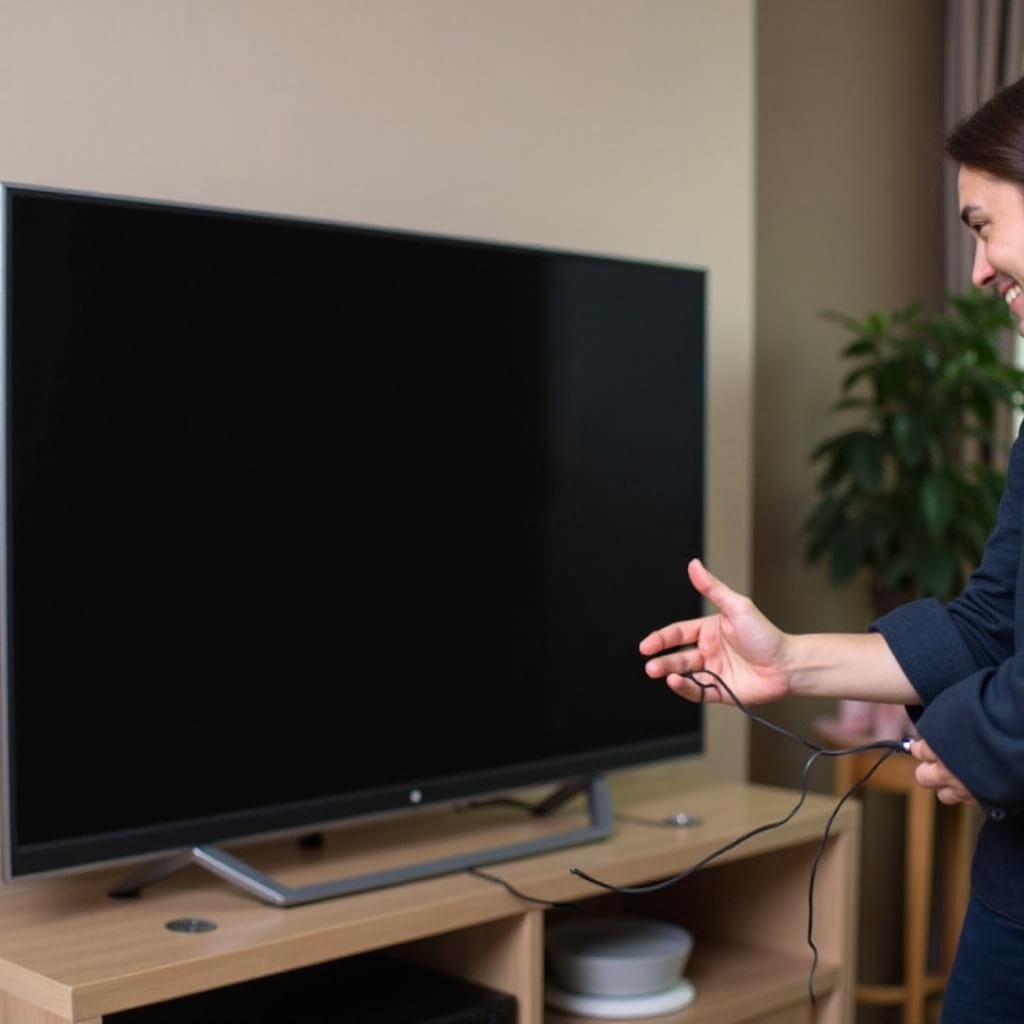
The flashlight test helps you figure out if your TCL TV not showing picture is due to a backlight failure or a more serious panel problem.
1. How to do the flashlight test safely
You will need a bright flashlight (your phone’s flashlight can work):
- Turn on the TV and give it at least one minute to boot.
- Make sure the room is dim or dark.
- Shine the flashlight at an angle very close to the screen.
- Look for faint images, menus, or movement where you expect the picture.
2. What a failed backlight usually looks and sounds like
If you see faint images or menus while shining the light, the LCD panel still works but the backlight is not.
Common signs of backlight issues include:
- The TV has sound but appears completely black in normal viewing.
- You can see shapes or menu outlines only under strong light.
- The problem started after a pop, flicker, or brief flash.
Backlight failure is a hardware problem. It usually needs a technician or panel work, and repair costs can be high relative to the TV’s value.
3. When a black screen indicates a panel problem instead
If you see nothing at all, even with the flashlight:
- The LCD or QLED panel may have failed.
- The T-Con or main board might not send a picture signal to the panel.
Panel failure is often not economical to repair. However, you should still rule out simple cable and device issues. That is why the next step is to closely inspect the physical connections to your TV.
Step 5 – Inspect Cables, Ports, and External Devices
Assuming the backlight works or you still have some on-screen messages, the next common cause of a TCL TV not showing picture is faulty cables or ports.
1. Swap HDMI cables and try each HDMI port
HDMI cables can fail without visible damage. To test:
- Use a different HDMI cable you know works with another TV or device.
- Plug into each HDMI port on the TCL TV in turn.
- Note any port that does not work even with a good device and cable.
If only one HDMI port fails, the port itself may be damaged. You can use another port as a workaround.
2. Test with a known-good device and cable
Try this setup:
- Use a device that you know works on another TV (for example, a streaming stick).
- Use a known-good HDMI cable.
- Connect the device to your TCL TV and select the correct input.
If this combination still does not show a picture, the issue is likely in the TV’s hardware, software, or settings.
3. Fix loose or damaged connectors that can kill the picture
Check for:
- Loose HDMI plugs that wobble in the port.
- Bent pins or cracked connectors.
- Excessive tension on cables from wall mounts or tight spaces.
Secure connections and reduce cable strain. If the TV shows a picture only when you hold the cable in a certain way, the port or cable is likely damaged and needs replacement.
Once you are confident that inputs and cables are not the main issue, it makes sense to look at how the TV itself is set to display the picture. Picture modes and power-saving features can make a working TV appear to have a dead screen.
Step 6 – Reset Picture and Power Saving Settings
Sometimes the TCL TV not showing picture issue comes from extreme settings that dim the screen or turn it off during use. Misconfigured picture modes or power saving features can mimic a black screen failure.
1. Restore default picture mode and brightness
If you can still see the menu:
- Press the Home or Settings button on your remote.
- Go to Picture or Display settings.
- Switch to a standard mode like Normal, Standard, or Movie.
- Increase Brightness and Backlight to mid-range or higher.
If brightness or backlight are set near zero, the screen can look black even though the TV works.
2. Turn off energy saving, eco mode, and screen dimming features
Look for options such as:
- Energy Saving
- Eco Mode
- Power Saving
- Dynamic Backlight
- Ambient Light Sensor
Turn these off or set them to minimum effect. Over-aggressive eco settings can darken or turn off the screen to save power.
3. Disable ambient or idle modes that can darken the screen
Some TCL TVs have features like screen savers or ambient modes:
- Turn off long idle screen savers that show a black screen.
- Reduce the time before the TV auto-dims or sleeps.
If you have tested picture and power settings and the problem continues, the next step is to look at the software platform your TCL TV runs. Different platforms have specific display and HDMI options that can cause or fix no-picture issues.
Step 7 – Platform-Specific Fixes (Roku, Google TV, Android TV)
Different TCL platforms have unique quirks. Tailoring your troubleshooting to the platform often resolves a TCL TV not showing picture more quickly.
1. Solutions for TCL Roku TVs with sound but no picture
On TCL Roku TV:
- Try a system restart:
- Press Home on the remote.
- Go to Settings > System > Power > System restart.
- If menus are visible but content is not, reset the display type:
- Go to Settings > Display type.
- Manually choose 1080p or 4K instead of ‘Auto detect’.
If streaming apps launch to a black screen while menus still show, uninstall and reinstall that app, then restart the TV. For stubborn freezes, a full system restart and update usually help.
2. Fixing TCL Google TV and Android TV display issues
On TCL Google TV or Android TV:
- Open Settings > Display & Sound or a similar menu.
- Set resolution to a safe option your device supports, such as 1080p or standard 4K.
- Turn off advanced video features like motion smoothing or local contrast if the screen flickers or cuts out.
Also, check HDMI settings:
- Disable ‘HDMI Ultra HD Deep Color’ or similar options if a specific device causes a black screen.
- Switch HDR settings off as a test, then back on if the connection is stable.
3. Adjusting display type, resolution, and HDMI-CEC settings
On any platform:
- Turn off HDMI-CEC temporarily (called ‘1-Touch Play’, ‘CEC’, or ‘Control other devices’ depending on model).
- Power on devices manually and select inputs yourself instead of relying on automatic switching.
If platform-specific tweaks do not restore the picture, it is time to address the TV’s software as a whole. Updating the firmware and using a factory reset can clear deep glitches that settings alone cannot fix.
Step 8 – Update Software and Try a Factory Reset
Software glitches can leave your TCL TV stuck on a black screen, especially after updates, app crashes, or power outages. Updating and resetting the software often clears persistent issues.
1. Check for the latest TCL firmware or OS update
If you can reach the settings menu:
- Connect the TV to the internet via Wi-Fi or Ethernet.
- On Roku: go to Settings > System > System update > Check now.
- On Google or Android TV: go to Settings > System > About > System update or a similar path.
- Install any available update and let the TV restart.
After the update, test your picture again on multiple inputs.
2. Restart the TV from software menus before resetting
A software restart is softer than a factory reset but deeper than a simple power cycle:
- On Roku: Settings > System > Power > System restart.
- On Google or Android TV: Settings > System > Restart.
This clears many temporary bugs without wiping your apps and settings.
3. Factory reset steps when you can and cannot see the menu
If nothing else works, you can try a factory reset.
From the menu, when you still have vision:
- Roku: Settings > System > Advanced system settings > Factory reset.
- Google or Android TV: Settings > System > Reset or Device Preferences > Reset.
If you cannot see the menu:
- Look for a small reset button near the ports on the back of the TV.
- With the TV on, press and hold the reset button (often 10 to 20 seconds) until the TV restarts.
A factory reset erases your Wi-Fi, accounts, and app data, but it can fix stubborn software-related no-picture issues.
If the TV still shows no picture after resets and updates, you are likely facing a hardware problem that will not resolve on its own.
Step 9 – Recognize Serious Hardware Problems
When all basic troubleshooting fails, the TCL TV not showing picture is probably caused by a failing internal component.
1. Signs of backlight strip or power board failure
Backlight or power board issues often show as:
- The screen goes black but sound continues.
- The screen lights up only for a second before going dark.
- The TV cycles on and off repeatedly without showing an image.
A technician can test voltages and confirm if the power board or LED strips have failed. These repairs may be possible, but costs vary and can approach the price of a new TV.
2. Symptoms of a bad main board or T-Con board
The main board and T-Con board control image processing and panel drive. Symptoms include:
- Random lines, half-screen images, or colored blocks.
- Picture appears briefly and then disappears.
- HDMI inputs all fail, but the TV’s menus may still show.
These components can sometimes be replaced, but parts availability and labor make repairs hit-or-miss financially.
3. When a cracked or damaged panel cannot be repaired
If you see:
- Visible cracks on the screen.
- ‘Ink-like’ blotches or spiderweb patterns.
- Areas that remain black while other parts show image.
then the LCD or QLED panel itself is damaged. Panel replacement is usually more expensive than buying a new TCL TV of similar size, so replacement is often the better choice.
At this point, you need to consider warranties, support options, and whether repair or replacement makes more sense for your budget and viewing needs.
Step 10 – Warranty, Support, and When to Replace Your TCL TV
Once you suspect a hardware failure, check your coverage and support options before deciding what to do next.
1. Find your model, serial number, and purchase proof
Look for:
- The model and serial number on a label at the back or side of the TV.
- The purchase receipt or invoice, either printed or in your email.
You will need this information when you contact TCL or the retailer.
2. Contacting TCL support and describing the issue clearly
When you contact TCL support:
- Describe the symptoms: for example, ‘TCL TV not showing picture but has sound’ or ‘Backlight flashes for one second then goes black’.
- List the steps you already tried, such as power cycle, different cables, factory reset, and software update.
- Provide the model, serial, and purchase date.
Clear details help support agents diagnose faster and approve warranty service if you qualify.
3. Deciding between repair, warranty claim, or new TV
Consider:
- Whether the TV is still under manufacturer or extended warranty.
- What the repair estimate costs compared to a new TV.
- How old the TV is and whether it meets your current needs.
If repairs cost more than about half of a comparable new TCL TV, replacement is usually the more sensible option. If a low-cost component like a power board can be replaced cheaply, repair may be worth it.
Even if you decide to replace the TV, you can still avoid the same issue in the future. A few simple habits will help protect your next set from power damage and physical stress.
Prevention Tips to Avoid Future ‘No Picture’ Issues
Preventive care can keep your TCL TV running longer and reduce the risk of another TCL TV not showing picture situation.
1. Use surge protection and stable power sources
- Plug your TV into a quality surge protector.
- In areas with unstable power, consider a UPS (uninterruptible power supply).
- Avoid plugging the TV into overloaded power strips.
Power spikes and outages can damage backlights, power boards, and logic boards.
2. Provide good ventilation and avoid overheating
To protect internal components:
- Leave several inches of space around the TV for airflow.
- Keep vents and grilles free of dust.
- Do not place the TV near heaters or in direct sunlight.
Overheating shortens component life and can cause intermittent black screens.
3. Handle, mount, and clean the screen safely
- Use proper wall mounts rated for your TV size and weight.
- Avoid pressing on the screen or twisting the frame when moving the TV.
- Clean with a soft microfiber cloth and gentle pressure; avoid harsh chemicals or paper towels.
Careful handling reduces the chance of panel cracks or internal damage that lead to permanent no-picture issues.
Conclusion
A TCL TV not showing picture does not always mean the TV is finished. By working through simple checks first – power, inputs, cables, settings, and software – you can often restore the picture without tools or technical skills.
If the flashlight test or other steps point to backlight, board, or panel failure, it is time to weigh repair against replacement and to check your warranty options. Document your symptoms and the fixes you have tried, then share that information with TCL support or a trusted technician.
Use the prevention tips to protect your next TV or your repaired set. With the right setup and care, you can enjoy a stable, bright picture and avoid future black screen surprises.
Frequently Asked Questions
Why does my TCL TV have sound but no picture?
When a TCL TV has sound but no picture, the most common causes are a failed LED backlight, loose or faulty HDMI cables, the wrong input selected, or a software glitch. Start with a power cycle, check that the correct input is selected, try a different HDMI cable and device, and use the flashlight test. If you see faint images under a flashlight, the backlight has likely failed and needs repair.
Can I fix a TCL TV backlight issue myself?
You can fix a TCL TV backlight issue yourself only if you are comfortable working with electronics and understand the risks. Backlight repair involves removing the back cover, disconnecting delicate ribbon cables, and replacing LED strips or the power board. A mistake can crack the panel or damage boards. For most people, professional repair or replacing the TV is safer and often more cost-effective.
When is it better to replace a TCL TV instead of repairing it?
It is better to replace a TCL TV when it is out of warranty, the panel is cracked, or the repair quote is high compared to a new TV. If the cost of parts and labor approaches half or more of the price of a similar new TCL model, replacement is usually the smarter choice. Low-cost fixes like a simple power board swap can be worth it, but major panel or backlight work often is not.