
Introduction
Sound that keeps cutting in and out on a Vizio TV ruins any movie night or game session. One moment the dialogue is clear, the next moment the audio drops for a second or disappears altogether. If the sound goes in and out on your Vizio TV, you are not alone, and in most cases, the problem is fixable at home.
Intermittent audio usually comes from a handful of causes: loose or failing HDMI cables, wrong audio settings on the TV or external devices, buggy streaming apps, or outdated firmware. Less often, the TV, soundbar, or receiver has a hardware fault that needs repair.
This guide walks you through a logical, step-by-step troubleshooting process. You start with simple checks, move on to audio settings and external devices, then handle firmware, resets, and hardware concerns. Follow the steps in order, and you can usually find and fix the cause without guesswork.
Common Reasons Vizio TV Sound Goes In and Out
Before you dive into settings and cables, it helps to understand what typically causes intermittent sound on a Vizio TV. When you know the common triggers, you can make better decisions about where to start and which areas deserve the most attention.
Typical Symptoms of Intermittent Audio on Vizio TVs
You might notice one or more of these symptoms:
- Audio drops for a second and comes back several times an hour.
- Sound cuts out only on certain channels, streaming apps, or HDMI inputs.
- Volume suddenly dips or jumps, then returns to normal.
- Sound cuts out when you change channels, switch apps, or pause and resume content.
- Audio disappears when you power on a soundbar or receiver and returns when you switch back to TV speakers.
These patterns often reveal whether the problem lies with the TV itself, a specific app, or an external device such as a soundbar, receiver, or console.
Most Likely Causes: Settings, Cables, Firmware, and Sources
Most ‘sound goes in and out on Vizio TV’ issues come down to four areas:
- Audio settings on the TV or connected devices using formats that your soundbar, receiver, or TV struggles to handle.
- Cable problems, especially HDMI or optical cables that are damaged, loose, or low quality.
- Firmware or software bugs in the TV's operating system or streaming apps.
- Source issues, where cable boxes, consoles, or apps send unstable or unsupported audio formats.
Each of these causes has clear tests and fixes, which you'll see in the steps below.
How to Quickly Decide if It's a TV, App, or Device Issue
You can narrow down the cause with three quick checks:
- Test multiple sources: Try a live TV channel, then a streaming app, then a game console or Blu-ray player.
- Switch audio outputs: Use the TV's internal speakers, then test with a soundbar or receiver if you have one.
- Change HDMI inputs: Move your device to another HDMI port and see if the problem follows the device or stays with the port.
If the sound goes in and out on every source and every speaker option, the TV itself is the most likely culprit. If it happens only on one app or device, you can focus your fixes there and avoid changing settings that are already working elsewhere.
With a clear picture of possible causes, you can now start with the simplest and fastest checks: basic audio controls and settings.
Step 1 – Check Basic Audio Controls and Settings
Many intermittent audio problems come from simple issues that are easy to overlook. Before you dig into advanced settings or consider hardware faults, confirm that the basics are correct. This saves time and sometimes fixes the problem instantly.
Confirm Volume, Mute, and Input Selection
Start with these checks:
- Volume levels
- Make sure the TV volume is set to a normal level, not very low.
- If you use a soundbar or receiver, check their volume separately.
- Mute status
- Press the mute button on the Vizio remote to toggle mute off.
- If you use a cable box or streaming device remote, check mute there too.
- Correct input
- Press the Input or Source button and confirm the TV is on the right HDMI or TV input.
- Wrong input can sometimes show video from one source and audio from another device if CEC is active.
These steps seem basic, but small mistakes here can mimic intermittent audio issues and cause you to chase more complex problems unnecessarily.
Test Different Channels and Apps for Consistency
Next, see how widespread the problem is:
- Switch between several broadcast channels (if you use antenna or cable).
- Open two or three streaming apps like Netflix, Hulu, or YouTube.
- Play a short clip or trailer in each app and listen for drops.
If sound goes in and out only on one app or one channel, the issue is likely with that source or app, not the TV itself. If it happens everywhere, continue to the next steps and treat it as a system-wide issue.
Disable Any Headphone or Bluetooth Audio Outputs
Some Vizio TVs and connected devices can send audio to:
- Bluetooth headphones or speakers
- Wired headphones plugged into a jack
- External audio outputs set as default
Check that:
- No wired headphones are connected to the TV or devices.
- Bluetooth devices are disconnected or turned off if you don't intend to use them.
- Audio output in the TV menu is set to 'TV Speakers' (for testing) or the correct speaker option.
Once you know basic settings are correct and the problem is not isolated to one app or channel, it's time to inspect the physical connections that carry sound to and from your TV.
Step 2 – Inspect HDMI and Audio Cable Connections
Cables are a very common source of intermittent audio. A cable may look fine but still have internal damage, a poor fit, or interference that causes sound to drop out. This step helps you rule out or confirm a simple yet critical cause.
Reseat and Secure HDMI, Optical, and RCA Cables
Start by reseating each connection:
- Turn the TV and all connected devices off and unplug them from power.
- Gently unplug each HDMI, optical (Toslink), or RCA audio cable from both ends.
- Plug each cable back in firmly until you feel or hear a click.
- Power everything back on and test again.
A slightly loose HDMI connection can break the audio signal for a split second, which feels like random sound drops while watching a show or playing a game.
Look for Damaged or Low-Quality Cables
Inspect your cables for:
- Bent or broken HDMI pins on the connector.
- Frayed, crushed, or kinked outer jackets.
- Very thin, unbranded, or very old HDMI cables that may not handle modern signals well.
If you suspect a cable, replace it with:
- A High Speed or Ultra High Speed HDMI cable from a reputable brand.
- A new optical cable if you use Toslink for audio.
Use shorter cables when possible and avoid tight bends, sharp angles, or pressure on the connectors. Stable physical connections reduce a lot of intermittent issues.
Try Different HDMI Ports on Your Vizio TV
Sometimes a single HDMI port develops a hardware fault. To test this:
- Move the device's HDMI cable from, for example, HDMI 1 to HDMI 2.
- Change the TV input to match the new port.
- Test the same content and watch for drops.
If audio is stable on another port, the original HDMI port may be failing. You can avoid that port as a workaround or plan for a repair if you need every port.
After you confirm that cables and ports are not the main issue, the next logical step is to review how the TV processes and outputs audio through its internal settings.
Step 3 – Optimize Vizio TV Audio Settings for Stable Sound
Even with good cables, incorrect or aggressive audio settings can cause sound to cut in and out, especially when using surround sound formats or external speakers. By simplifying and standardizing these settings, you reduce the chance of compatibility problems.
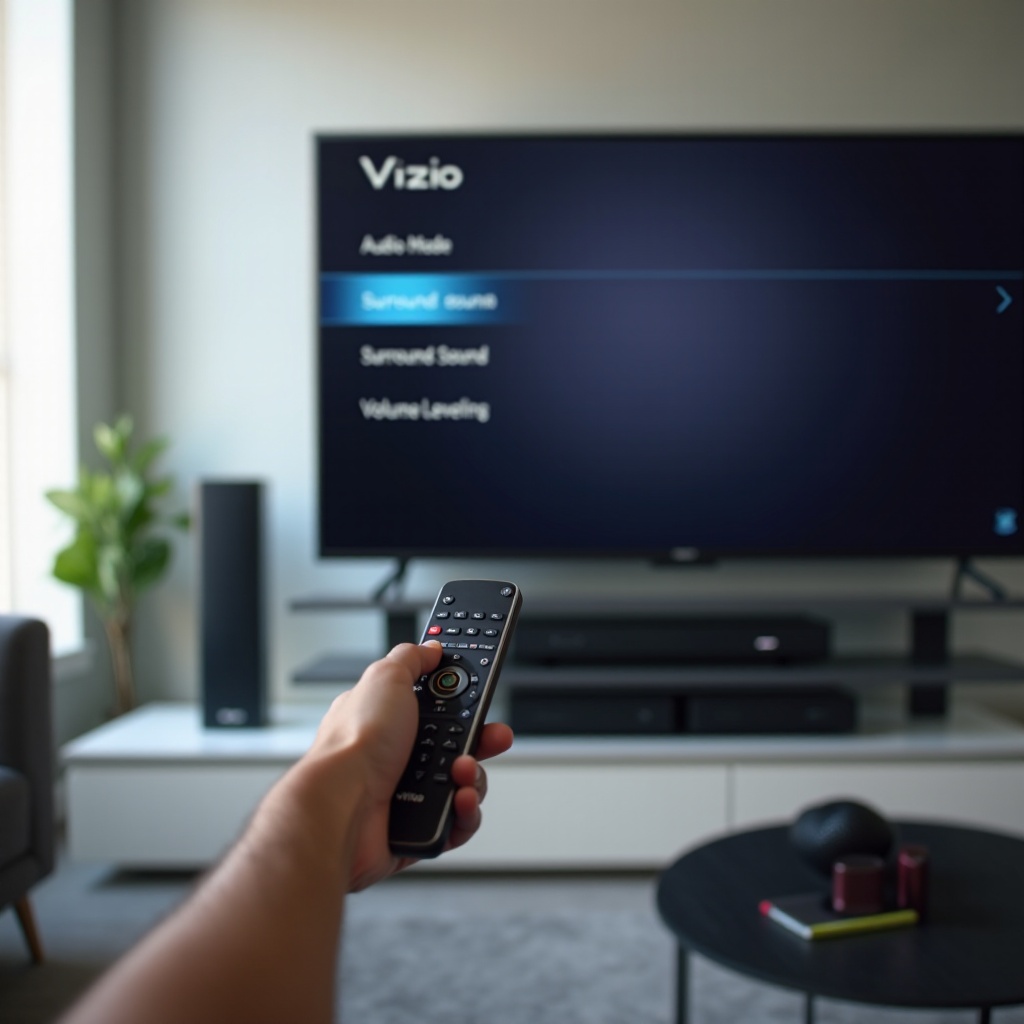
Turn Off Surround Sound and Advanced Audio Effects
Extra processing features can sometimes create instability or glitches. On your Vizio TV:
- Open Menu or Settings on the remote.
- Go to Audio or Sound.
- Look for options such as:
- Surround Sound
- TruVolume
- SRS or similar enhancement features
- Turn these options off one by one and test after each change.
Disabling these effects simplifies the audio path and often stops dropouts that appear only during loud scenes or complex sound effects.
Switch Digital Audio Out from Bitstream to PCM
Many soundbars and older receivers handle PCM more reliably than certain Bitstream formats like Dolby or DTS. To change this:
- Go to Settings > Audio on your Vizio TV.
- Find Digital Audio Out, Audio Format, or a similar option.
- Change the setting from Bitstream, Auto, Dolby Digital, or Dolby Digital Plus to PCM.
- Test the TV with the same content you used before.
If the sound stabilizes, the original format was causing compatibility issues with your soundbar, receiver, or even the TV's own speakers.
Reset Audio Settings to Factory Defaults
If you have changed many settings and can't remember what they were, a reset helps you start fresh:
- Open Settings > Audio.
- Look for Reset Audio Settings or Restore Defaults.
- Confirm the reset.
- Test again with both TV speakers and any external audio device.
If sound still goes in and out after these changes, and especially if you use a soundbar or receiver, the next step is to focus on how your Vizio TV interacts with external audio equipment.
Step 4 – Fix Sound Cutting In and Out with Soundbars and Receivers
When you route TV audio through a soundbar or AV receiver, another layer of complexity enters the picture. ARC/eARC, CEC, and different audio decoding capabilities can all affect sound stability. Adjusting these settings often solves dropouts that appear only when external speakers are in use.
ARC/eARC and CEC Settings That Affect Audio Stability
Vizio TVs often use:
- ARC/eARC (Audio Return Channel) to send TV sound back over HDMI to a soundbar or receiver.
- CEC (Consumer Electronics Control) to let devices control each other's power and volume.
To troubleshoot these features:
- Make sure the HDMI cable from the soundbar or receiver is plugged into the TV's ARC/eARC HDMI port.
- In the TV settings, confirm ARC/eARC is enabled if available.
- Try disabling CEC (often called CEC, HDMI-CEC, or CEC Control) temporarily.
- Test audio again with CEC off.
CEC can sometimes cause the TV and soundbar to compete for control, which leads to audio dropouts when devices power on, switch inputs, or wake from standby.
Recommended TV Settings When Using a Soundbar
For a stable soundbar setup, use a simple and consistent configuration:
- Set Speakers to External, ARC, or the equivalent instead of TV speakers.
- Set Digital Audio Out to PCM if you experience dropouts with Dolby formats.
- Turn off surround sound and enhancement features on the TV and let the soundbar handle processing.
This reduces complexity and gives the soundbar a clean, stable signal that it can decode without interruption.
Test TV Speakers vs. External Audio to Isolate the Problem
To confirm whether the soundbar or receiver is the problem:
- Disconnect the soundbar or receiver HDMI or optical cable from the TV.
- Set the TV to use TV Speakers in the audio settings.
- Test several channels and apps for at least a few minutes each.
If sound is stable on TV speakers but cuts out when you reconnect the soundbar or receiver, focus your fixes on that external device or its cable. If the problem persists even on TV speakers, the issue lies with the TV or one of the source devices.
Once you understand how the TV behaves with and without external speakers, you are ready to dig into specific source devices such as streaming apps, cable boxes, and game consoles that often introduce their own audio quirks.
Step 5 – Streaming Apps, Cable Boxes, and Gaming Consoles
Many users notice that sound goes in and out on a Vizio TV only on streaming apps, only with a cable box, or only while gaming. Each source type has its own audio settings that can cause trouble, even when the TV and cables are fine.
Sound Drops Only in Streaming Apps like Netflix or Hulu
If audio issues show up only in streaming apps and not on live TV or discs:
- Test multiple apps, such as Netflix, Hulu, Disney+, and YouTube.
- Within the app, switch the audio track from 5.1 surround to stereo and test again.
- Sign out and back into the app or reinstall it if problems persist.
If stereo audio works fine but 5.1 drops, the issue is often a problem with how the app sends surround formats to your TV or soundbar. In that case, using stereo may be more stable until the app or firmware receives an update.
Audio Format Settings on Cable/Satellite Boxes
Cable and satellite boxes often have their own audio format settings that can conflict with your TV or soundbar. On your box:
- Open the Audio or Sound settings menu.
- Look for options such as:
- Dolby Digital / Dolby Digital Plus
- Stereo or PCM
- Surround
- Change the setting to Stereo or PCM, then test for several minutes.
If sound becomes stable, the original Dolby or surround setting may have been incompatible with your current TV or soundbar configuration.
Game Console Audio Settings for Xbox, PlayStation, and More
Consoles can output complex audio formats that some TVs or soundbars handle poorly, especially when using Atmos or DTS:X:
- On Xbox:
- Go to Settings > General > Volume & audio output.
- Try Stereo uncompressed instead of Bitstream Dolby or DTS.
- On PlayStation:
- Go to Settings > Sound > Audio Output.
- Test Linear PCM or Stereo instead of Dolby or DTS.
If sound stabilizes when you switch to stereo or PCM, you've found the cause. You can keep these simpler settings for reliability or tweak them again once you upgrade other parts of your setup.
If source devices and audio formats look fine but problems persist, your Vizio TV's firmware or apps may need an update to handle modern audio streams more reliably.
Step 6 – Update Vizio TV Firmware and Apps in 2024
Software bugs in the TV's operating system or apps can cause intermittent sound. Keeping firmware and apps updated often fixes these issues, especially on smart TVs that receive regular feature and stability improvements.
Check and Install the Latest Vizio Firmware
To update your Vizio TV:
- Connect the TV to the internet via Wi-Fi or Ethernet.
- Open Settings > System.
- Choose Check for Updates or System Update.
- If an update appears, install it and let the TV reboot fully.
After the update, test for audio stability again using the same sources that previously caused issues. Firmware updates often include audio fixes for specific models or formats.
Update or Reinstall Problematic Streaming Apps
For app-specific issues on a Vizio smart platform:
- Highlight the app (like Netflix or Hulu) on your Vizio home screen.
- Look for options to Update, Reinstall, or Remove and then re-add the app.
- Sign back in and test your content again.
A corrupted app install can cause odd issues, including random sound drops, stuttering, or desync between audio and video.
What to Do if a Recent Update Triggers Audio Issues
If sound problems started right after a firmware or app update:
- Reset audio settings again to clear any conflicts.
- Power cycle the TV fully using the method in the next section.
- Watch release notes or Vizio support pages for follow-up patches that address audio bugs.
When updates and simple resets don't solve the problem, deeper resets may help clear persistent glitches or misconfigurations.
Step 7 – Advanced Fixes: Power Cycle and Factory Reset
When simpler fixes fail, a proper power cycle or reset can clear glitches and bad settings that cause intermittent audio. This step returns the TV's software to a clean state without immediately assuming a hardware fault.
How to Properly Power Cycle Your Vizio TV
A quick on/off usually isn't enough. Use this method instead:
- Turn the TV off and unplug it from the wall outlet.
- Press and hold the TV's power button (on the TV body) for about 10–15 seconds.
- Leave the TV unplugged for at least 60 seconds.
- Plug it back in and power it on.
- Test multiple sources for audio stability, including TV apps and HDMI devices.
This drains residual power and can clear minor firmware glitches that survive a normal restart.
Soft Reset vs. Full Factory Reset
A soft reset usually means power cycling or using a 'Restart' option in the menu. A factory reset restores all default settings and erases:
- Wi-Fi networks and passwords.
- App logins and installed apps (depending on model).
- Picture and audio adjustments you made.
To perform a factory reset:
- Go to Settings > System.
- Choose Reset & Admin or Reset TV to Factory Defaults.
- Enter any requested code and confirm the reset.
When a Factory Reset Is Worth Trying for Audio Issues
Use a factory reset if:
- Audio problems persist across all inputs and speakers.
- You've tried all earlier steps with no improvement.
- The issue started after many setting changes, and you're unsure what changed.
After the reset, set up the TV again, connect it to your network, then test audio before making too many custom changes. If the sound is stable on default settings, introduce your changes gradually and retest.
If even a factory reset doesn't help, the issue may be hardware-related rather than software-based.
Step 8 – When Intermittent Sound Means a Hardware Problem
Most audio issues come from settings, software, or source devices. But sometimes a failing component inside the TV, soundbar, or receiver causes sound to go in and out on a Vizio TV. This step helps you decide when to suspect hardware and what to do next.
Signs of Failing Internal Speakers or HDMI Ports
Hardware issues might look like:
- Sound drops even on TV speakers, with no external devices connected.
- One HDMI port always has audio issues while others are fine.
- The TV makes buzzing, crackling, or popping sounds before audio fails.
- Visible physical damage or signs of liquid exposure around ports or the TV case.
If you see these signs, a technician may need to replace a board, speaker, or port to restore stable audio.
How to Test with Another TV or Device
To confirm where the problem lies:
- Connect your soundbar or receiver to another TV and see if the audio is stable there.
- Connect the same cable box, console, or streaming device to another TV.
- Use a different device on the same Vizio TV HDMI port that has issues.
If other TVs work fine with the same devices and cables, the Vizio TV is likely at fault. If the problem follows the device to another TV, the source device or its settings are the issue.
Warranty, Repair, or Replacement Decisions in 2024
Check:
- Your purchase date and warranty terms from Vizio or the retailer.
- Any extended warranty or protection plan you bought.
If the TV is still under warranty:
- Contact Vizio support and provide your model number, serial number, and a clear description of the audio issue, including when it occurs and which steps you already tried.
If it's out of warranty:
- Compare the cost of repair with the cost of a new TV or soundbar.
- If only one HDMI port fails, you might use other ports as a workaround.
- If internal speakers fail but HDMI works, you can rely on an external soundbar or receiver instead of replacing the entire TV.
Conclusion
When sound goes in and out on a Vizio TV, the problem almost always traces back to a clear cause: cables, audio settings, source devices, apps, firmware, or hardware. By working through each step in this guide—starting with basic checks, then inspecting cables, tuning audio settings, testing external speakers and sources, updating firmware and apps, and finally trying resets—you can isolate where the fault lies with far less frustration.
If the TV passes all tests with its internal speakers, focus on your soundbar, receiver, or source device settings. If every device and app has audio problems and even a factory reset does not help, it may be time to contact Vizio support or consider hardware repair or replacement.
Use this guide as a checklist. Tackle each section in order, take notes on what changes the behavior, and you'll move from random dropouts to a stable, reliable audio setup much faster. Once you find the combination of settings and connections that works, keep them documented so you can restore a smooth listening experience any time you change or upgrade your home theater gear.
Frequently Asked Questions
Why does the sound on my Vizio TV go in and out only on Netflix or other streaming apps?
This usually points to an app or format issue, not a hardware problem. Update your Vizio TV firmware and the app, then switch the audio track from 5.1 surround to stereo in the app. Also set the TV’s Digital Audio Out to PCM. If audio stabilizes, the original surround format or app version was causing the drops.
What audio settings are best on a Vizio TV to prevent sound from cutting out with a soundbar?
For most soundbars, set TV Speakers to External or ARC, Digital Audio Out to PCM, and turn off extra effects like surround and TruVolume on the TV. Enable ARC/eARC on the correct HDMI port, and disable CEC if you notice dropouts when devices power on or change inputs. This simple setup usually delivers a clean, stable audio signal.
When should I contact Vizio support or a repair technician for intermittent audio?
Contact Vizio support if sound goes in and out on every source, you’ve tested with both TV speakers and a soundbar, you’ve updated firmware, and even a factory reset doesn’t fix the issue. If another TV works fine with the same devices and cables, your Vizio set likely has a hardware problem and may need professional service or warranty replacement.