
Introduction
Silence from your Roku TV while the picture looks fine is frustrating. When you also do not have a working remote, it can feel almost impossible to fix. The good news is you still have several ways to bring the sound back using TV buttons, your phone, and a few smart checks.
This guide walks you through everything you can do when you face the ‘Roku TV no sound without remote’ problem. You will start with simple checks, then move into deeper settings, app issues, and hardware diagnosis. You will also learn how to turn your phone into a remote and what to do if you cannot use a phone at all.
By the end, you will know how to test every part of your system, from cables to speakers, and when it is time to contact support or consider a replacement remote or TV.
Understand the Problem: Why Your Roku TV Has No Sound
Before you jump into fixes, it helps to understand what might cause your Roku TV to lose sound. Knowing the usual suspects makes your troubleshooting faster and more effective and sets up the steps you will try in the next sections.
Common audio issues specific to Roku TVs
Roku TVs often lose sound due to:
- Wrong audio settings, such as an incompatible audio format.
- Volume leveling or night mode bugs that mute or distort sound.
- HDMI handshake problems with soundbars, receivers, or consoles.
- Streaming app glitches where only one app has no audio.
- Software updates that change or reset audio behavior.
These are all fixable with the right steps, even if you do not have the original remote.
How not having a remote makes troubleshooting harder
Without a remote, you cannot easily:
- Open settings from your couch.
- Switch audio outputs and modes.
- Restart your Roku TV through the menu.
- Navigate channels and apps to test audio.
But you can still use the TV’s physical buttons and the Roku mobile app as a virtual remote. Those tools will replace most of what the original remote did and allow you to reach the menus you need.
When it is likely a simple setting vs a serious hardware fault
Think about what changed right before the sound stopped:
- If sound vanished after adding a new device, it is probably a settings or cable issue.
- If only one app has no sound, it is likely an app or stream format problem.
- If the TV makes no sound at all on any source, the issue could be global settings, a software bug, or a hardware fault.
With this context, you are ready to try the first quick checks that do not require any remote at all.
First Checks You Can Do Without Any Remote
Before you install apps or reset anything, try a few simple checks that often fix ‘Roku TV no sound without remote’ issues in minutes. These steps confirm that the basics are correct before you move on to using your phone as a remote.
Confirm the TV is powered on and on the right input
Look at the screen and the power light on the TV:
- If the screen is black, press the power button on the TV itself.
- If the screen shows ‘No Signal’, use the input or source button on the TV (if available) to switch to the correct HDMI or TV input.
- If you see a picture from a device, such as a console or cable box, but no sound, note which input you are on. You will test that input later.
Sometimes the TV is on the wrong input, showing video from one device while you expect sound from another.
Use physical buttons on the TV to check volume and mute
Most Roku TVs have buttons under the bezel, on the side, or on the back. They may be grouped as a small joystick or as separate keys.
Do this:
- Find the volume up and volume down buttons.
- Press volume up several times. The on‑screen volume bar should move.
- If you see a mute icon, press the mute button (or volume up) to unmute.
If the volume bar moves but you still hear nothing, the issue is deeper than a simple volume setting.
Try a power cycle by unplugging and reconnecting the TV
A power cycle clears many temporary glitches.
- Turn off the TV with the power button.
- Unplug the TV from the wall outlet.
- Wait at least 60 seconds.
- Press and hold the physical power button on the TV for 10–15 seconds, if you can reach it. This drains residual power.
- Plug the TV back in and turn it on.
If sound returns, a minor software glitch was the cause. If not, the next step is to give yourself full control again by turning your phone into a remote.
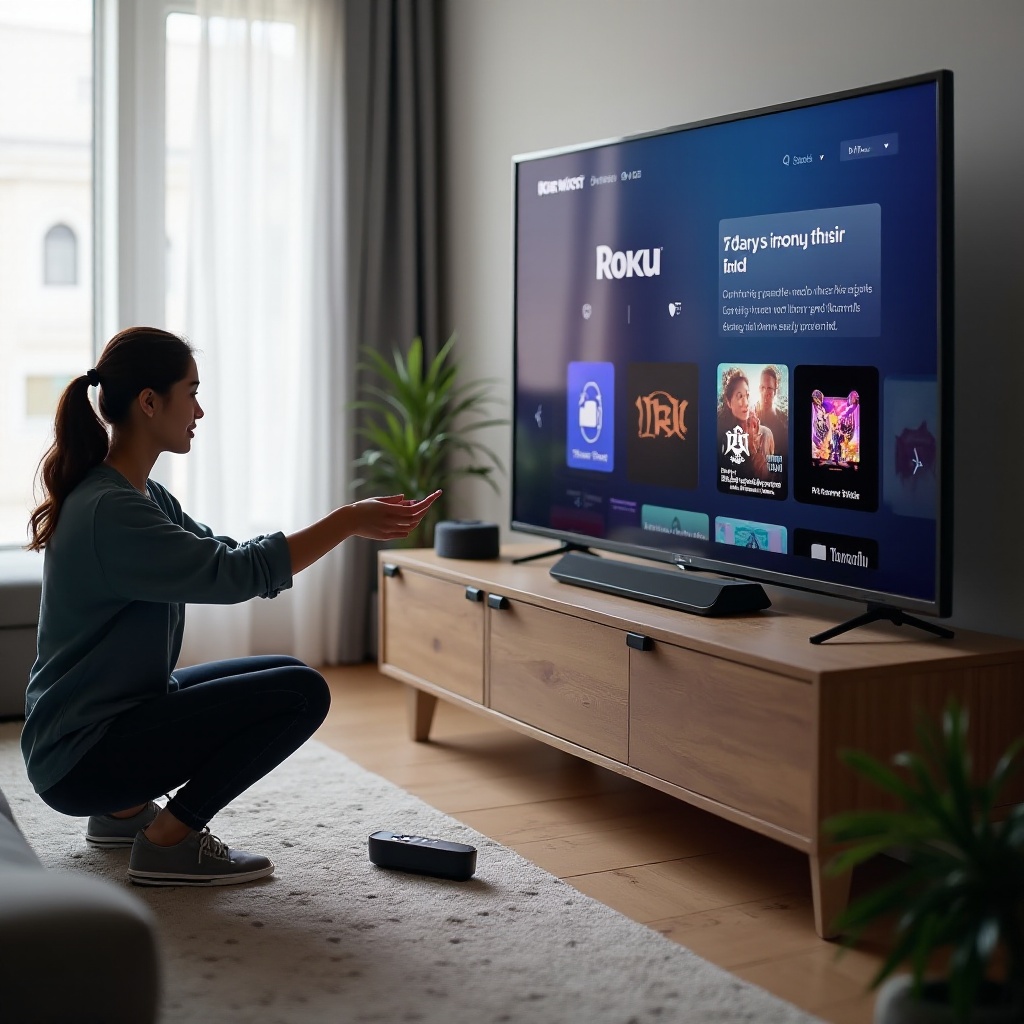
Turn Your Phone Into a Remote: Using the Roku Mobile App
When you do not have the original remote, your smartphone becomes the most powerful tool to fix sound problems on your Roku TV. Once the Roku app works as a remote, you can reach deeper audio settings and system tools that the physical buttons cannot access.
Requirements to control Roku TV with your phone
You need:
- A Roku TV that is already connected to your Wi‑Fi network.
- A smartphone or tablet with iOS or Android.
- The official Roku mobile app installed.
If the TV was never connected to Wi‑Fi, the app will not find it. In that case, you will rely more on physical buttons or a replacement remote, but if Wi‑Fi is already set, the app gives you almost full control.
How to install and connect the Roku mobile app to your TV
Follow these steps:
- Open the App Store (iOS) or Google Play Store (Android).
- Search for ‘Roku’ and install the official Roku app.
- Make sure your phone is on the same Wi‑Fi network as your Roku TV.
- Open the Roku app and grant any requested permissions.
- Tap ‘Devices’. The app will scan and display your Roku TV.
- Tap your Roku TV, then tap ‘Remote’ to open the on‑screen remote.
If your TV does not appear, confirm both the TV and your phone are on the same network and that the TV is powered on.
Use the app to test volume, mute, and basic audio controls
Once the on‑screen remote is open:
- Tap volume up and volume down.
- Tap the mute icon to toggle mute.
- Play a channel or streaming app and listen closely.
If audio returns when you adjust volume through the app, your ‘Roku TV no sound without remote’ issue was just a hidden mute or volume setting. If there is still silence, you need to check the physical connections and external devices that feed audio into your TV.
Check Cables, Ports, and Connected Devices
Now that you can control the TV with your phone, it is time to confirm the problem is not with your cables or external devices. This step helps you decide whether to focus on the TV’s settings or on the hardware connected to it.
Inspect HDMI and power cables for loose or damaged connections
Do the following:
- Gently unplug and reconnect each HDMI cable at both the TV and the device end.
- Check for bent pins or visible damage on the HDMI connector.
- Confirm the TV’s power cable is firmly connected to both the TV and the outlet.
Loose or damaged HDMI cables are one of the top causes of no audio and intermittent sound.
Switch HDMI ports and test with a different device
To isolate the problem:
- Move the HDMI cable from one port, for example HDMI 1, to a different port such as HDMI 2.
- Use the Roku app remote to change the input to the new HDMI port.
- Test sound again.
- If you have another device, such as a streaming stick, console, or Blu‑ray player, connect it to the same HDMI port and test.
If one port has sound and another does not, the problem may be with a specific HDMI port or the device, not the TV’s main audio system.
Identify whether the issue is the TV, the input, or the source device
Consider what you learn from these tests:
- If all devices on all HDMI ports have no sound, the issue is likely TV settings or hardware.
- If only one device has no sound, the problem may be with that device’s audio settings.
- If Roku’s built‑in streaming apps also have no sound, you are dealing with a broader TV or software problem.
Once you know whether the issue is local to an input or global, you can adjust Roku’s audio settings with more confidence.
Fix Roku Audio Settings That Commonly Cause No Sound
Many ‘Roku TV no sound without remote’ cases come from audio settings that do not match your speakers or external devices. Now that the Roku app works as a remote, you can fix those settings directly.
Access the Audio menu using the Roku mobile app
Using the Roku app remote:
- Press the Home button.
- Scroll down and select ‘Settings’.
- Select ‘Audio’.
From here, you can adjust the output and formats that affect how your Roku TV sends sound.
Choose the right audio output: TV speakers, HDMI ARC, or optical
Under Audio, look for output options:
- If you use only the TV’s built‑in speakers, select ‘TV speakers’.
- If you have a soundbar or receiver connected via HDMI ARC, select ‘HDMI ARC’.
- If you use an optical cable to a receiver, select ‘Optical’.
If the wrong output is selected, sound may flow to a device you are not using, which will make the TV seem silent.
Change audio mode from Auto to Stereo or PCM for compatibility
Some external devices and soundbars struggle with advanced formats.
- In the Audio menu, find ‘Audio mode’ or ‘Audio format’.
- Change ‘Auto’ or ‘Auto detect’ to ‘Stereo’ or ‘PCM’.
- Test sound on both TV speakers and external speakers.
Stereo or PCM is the most compatible choice and often restores audio when Auto fails.
Reset Roku audio settings to default when unsure what changed
If you have tried many options and still hear nothing:
- In the Audio menu, look for a ‘Reset’ or ‘Restore default’ option.
- Confirm the reset.
- Turn the TV off and on again, then test sound.
Resetting audio settings removes any hidden misconfigurations that might block sound and prepares you for testing with external audio gear.
No Sound When Using a Soundbar or AV Receiver
If you rely on a soundbar or AV receiver, your ‘Roku TV no sound without remote’ issue might live in the connection between the TV and the audio system rather than in the TV itself. After adjusting basic audio settings, it is worth focusing on this external audio chain.
Confirm ARC or eARC and CEC settings between TV and soundbar
For HDMI ARC or eARC setups:
- Make sure the HDMI cable runs from the TV’s ARC or eARC port to the soundbar’s ARC port.
- In Roku Settings, open ‘System’ > ‘Control other devices (CEC)’.
- Enable CEC options such as ‘System audio control’.
- Power cycle both the TV and the soundbar.
When CEC and ARC are set correctly, the TV should send audio over HDMI to the soundbar and allow volume control from the TV or Roku app.
Troubleshoot optical audio connections
If you use optical audio instead of ARC:
- Confirm the optical cable is firmly inserted on both ends.
- In Audio settings, set output to ‘Optical’.
- On your receiver or soundbar, select the correct optical input.
- Test again with different content.
A loose optical cable or the wrong input selection on the soundbar can produce silence, even with a good TV signal.
Test TV speakers vs external speakers to isolate the problem
To find where the issue sits:
- In Audio settings, temporarily select ‘TV speakers’.
- Turn up the volume and test a streaming app.
- If TV speakers work but the soundbar does not, the issue is in the external audio chain.
- If neither works, you likely have a TV settings, software, or hardware problem.
Once you know whether the problem belongs to the TV or the external system, you can either keep tuning TV settings or focus on app‑level and system‑level fixes.
App‑Specific Roku Sound Issues (Streaming Channels Only)
Sometimes your Roku TV loses sound only inside one streaming app, while everything else works fine. That still counts as a ‘Roku TV no sound without remote’ situation, but the fix is more focused on that specific channel.
No sound in one app but audio works in others
To confirm an app‑specific issue:
- Open a different app, for example YouTube if Netflix is silent.
- Play any video.
- If you hear sound on one app but not the other, the problem sits with the silent app or its content.
This often happens when a stream uses an audio format that your current settings do not support, or when the app itself glitches.
Update or reinstall problematic streaming channels via the Roku app
To update or reinstall a channel:
- Press Home on the Roku app remote.
- Highlight the problematic channel.
- Press the star (*) button on the app remote.
- Choose ‘Check for updates’. If there is no update or it does not help:
- Select ‘Remove channel’.
- Restart the TV in ‘Settings’ > ‘System’ > ‘Power’ > ‘System restart’.
- Reinstall the channel from ‘Streaming Channels’.
Reinstalling often clears hidden app errors that break audio.
Check in‑app audio settings like language and surround formats
Many streaming apps have their own audio options:
- While a video plays, open the app’s settings or audio menu.
- Make sure the audio language is correct.
- If there is a choice between stereo and surround formats, select stereo.
- Test again.
Choosing stereo inside the app is often the fastest fix for silent or glitchy audio. If app fixes do not help, it is time to look at deeper system actions.
Advanced Fixes: System Restart, Updates, and Factory Reset
If basic and app‑level fixes have not restored sound, you may be dealing with a deeper software problem on the TV itself. Advanced system tools can often clear these issues without any hardware repair.
Perform a system restart from the Roku app
A system restart is more thorough than just turning the TV off.
- Press Home on the Roku app remote.
- Go to ‘Settings’ > ‘System’ > ‘Power’.
- Select ‘System restart’ (or ‘Restart’ if your menu looks different).
- Confirm and wait for the TV to reboot.
Test sound again once the TV fully restarts.
Check for Roku OS updates and install them
Updates can fix known audio bugs and stability problems.
- Go to ‘Settings’ > ‘System’ > ‘System update’.
- Select ‘Check now’.
- If an update is available, install it.
- After the update, test sound in several apps and inputs.
Do not unplug the TV during an update, or you risk corrupting the software.
Use the physical reset button if the app cannot connect
If the Roku app cannot control the TV and the remote is still missing, look for a reset button:
- Find the small reset pinhole or button on the back or side of the TV.
- For a soft reset, press it briefly and release.
- Wait for the TV to reboot.
A soft reset can clear system glitches without wiping all your settings and can restore network or audio functions.
When and how to perform a factory reset as a last resort
Use a factory reset only when nothing else works:
- In ‘Settings’ > ‘System’ > ‘Advanced system settings’, select ‘Factory reset’.
- Follow the on‑screen instructions and enter the code shown.
- The TV will erase all settings and return to its initial setup.
- You will need to reconnect to Wi‑Fi and sign in to your apps again.
If sound still does not work after a factory reset, the problem is likely hardware‑related rather than software‑related.
What If You Cannot Use a Phone or Any Remote?
Sometimes you do not have a compatible phone, the TV is not on Wi‑Fi, and the original remote is gone. After trying everything you can with the TV buttons, your options become more limited, but there are still paths forward.
Maximum troubleshooting you can do with only TV buttons
With only TV buttons, you can:
- Turn the TV on and off.
- Adjust volume and mute.
- Change inputs on many models.
You cannot easily reach deep settings or reinstall apps. Still, you can:
- Power cycle the TV by unplugging it.
- Switch to different HDMI inputs to test external devices.
- Confirm the problem is not a simple mute, low volume, or wrong input.
If that does not solve your ‘Roku TV no sound without remote’ situation, you will likely need a replacement remote to go further.
Using a low‑cost universal or Roku‑compatible replacement remote
You have two main options:
- Official or Roku‑compatible replacement remote
- Designed to work with Roku TVs.
-
Often supports shortcuts and all Roku functions.
-
Universal remote
- Works with many TV brands, including Roku TV models.
- Requires entering a code during setup.
These remotes are usually inexpensive and give you full access to all settings again, which can unlock fixes you cannot reach with buttons alone.
Deciding whether to invest in a new remote or replace the TV
Consider:
- If the TV is relatively new and only sound is broken, a remote plus possible repair is cheaper than a new TV.
- If the TV is very old, out of warranty, and repair costs approach the price of a budget Roku TV, replacement may make more sense.
- If you fix the audio with a cheap remote, you avoid the cost and hassle of replacing the entire TV.
In most cases, buying a simple replacement remote is the quickest, most cost‑effective move and will help you confirm whether the issue is really hardware failure.
Signs of Hardware Failure and When to Call Support
If none of the software and settings fixes work, your ‘Roku TV no sound without remote’ issue might be hardware related. At this point, it is important to spot the signs of physical failure so you do not waste time repeating software fixes.
Symptoms of blown speakers or damaged audio circuits
Watch and listen for:
- Crackling, popping, or buzzing sounds before the audio cuts out.
- Very low volume even at maximum volume settings.
- Sound that works for a few minutes after a cold start, then dies.
- No sound from any app or input, even after resets and a factory reset.
These signs often point to failing internal speakers or a damaged audio board.
Power surge or physical damage indicators
Think back to recent events:
- Did a storm or power surge hit recently?
- Did the TV fall or suffer a strong impact?
- Does the TV show other strange behavior, like random restarts or no picture?
Power surges and physical damage can harm the internal boards responsible for audio output, and those issues usually require professional repair.
When to contact Roku or your TV manufacturer for repair or warranty
If you suspect hardware failure:
- Check your purchase date and warranty documents.
- Visit the support site for your TV brand, such as TCL, Hisense, Onn, or Roku‑branded models.
- Prepare details:
- Model number and serial number.
- Exact symptoms, such as no sound on all inputs and apps.
- Steps you have already tried, including resets and updates.
If the TV is under warranty, repairs or replacement may be covered. If not, ask for a repair estimate and compare it with the cost of a new set.
Conclusion
A ‘Roku TV no sound without remote’ problem feels stressful, but you now have a clear path to fix it. You started with simple checks using only the TV buttons, then turned your phone into a powerful remote with the Roku app. You tested cables, inputs, and external devices, and adjusted key audio settings like output type and format.
You also saw how to tackle app‑specific sound issues, perform system restarts and updates, and even reset the TV when necessary. When none of those steps work, you can recognize hardware failure signs and decide when to contact support, buy a replacement remote, or consider a new TV.
Follow the steps in order, from basic checks to advanced resets, and you will solve most Roku TV audio problems quickly, even without the original remote.
Frequently Asked Questions
Why does my Roku TV suddenly have no sound but the picture is fine?
This usually happens because of a bad audio setting, a loose HDMI cable, or a temporary software glitch. Start by checking volume and mute using the TV buttons or Roku app. Then inspect HDMI cables and switch inputs. If those steps do not work, adjust audio output and format in Settings > Audio and try a system restart.
Can I fix Roku TV sound issues without buying a new remote?
Yes. If your Roku TV is already on Wi‑Fi, you can use the free Roku mobile app as a full remote. With it, you can control volume, change inputs, adjust audio settings, restart the TV, update the system, and reinstall apps. Many sound issues can be solved completely with the app and basic cable checks, without buying a replacement remote.
What should I try first if my Roku TV has no sound on streaming apps only?
First, test another streaming app to see if the issue is app‑specific. If only one app is silent, update or reinstall that app and check its in‑app audio settings for language and stereo versus surround options. If all apps are silent but HDMI devices work, focus on Roku Audio settings and a system restart, then check for a Roku OS update.