
Introduction
Roku TVs make streaming simple, but the default sound settings rarely deliver the best audio. Voices can feel buried, explosions lack impact, and late-night watching often means constant volume changes on the remote. Many users assume they need new speakers, when in reality, a few smart tweaks to sound modes and audio options can transform the experience.
This guide explains how to find the Roku TV best sound mode for your needs in 2024. You will learn which modes work best for movies, sports, gaming, and everyday TV, and how to combine them with options like Volume Leveling and Night Mode. You will also see how to tune your Roku TV for built-in speakers, soundbars, and full home theater systems.
The goal is simple: clear voices, rich sound, and fewer volume surprises. Once you understand where the audio settings live and what each mode does, you can build a few reliable presets and switch between them in seconds.
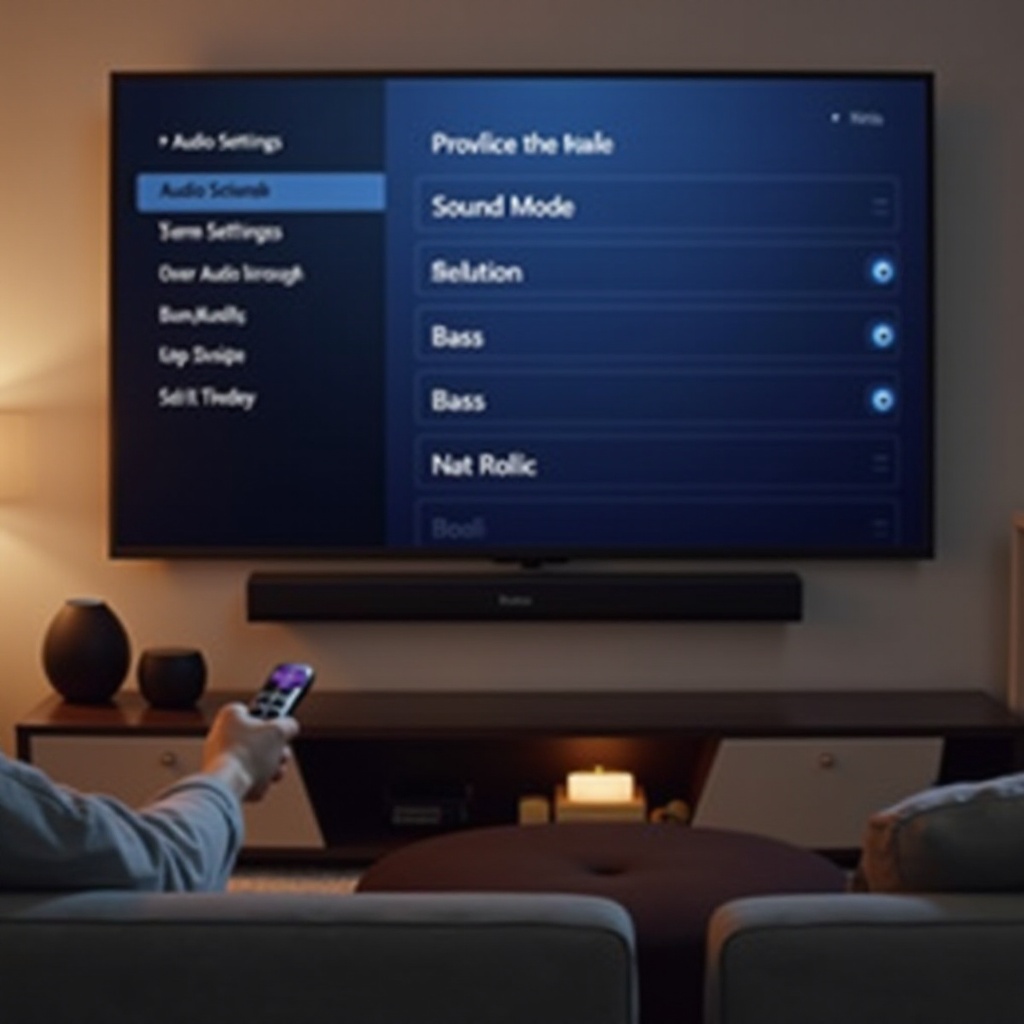
How to Access and Change Sound Modes on Roku TV
Before you choose the ideal sound mode for each situation, you need to reach the audio controls quickly. Learning this process saves time every time you switch between movies, games, and live TV.
Navigating to the Roku TV audio settings menu
Use your Roku remote to open the main audio settings:
- Press the Home button to go to the main Roku screen.
- Scroll and select ‘Settings’.
- Choose ‘Audio’ or ‘Sound’ (the label can vary by TV brand).
- Inside this menu, you will see options for ‘Sound mode’, ‘Volume mode’, ‘Audio output’, and sometimes advanced settings.
This menu controls how your Roku TV shapes sound, manages loudness, and sends audio to built-in speakers or external devices. Think of it as your base setup for everything else you will do.
Switching sound modes while you are watching content
You do not need to leave your show or game to adjust audio. Instead, use the star (*) button on your remote while something is playing:
- Start a movie, episode, or game.
- Press the * button to open the side options menu.
- Scroll to ‘Sound mode’ or ‘Volume mode’.
- Change settings and listen for a few seconds after each adjustment.
This on-the-fly approach lets you compare modes in real time. You can quickly hear how dialogue, effects, and music change with each preset.
Resetting audio settings if something goes wrong
If your sound starts to feel strange and you cannot remember what you changed, resetting helps:
- Go to Settings → System → Advanced system settings.
- Look for a reset option related to TV or audio settings.
- Use the option that resets sound (and picture, if needed) without removing apps and accounts, when that choice is available.
After a reset, you can start fresh and rebuild your audio setup step by step. With the basic navigation covered, the next step is to understand what each type of audio control actually does.
Understanding Roku TV Sound Modes and Audio Options
Roku TV divides audio controls into three main areas: sound modes, volume modes, and output settings. Knowing the difference between them helps you avoid confusion and overlapping features.
Sound mode vs volume mode vs audio output
Here is how to think about the three core parts:
- Sound mode: Adjusts the tonal balance of audio. It changes how much you hear bass, treble, and midrange, and how voices compare to effects and music.
- Volume mode: Controls how the overall loudness behaves over time. It reduces or preserves volume jumps between quiet scenes and loud ones.
- Audio output: Decides where the sound goes (TV speakers, HDMI ARC, optical, Bluetooth) and in which format (stereo, surround, passthrough, or PCM).
When you tune all three together, you get clearer, more predictable sound that matches your setup instead of fighting it.
Overview of Standard, Movie, Music, Sports, and Speech modes
Most Roku TVs include several sound modes, though names can vary slightly. Common options include:
- Standard/Normal: A balanced preset for most content. This is usually the safest default.
- Movie/Cinema: Adds more bass and a wider sound field. Better for films and cinematic series.
- Music: Designed for music streaming and videos, often with clearer mids and highs.
- Sports: Brighter sound with emphasis on commentary and crowd noise.
- Speech/Dialogue: Focuses on the vocal range so voices stand out clearly from the background.
These presets serve as quick shortcuts. You do not need to change individual EQ sliders every time you switch content; you just select a different mode that better matches what you are watching.
Volume Leveling, Night Mode, and other key audio features
Roku TV volume modes work alongside sound modes:
- Off: The TV plays audio as it receives it, with full dynamic range and no extra leveling.
- Leveling: Smooths out loudness differences between channels, apps, and scenes. Helpful when ads or action scenes get much louder than dialogue.
- Night: Compresses dynamics more aggressively. Loud moments become softer, and quiet moments become more audible, ideal for late-night viewing.
Some Roku TV models include extras such as dialogue enhancement, bass boost, or virtual surround. These can help, but you should add them gradually, testing one change at a time. With a clear sense of what each control does, you can now match sound modes to specific types of content.
Best Roku TV Sound Mode by What You are Watching
The Roku TV best sound mode depends heavily on what you watch most. Movies, sports, games, and talk shows each demand a slightly different approach to clarity, impact, and comfort.
Best sound mode for movies and streaming series
For films and story-driven series, immersion is the top priority. Try this setup as a starting point:
- Sound mode: Movie/Cinema
- Volume mode: Off or Leveling, depending on how much you dislike sudden volume jumps
Movie mode typically adds richer bass, wider sound, and more emphasis on soundtrack and effects. If explosions or music feel too strong, lower bass slightly in the audio settings while leaving the mode on Movie. This keeps the cinematic feel while reducing fatigue.
Best sound mode for sports and live events
Sports demand clear commentary and the energy of the crowd. For live games and events:
- Sound mode: Sports if available, or Standard with slightly boosted treble
- Volume mode: Leveling to keep sudden crowd roars or replays from spiking too high
If crowd noise overwhelms the announcer, switch from Sports to Standard and consider enabling any dialogue enhancement feature. This keeps the atmosphere without losing clarity.
Best sound mode for gaming and low-latency play
Gamers need clear positional audio and as little processing delay as possible:
- Sound mode: Standard or a dedicated Game mode if your Roku TV offers it
- Volume mode: Off to reduce extra processing and potential latency
If loud effects bury voice chat or in-game dialogue, lower bass slightly and enable any speech-enhancing feature if present. This balance keeps sound detailed and responsive.
Best sound mode for news, talk shows, and dialogue-heavy content
For news, interviews, podcasts, and talk-heavy shows, speech clarity matters more than surround effects.
- Sound mode: Speech/Dialogue if available
- If Speech mode is not present, use Standard and increase treble a bit
- Volume mode: Leveling so ads and clips do not jump too loud
This combination makes voices easier to follow, especially at lower listening levels. After you tailor sound to content like this, the next step is to adapt your settings to the speakers you actually use.
Best Roku TV Sound Mode for Built-In Speakers Only
Many people watch Roku TV content on the built-in speakers, especially in bedrooms, dorms, or small living rooms. These speakers have clear limits, but careful tuning can still improve clarity and comfort.
Recommended default mode for most users
If you rely only on the TV speakers, a practical baseline setup is:
- Sound mode: Standard for everyday viewing
- Volume mode: Leveling to reduce sudden jumps
From there, switch to Movie when you are ready for a film or big series, and to Speech/Dialogue for heavy talk content. You do not need to change settings constantly; a few targeted switches cover most situations.
Adjusting bass, treble, and clarity on stock speakers
Built-in TV speakers struggle most with deep bass. Pushing bass too hard often causes rattling or muddy sound. Try these adjustments:
- Bass: set slightly below the middle if the TV sounds boomy or distorted
- Treble: set slightly above the middle to boost clarity for voices
- Dialogue enhancement or Clear Voice (if available): turn it on for news, shows, and films where speech matters
Make small changes and test them with a familiar movie or episode, so you can hear subtle differences.
Settings for small bedrooms vs open living rooms
Room size and layout affect how your Roku TV sounds:
- Small bedroom:
- Keep overall volume modest.
- Use Night Mode when others are sleeping.
-
Use less bass to avoid rattling walls and furniture.
-
Open living room:
- Add a bit more bass for presence and impact.
- Use Leveling to keep shared viewing comfortable.
- Switch to Movie mode for group film nights.
If you want a clear upgrade from built-in speakers, the next level is using a soundbar with your Roku TV.
Best Roku TV Sound Mode When Using a Soundbar
A soundbar can make your Roku TV sound bigger and clearer, but only if the TV and soundbar work together instead of fighting each other. You should decide which device handles most of the processing.
Choosing whether Roku TV or the soundbar handles processing
Modern soundbars often include their own sound modes and enhancements. In most setups, it is better to:
- Let the soundbar handle sound processing.
- Keep Roku TV sound mode on Standard.
- Avoid enabling advanced effects on both the TV and soundbar at once.
This approach passes a cleaner signal from the Roku TV to the soundbar, which then applies its own tuned modes such as Movie, Music, or Game.
Ideal Roku TV sound modes with HDMI ARC/eARC soundbars
When your soundbar connects over HDMI ARC or eARC:
- In Roku TV audio settings, set the output to something like ‘Auto (ARC)’ or ‘Passthrough’, if the soundbar supports advanced formats.
- Leave the Roku TV sound mode on Standard.
- Use the soundbar’s preset modes (Movie, Music, Game, Night) for final shaping.
This setup keeps the Roku TV from overprocessing audio and allows the soundbar to do what it was designed to do.
Avoiding double-processing and conflicting audio enhancements
Double-processing is one of the most common causes of muddy or strange sound. To avoid it:
- Do not enable Night Mode on both the TV and soundbar at the same time.
- Turn off one of the overlapping virtual surround features if both devices offer it.
- If sound feels hollow or echoey, disable advanced effects on the TV first and test only the soundbar’s processing.
If you move beyond a soundbar to a full AV receiver and speaker system, your Roku TV needs an even more careful setup.
Best Roku TV Sound Mode for Home Theater & External Receivers
A home theater system with an AV receiver and multiple speakers can deliver the best audio, but your Roku TV must send the right type of signal. The key is choosing the correct output mode and avoiding extra processing on the TV.
When to select ‘Auto’, ‘Passthrough’, or ‘PCM’ on Roku TV
In the audio output settings on your Roku TV, you may see options such as:
- Auto: The TV detects what your receiver or soundbar supports and chooses a matching format.
- Passthrough: The TV sends the original audio format directly to your receiver, which then decodes it.
- PCM: The TV converts audio to PCM stereo or multichannel PCM, which can help with older receivers.
For most modern AV receivers, start with Passthrough. If you encounter silence or errors with certain content, switch back to Auto for more compatibility.
Matching Roku TV audio to Dolby Atmos and surround setups
If your system supports Dolby Atmos or 5.1/7.1 surround:
- Set Roku TV audio output to Auto or Passthrough, depending on what your receiver supports reliably.
- In each streaming app, choose the highest-quality audio track, such as ‘English 5.1’ or ‘English Dolby Atmos’.
- Leave Roku TV sound mode on Standard so it does not add extra EQ that might conflict with your receiver’s calibration.
This lets your receiver handle channel mapping, height speakers, subwoofer levels, and room correction as intended.
Recommended modes for AV receivers and multi-speaker systems
On your AV receiver, keep things focused and clean:
- Use modes like Direct, Movie, or Surround rather than heavy DSP simulations.
- Avoid stacking virtual surround on top of real surround from multiple devices.
- Use the receiver’s dialogue enhancement features instead of the TV’s when possible, since the receiver usually works with more detailed room data.
Even with a great home theater, you may still watch at low volume at night or in apartments. For that, you will lean on Night Mode and similar features.
Night Watching, Apartments, and Shared Spaces
Not everyone can blast sound at full volume. Thin walls, sleeping kids, or roommates often force you to find a balance between clarity and quiet. Roku TV provides tools that help you keep audio under control without muting all the excitement.
Using Night Mode to reduce loud effects and preserve voices
Night Mode compresses dynamic range:
- Loud sounds become softer.
- Very quiet sounds get a small boost.
Turn on Night Mode when you want to avoid waking others but still understand dialogue. This is useful in bedrooms, small apartments, or any situation where sudden gunshots or music spikes would be a problem.
When Volume Leveling is better than Night Mode
Volume Leveling shines when you change channels or apps often:
- It reduces noticeable loudness differences between sources.
- It helps during daytime or evening viewing when you do not want dramatic shifts in volume.
If you find Night Mode makes everything too flat and dull for regular use, switch back to Leveling. You will keep more natural dynamics while still cutting down on the most jarring jumps.
Quiet, neighbor-friendly presets for late viewing
For a simple late-night profile on your Roku TV:
- Sound mode: Speech/Dialogue or Standard
- Volume mode: Night
- Bass: slightly reduced to tame rumble
- Treble: slightly increased for clearer speech at low volume
Once you get comfortable with this quiet profile, switching back and forth between day and night settings becomes quick and intuitive. After handling volume constraints, you can explore more advanced Roku audio tweaks.
Advanced 2024 Roku TV Audio Tweaks and Pro Tips
Recent Roku TV models include advanced audio options that can further improve clarity and immersion. Used wisely, these features help you refine your sound after you set your core modes and volume options.
Dialogue enhancement, virtual surround, and spatial audio options
Look through your audio settings for extras such as:
- Dialogue enhancement / Clear Voice: Boosts the range where human speech sits. This is often more natural than pushing treble very high.
- Virtual surround / Spatial audio: Attempts to create wider, more immersive sound from a pair of speakers. This can work well when you sit reasonably close to the TV.
- Bass boost: Adds extra low-end. Use it lightly, especially with built-in speakers or in small rooms where bass can get boomy.
Test these options one at a time with scenes you know well. If the soundstage widens and voices remain clear, keep the setting. If audio becomes unnatural or tiring, turn it off and try a different combination.
Fixing lip-sync issues and audio delay
Lip-sync problems are common when you use soundbars or receivers. If voices do not match mouth movements:
- Check your soundbar or receiver for an ‘audio delay’ or ‘lip-sync’ setting. Adjust it slightly until the picture and sound line up.
- If your Roku TV includes its own audio delay control, use it instead of or in place of the external device.
- Avoid adding delay on both the TV and the external device. Use one device to manage timing.
Take a few minutes to fine-tune delay during a scene with clear speech and visible mouths. Once set, you should not need to adjust it often.
Example ‘Movie Night’, ‘Gaming’, and ‘Everyday TV’ presets
To simplify your routine, build a few go-to profiles:
- Movie Night:
- Sound mode: Movie
- Volume mode: Off or Leveling
- Dialogue enhancement: On, if available
-
Bass: slightly above mid for impact
-
Gaming:
- Sound mode: Standard or Game
- Volume mode: Off
-
Virtual surround: On if it helps, off if you notice delay or lose positional accuracy
-
Everyday TV:
- Sound mode: Standard
- Volume mode: Leveling
- Dialogue enhancement: On for talk-heavy channels
With these presets, you can quickly shift between immersive film sound, responsive gaming audio, and relaxed day-to-day watching. Still, even with good profiles, issues can appear, so it helps to know common problems and fixes.
Common Roku TV Sound Problems and Quick Fixes
If your Roku TV audio still feels off after tuning, check for a few familiar issues that often appear with mismatched modes or output settings.
Voices too quiet while effects are too loud
When you keep increasing volume to hear voices, only to be hit by loud effects, try this:
- Switch to Speech/Dialogue mode or enable dialogue enhancement.
- Lower bass slightly and raise treble a bit.
- Use Volume Leveling to reduce extreme jumps between quiet dialogue and loud scenes.
This combination brings speech forward in the mix without killing the energy of action scenes.
Sound distortion or volume suddenly dropping
If you hear crackling, buzzing, or sudden dips in volume:
- Lower the main volume a few steps and listen again.
- Turn off extra bass boost or heavy dynamic enhancements.
- If volume drops after ads or intense scenes, enable Volume Leveling.
- If both TV and soundbar apply strong enhancements, disable some of them on one device.
When issues persist, unplug the TV from power for about a minute, then plug it back in to clear temporary glitches.
No sound or wrong sound mode after switching apps or inputs
If sound disappears or sounds strange when you change apps or HDMI inputs:
- Press the * button during playback and confirm the sound mode did not change.
- Check ‘Audio output’ in settings to ensure it still matches your setup (TV speakers, HDMI ARC, optical, etc.).
- If you use a soundbar or receiver, verify it is on the correct input and not muted.
- Restart the app or, if needed, restart the Roku TV.
Once you understand these patterns, troubleshooting becomes quick and routine.
Conclusion
Optimizing audio on your Roku TV is less about buying new gear and more about using the settings you already have. By learning how to access sound modes, volume options, and output formats, you gain control over how your TV sounds in every situation.
Start with clear goals: strong dialogue, comfortable volume, and a mode that matches what you watch. Use Standard and Leveling for everyday viewing, Movie for film nights, and Speech or dialogue enhancement for talk-heavy shows. Let your soundbar or receiver handle most of the processing when you use external gear, and avoid stacking similar features on multiple devices.
Over time, you will build a small set of reliable presets for movies, gaming, and quiet night viewing. With these in place, the Roku TV best sound mode for your room and ears will be just a few button presses away, and your streaming sessions will feel more immersive, balanced, and enjoyable.
Frequently Asked Questions
What is the best overall sound mode for Roku TV in 2024?
For most viewers, the best overall sound mode for Roku TV in 2024 is Standard. It offers a balanced sound that works well for news, shows, and casual movies. You can then switch to Movie for more immersive films and big series, and to Speech or a dialogue-focused setting when you need clearer voices. Pair Standard with Volume Leveling for everyday use to keep volume jumps under control.
Should I use Roku TV sound modes if I already have a soundbar?
Yes, but keep Roku TV settings simple. When you use a soundbar, let the soundbar do most of the processing. Set the Roku TV sound mode to Standard and send audio over HDMI ARC or eARC. Use the soundbar’s modes like Movie, Music, Game, or Night to shape the sound. Avoid enabling similar features, such as Night Mode or virtual surround, on both devices at the same time to prevent muddy or unnatural audio.
Why does my Roku TV volume keep changing between apps?
Streaming apps and channels output audio at different levels, so some content will sound louder than others. As you switch between apps, you may notice that ads, trailers, or certain services play much louder than your show. To control this, enable Volume Leveling in the Roku TV Volume mode settings. Volume Leveling reduces the difference between loud and quiet content across apps, ads, and channels, so you do not need to adjust the volume constantly.