
Introduction
Red lights on a Wyze camera often trigger one thought: something is wrong. Maybe your camera went offline. Maybe it stopped recording. Or you see red dots in the dark and start worrying about privacy. Those tiny LEDs carry a lot of meaning for such a small device.
Understanding what each red light pattern means saves time, reduces frustration, and helps you restore your smart home security faster. Instead of guessing or unplugging everything in sight, you can read the signal and follow a clear path to a fix.
This guide explains the most common red light behaviors on Wyze cameras in plain language. You will learn what solid, blinking, and mixed red lights mean, how they connect to Wi‑Fi, power, and night vision, and which steps solve each issue. By the end, you will know when to handle troubleshooting yourself and when to contact Wyze support or consider a replacement.
Understanding Wyze Camera LED Status Lights
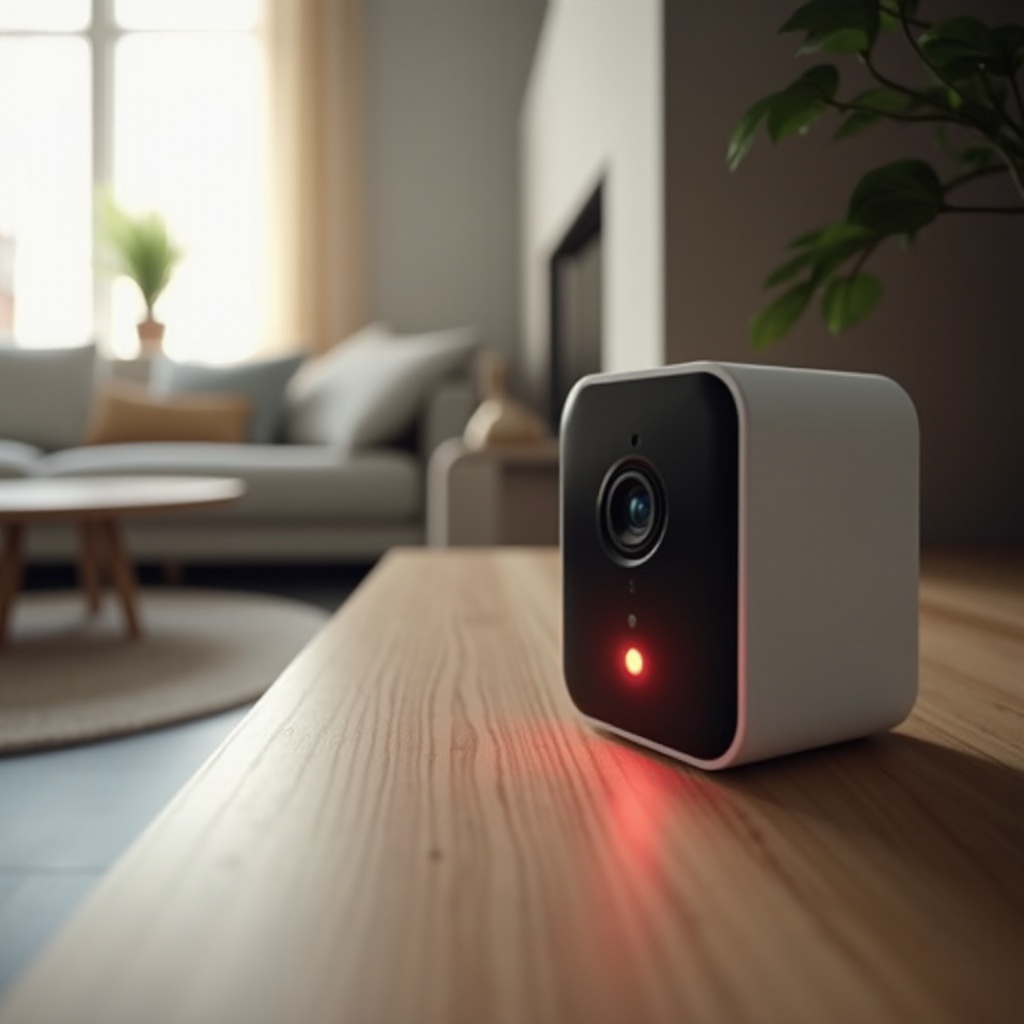
Before you can fix a red light on your Wyze camera, you need to understand how Wyze uses LEDs to show status. The small LED on the front of the camera is a quick visual code that tells you what the device is trying to do at any moment.
Why Wyze Uses LED Colors for Status Feedback
Wyze cameras rely on a color system because it works even when you do not have the app open. The LED gives you instant feedback about the camera’s state:
- It shows whether the camera has power.
- It shows whether the camera is connected to Wi‑Fi.
- It shows whether the camera is booting, updating, or ready to use.
This visual language lets you diagnose common problems at a glance. Once you learn the patterns, you no longer have to guess why your camera is not working.
Where to Find the LED Indicator on Different Wyze Models
Most Wyze Cam models place the status LED on the front of the device, near the lens. On some versions, it sits just below the camera eye; on others, it may be slightly off to the side. If you are unsure, check:
- The official Wyze product page for your model.
- The quick start guide that came in the box.
- The Wyze app, which often shows a simple diagram during setup.
Being able to see the LED clearly is essential for reading each pattern correctly and deciding your next step.
Quick Reference: Blue vs Red vs Mixed Light Patterns
In general, Wyze uses these basic LED rules:
- Solid blue: Camera is powered and connected.
- Flashing blue: Camera is connecting or streaming.
- Solid red: Camera is booting, updating, or stuck.
- Blinking red: Camera is in setup mode or cannot connect.
- Red and blue together (or alternating): Camera is pairing or struggling to establish a stable connection.
This quick reference will make the next sections easier to follow, where we focus specifically on all the different red light behaviors and what they tell you.
Common Red Light Patterns on Wyze Cameras and Their Meanings
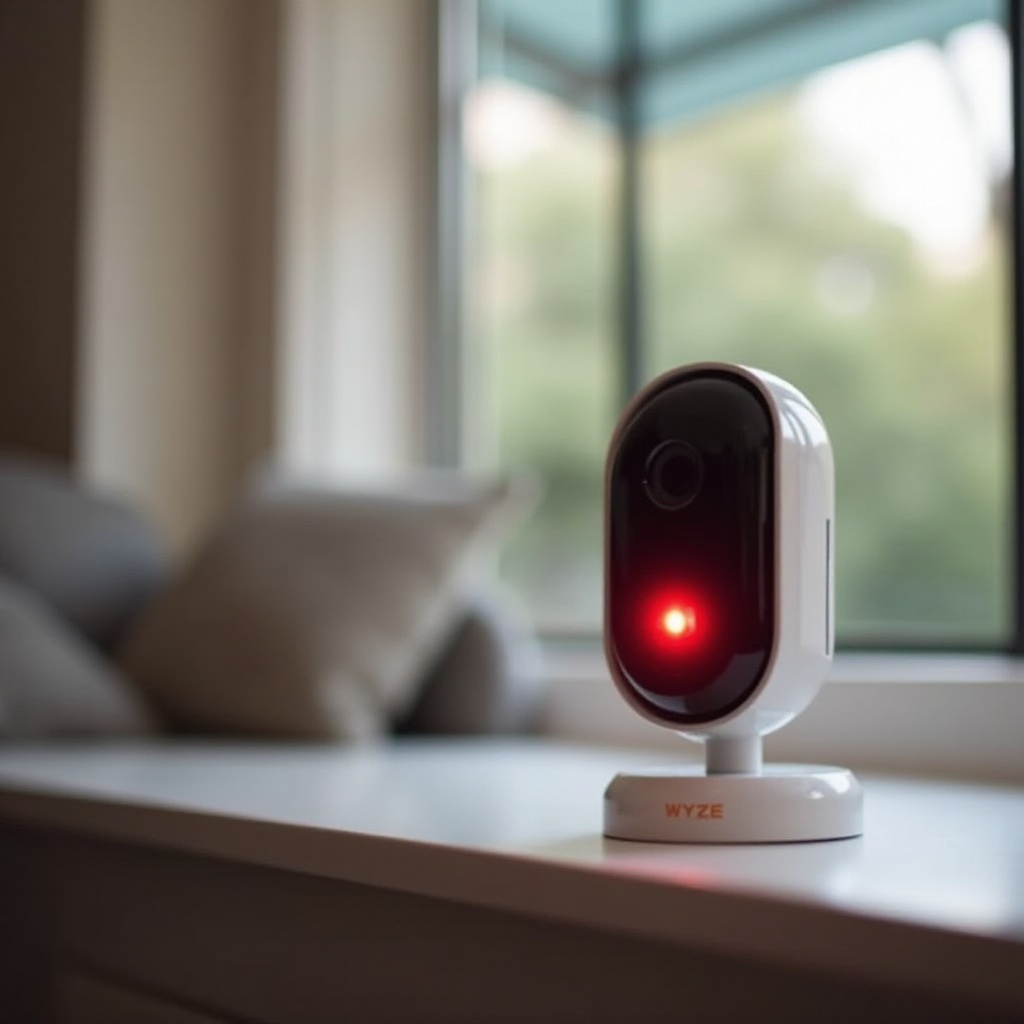
Now that you know how Wyze uses color, it is time to focus on the red patterns. Different red light behaviors point to specific issues and states. Reading them correctly helps you choose the right fix instead of testing random settings.
Solid Red Light on Wyze Camera
A solid red light usually means one of three things:
- The camera is starting up after getting power.
- The camera is installing or verifying firmware.
- The camera is stuck and not finishing the boot process.
If the solid red light appears only for a short time after plugging in the camera, it may be normal. If it stays on for several minutes with no change, that often suggests the camera cannot complete startup and needs attention.
Blinking Red Light on Wyze Camera
A blinking red light often shows that the camera is in setup mode. It is waiting for the Wyze app to finish the pairing steps or to receive Wi‑Fi details. However, if the camera has already been set up before, blinking red can also mean:
- The camera lost its Wi‑Fi connection.
- The network password changed.
- The router settings no longer match what the camera expects.
Repeated blinking red after setup usually points to network or configuration issues rather than a hardware failure.
Alternating Red and Blue Lights
When you see red and blue alternating, the camera is trying to connect to your Wi‑Fi or the Wyze cloud service. This pattern often shows up:
- Right after you enter Wi‑Fi details in the app.
- When the camera is trying to restore a dropped connection.
If the red/blue pattern continues for a long time and never settles on solid blue, the camera is likely stuck between setup and full connection. That is a sign to review your Wi‑Fi settings and possibly re-run setup.
Understanding these patterns prepares you for the specific fixes in the next sections, where we dive deeper into solid red and blinking red issues and the exact steps that can clear them.
Solid Red Light on Wyze Camera: Causes and Fixes
A solid red light that does not go away can be alarming, but it usually follows a logical trail. You can often resolve it by checking a few core areas: startup, firmware, and power. Working through them in order keeps your troubleshooting clear and efficient.
Camera Booting Up or Initializing
When you plug in your Wyze camera, it will often show a solid red light for a short period. During this stage, the camera:
- Powers up and checks hardware.
- Loads its firmware into memory.
- Prepares its Wi‑Fi connection.
If the light turns blue after about a minute, everything is fine. If it stays solid red beyond a couple of minutes with no voice prompts or changes, the camera may be stuck in the boot process and may need a restart or reset.
Firmware Update in Progress
Wyze pushes firmware updates to improve security, fix bugs, and add features. While updating, a solid red light can appear as the device:
- Downloads the update from the server.
- Installs the new firmware.
- Reboots to apply the changes.
Interrupting this process can cause problems. Avoid unplugging the camera during an update. If it appears stuck on red for a long time, open the Wyze app and check if the camera shows as ‘Updating’ or if there is a firmware error message.
Power Supply or Hardware Issues
If your camera shows only a solid red light and never progresses, the power supply might be unstable. Common causes include:
- A weak or damaged USB cable.
- A low-quality or underpowered adapter.
- An outlet that does not deliver steady power.
You should also look for signs of hardware damage, such as cracks, burn marks, or the smell of overheating components. These may indicate that the camera itself is failing and not just suffering from a power issue.
Step-by-Step Checklist to Clear a Solid Red Light
Use this simple checklist when you see a persistent solid red LED:
- Wait at least 2 minutes after plugging in to see if the light changes to blue.
- Open the Wyze app to check if the camera appears online, updating, or offline.
- Unplug the camera for 30 seconds, then plug it back in and watch the full LED sequence.
- Try a different USB cable and power adapter, ideally one rated at the recommended amperage or higher.
- Plug the camera into a different wall outlet, avoiding extension cords or overloaded power strips.
- If the solid red light persists, perform a factory reset as described in the official Wyze support documentation for your model.
- If a reset fails and the LED remains solid red, contact Wyze support and share the LED behavior and steps you have already tried.
Once you rule out solid red issues linked to power and firmware, the next common pattern you may see is a blinking red light. That pattern usually connects more to setup and network problems than to hardware faults.
Blinking Red Light on Wyze Camera: Setup and Network Problems
A blinking red light usually means your Wyze camera cannot complete its connection process. This can happen during first-time setup or later if something changes in your Wi‑Fi network. Tackling these issues step by step helps you restore a stable connection.
Blinking Red During Initial Setup
During initial setup, blinking red indicates the camera is ready to be added to your account. You typically need to:
- Open the Wyze app and tap the plus sign to add a device.
- Select your Wyze camera model from the list.
- Follow the on-screen steps until you see a QR code.
- Hold the QR code in front of the camera until you hear a confirmation voice prompt.
If the light keeps blinking red and you never hear a voice prompt or confirmation, the camera may not receive the Wi‑Fi details or may struggle to read the QR code. Cleaning the lens and increasing screen brightness on your phone or tablet can sometimes help.
Wi‑Fi Password, SSID, and 2.4 GHz Network Errors
Blinking red after setup often points to Wi‑Fi issues. Wyze cameras usually connect only to 2.4 GHz networks, not 5 GHz. Common mistakes include:
- Typing the wrong Wi‑Fi password.
- Trying to connect to a 5 GHz-only SSID.
- Using hidden SSIDs or complex security modes that cause problems.
You can fix many of these problems by:
- Confirming the Wi‑Fi password on another device.
- Ensuring your router broadcasts a 2.4 GHz network that the camera can see.
- Temporarily creating a simpler SSID and password while you troubleshoot.
Router Distance, Interference, and Signal Strength
Even with the right password, signal problems can keep your camera blinking red. Thick walls, metal, and other electronics weaken the 2.4 GHz signal. You may see issues if:
- The camera is far from the router or access point.
- The router sits behind a cabinet or near a microwave or fridge.
- Many devices compete on the same channel at the same time.
To improve this, you can:
- Move the camera closer to the router as a test.
- Reposition the router to a more central, open location.
- Use a Wi‑Fi analyzer app to check signal strength near the camera.
How to Re-Run Setup and Stabilize the Connection
If you see a persistent blinking red light and suspect setup or Wi‑Fi trouble, follow these steps:
- Remove the camera from the Wyze app if it still appears there.
- Perform a factory reset as recommended for your specific model.
- Reboot your router and wait until it is fully back online with internet access.
- Start setup again in the app, carefully entering Wi‑Fi details and verifying them.
- Test the camera near the router first. If it works there, move it back to its final spot and check the signal strength.
Once you have addressed setup and Wi‑Fi issues, you might still see red lights at night. Those are often related to night vision and infrared, not connection failures, and they follow a different set of rules.
Night Vision, Infrared, and Red Lights: What’s Normal
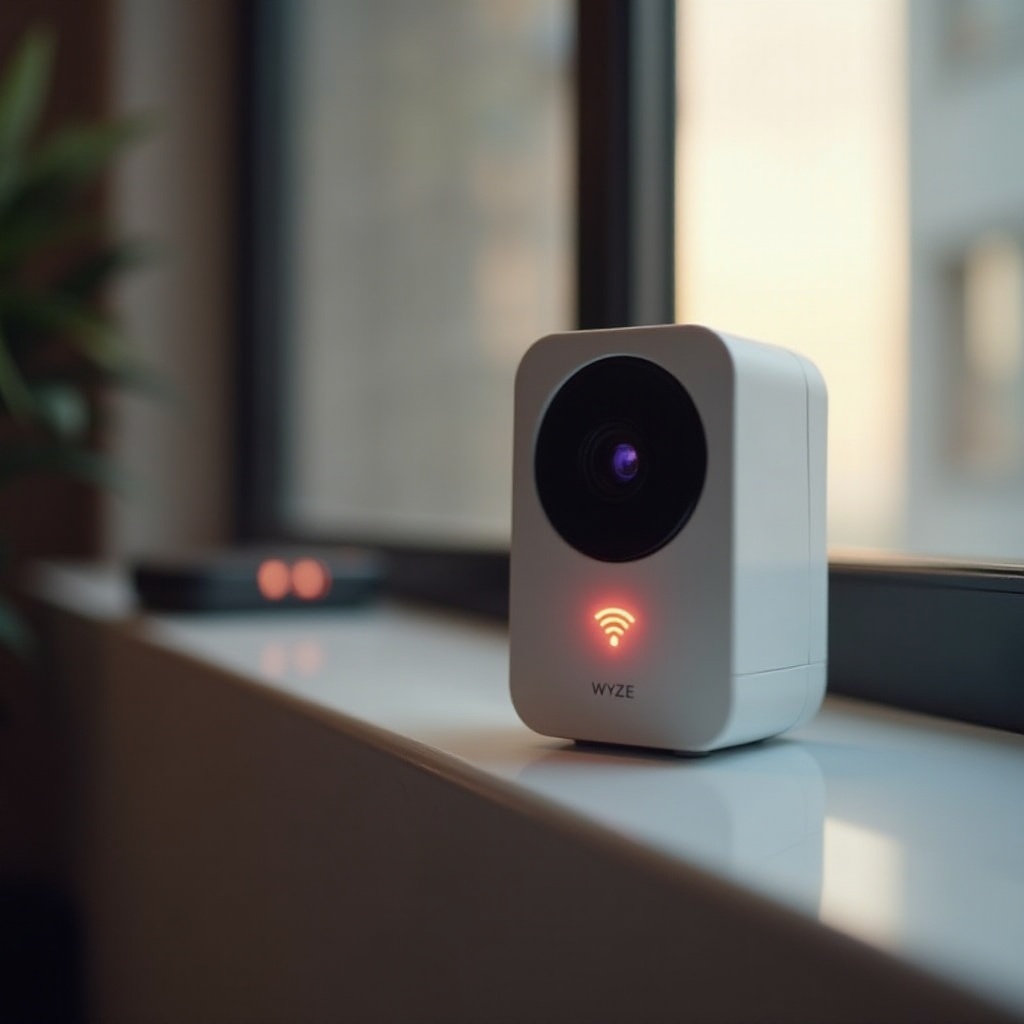
Many Wyze owners get worried when they see small red dots on the camera at night. These are usually infrared LEDs, not error indicators. Understanding the difference between IR lights and the status LED helps you avoid confusing normal behavior with a fault.
IR LEDs vs Status Red Light: Key Differences
The status LED is a small, single point of light that changes color between blue, red, or mixed patterns. Infrared LEDs are usually a ring or cluster of tiny lights around the lens.
Key differences:
- Status LED: Shows power, connectivity, and operational status.
- IR LEDs: Help the camera see in low light and during the night.
If you see multiple faint red dots around the lens in the dark, that is typically the IR array working as designed rather than an error.
Why You See Red Dots in the Dark
Infrared light is mostly invisible to the human eye, but many IR LEDs emit a slight red glow. At night, you might notice:
- A ring of small red dots when you look directly at the camera.
- Reflections of those dots in windows, picture frames, or shiny surfaces.
This does not mean the camera is in error. It simply means night vision is on and the camera is using IR to capture clearer images in low light.
Adjusting Night Vision Settings in the Wyze App
The Wyze app lets you control how night vision behaves. Depending on your model, you will see options like:
- Auto: The camera switches to night vision when light levels drop.
- On: Night vision stays on, IR LEDs always active.
- Off: Night vision stays off, no IR LEDs.
You can find these options in the camera settings menu. If you want less visible red glow, you can disable IR, where supported, or use Auto so the camera only uses it when necessary.
When Night Vision Red Lights Indicate a Problem
Red lights related to night vision can still suggest issues in some cases:
- IR does not turn on even in a dark room.
- The picture stays very dark, washed out, or extremely grainy despite night vision being on.
- The status LED stays solid red while night vision is active and the camera will not connect.
In such cases:
- Restart the camera from the app or by unplugging it briefly.
- Toggle night vision settings between Auto, On, and Off to refresh the mode.
- Check for a firmware update that may fix night vision quirks.
If night vision fails completely or the status LED shows abnormal behavior at the same time, you may need deeper troubleshooting and possibly help from Wyze support.
Advanced Troubleshooting for Persistent Red Lights
When basic checks fail to clear red light problems, it is time for deeper steps. These involve power cycling, firmware checks, hardware testing, and deciding if the camera is reaching the end of its life.
Power Cycling vs Factory Reset
Power cycling is a simple restart that clears minor glitches:
- Unplug the camera.
- Wait 30–60 seconds.
- Plug it back in and watch the LED sequence from the start.
A factory reset is more drastic. It wipes configuration and returns the camera to its default state. You typically:
- Locate the reset button (often on the bottom or back).
- Press and hold it for the number of seconds specified by Wyze for your model.
- Wait for a voice prompt or LED change that confirms the reset.
- Set the camera up again in the app from scratch.
Always try power cycling first. Use a factory reset only when you have exhausted simpler fixes or when setup fails repeatedly.
Checking Firmware and Wyze App Updates
Outdated software can cause LED issues or general instability. Make sure:
- Your Wyze app is updated from the official app store.
- The camera firmware is current, as shown in the app settings.
If an update fails:
- Move the camera closer to the router during the update.
- Restart both the router and the camera before trying again.
- Check Wyze support resources for any known update issues affecting your model.
Keeping firmware and the app updated reduces the chance of random red light problems and improves security and performance.
Testing with a Different Adapter, Cable, or Outlet
Many mysterious red light issues trace back to power. To rule out power problems:
- Use the original adapter if you still have it.
- Try a high-quality adapter from a trusted brand with the right output.
- Swap the USB cable for a new, thicker cable designed for power, not just data.
- Plug into another wall outlet, not a USB hub, TV port, or low-power socket.
If the camera behaves correctly with a new adapter or cable, the old power hardware was the cause, not the camera itself.
When the Red Light Suggests Hardware Failure
Despite all efforts, some cameras simply fail. Signs of possible hardware failure include:
- Solid or blinking red with no change after multiple resets.
- Camera overheating to the touch.
- Strange clicking or buzzing noises from inside the device.
- No voice prompts at all, even during setup or reset.
If you see these symptoms, stop troubleshooting and move toward repair or replacement steps. Pushing a failing device too hard can risk further damage or inconsistent security coverage.
Preventing Red Light Errors in a Modern Smart Home Setup
Fixing issues is important, but preventing them is better. A stable smart home network and clear organization reduce the risk of future red light headaches and keep your Wyze cameras reliable day and night.
Optimizing Wi‑Fi for Multiple Smart Home Devices
Smart homes often have many devices on Wi‑Fi. To keep your Wyze cameras stable:
- Use a router that supports enough devices for your home size.
- Enable 2.4 GHz for better range and leave it active even if you also use 5 GHz.
- Avoid changing SSIDs and passwords frequently unless security demands it.
A strong, well-configured Wi‑Fi base improves overall camera reliability and reduces disconnects that trigger red lights.
Using Mesh Systems, Extenders, and Proper Router Placement
If your home is large or has thick walls, a single router may not cover everything. You can:
- Add a mesh Wi‑Fi system for even coverage across floors and rooms.
- Use extenders to reach distant rooms, garages, or outdoor areas.
- Place the router away from metal objects and electronics that cause interference, such as microwaves and cordless phones.
Stable coverage means fewer disconnects and fewer blinking red lights on Wyze cameras scattered throughout your home.
Organizing and Monitoring Wyze Devices in the App
The Wyze app offers tools to keep your system tidy and easy to manage:
- Name cameras by room or purpose (for example, ‘Front Door’, ‘Garage’, ‘Nursery’).
- Group devices logically so you can review status quickly.
- Enable notifications when cameras go offline or detect events.
With good organization, you can spot camera issues fast, often before they become major security problems.
Regular Maintenance to Keep Cameras Online
Smart home devices benefit from basic maintenance, just like a computer or router. Simple habits include:
- Restart your router occasionally to clear minor glitches.
- Check for camera firmware updates monthly.
- Inspect cables, mounts, and outdoor housings for wear or weather damage.
These small steps reduce the chance of waking up to unexplained red lights on your Wyze camera and help your system stay healthy over the long term.
When to Contact Wyze Support or Replace the Camera
Not every problem has a simple home fix. Some red light patterns signal deeper issues that need official help or a new device. Knowing when to escalate saves time and protects your security.
Error Patterns That Warrant Support Tickets
Consider contacting Wyze support when you see:
- Persistent solid red after multiple power cycles and factory resets.
- Blinking red even with correct Wi‑Fi settings and strong signal nearby.
- LED patterns that do not match the official Wyze documentation.
- Cameras that drop offline repeatedly while other devices on the same network stay stable.
When you reach out, provide clear details: model number, firmware version, LED pattern, and every step you have tried. This helps support diagnose the issue faster.
Warranty, Replacement, and Upgrade Options in 2024
If your camera is still under warranty, Wyze may offer repair or replacement options once they confirm a fault. Even if the warranty has ended, support can confirm whether the device is likely failing and suggest next steps.
You can also look at newer Wyze models available in 2024 that offer better:
- Night vision performance and IR control.
- Connectivity and range for busy smart homes.
- Integrations with other smart home platforms and assistants.
Upgrading can improve reliability and reduce future red light issues, especially if you rely heavily on cameras for home security.
Safely Backing Up Footage and Settings Before Swapping Devices
Before replacing a camera, protect your data and setup:
- Save important clips from the cloud or microSD card to a secure location.
- Remove the device from your Wyze account in the app to avoid clutter.
- Note your preferred settings, schedules, and automations that involve the camera.
When you set up a new camera, you can recreate your previous configuration quickly and keep your security history intact without starting from scratch.
Conclusion
Red lights on a Wyze camera do not have to be mysterious or stressful. Each pattern, whether solid red, blinking red, or red mixed with blue, points to a specific state, from simple startup to Wi‑Fi trouble or hardware failure. When you know how to read those signals, you can move directly to effective fixes.
By checking power, Wi‑Fi, firmware, and night vision settings in a structured way, you can solve most issues without guesswork. Good network design, clear device organization, and regular maintenance further reduce the chances of red light problems in your smart home.
If your camera still refuses to cooperate after thorough troubleshooting, Wyze support and modern upgrade options are there to help. With the right knowledge and a few careful steps, you can turn those worrying red lights back to a steady blue and keep your home security running smoothly.
Frequently Asked Questions
Why is my Wyze camera stuck on a solid red light even after rebooting?
A solid red light that stays on after a reboot often points to a boot error, firmware issue, or power problem. First, try another USB cable and power adapter, and plug the camera into a different outlet to rule out weak power. If the light still does not change after a power cycle, perform a factory reset and set the camera up again in the Wyze app. When a factory reset fails to restore normal LED behavior, the camera may have a hardware fault, and you should contact Wyze support with details about your model, firmware version, and the steps you have already tried.
Is it safe or normal for my Wyze camera to show red lights at night?
Yes, in most cases red lights at night are normal and come from the infrared LEDs that power night vision. These appear as a ring of small red dots around the lens when the room is dark and help the camera see in low light. They do not indicate a problem on their own. If you prefer less visible light, you can adjust night vision settings in the Wyze app and switch IR to Auto or Off if your model supports it. However, if you see a single bright status LED stuck red along with poor video and no connection, then you may have a separate issue to troubleshoot.
How do I stop my Wyze camera from blinking red every time my Wi‑Fi drops?
A blinking red light when Wi‑Fi drops means the camera cannot reach your router or the internet. To reduce this, strengthen your network by placing the router in a central, open spot and keeping the camera within good 2.4 GHz range. Use a mesh system or extenders if your home is large or has thick walls. Avoid frequent changes to your SSID or password, and make sure your router can handle the number of devices on your network. If your router is old or often overloaded, upgrading it can greatly cut down on connection drops and blinking red episodes on Wyze cameras.