
Introduction
An Onn TV that will not turn on while the red light is on can be very frustrating. The TV looks like it has power, but the screen stays black and nothing responds. Many Onn owners see a solid or blinking red light and assume the TV is dead, but often the cause is simple: a power glitch, a remote problem, or a conflict with connected devices.
This guide walks you through clear, step-by-step fixes for the ‘onn tv not turning on but red light is on’ problem. You will learn what the red light actually means, what to check first, and how to rule out power, remote, HDMI, software, and hardware issues. The steps are written for everyday users, so you do not need to be a technician to follow along.
You will start with quick checks that take only a few minutes. Then you will move on to deeper troubleshooting if those do not work. By the end, you will know whether you can fix the problem at home or if it is time to contact support or consider a replacement.
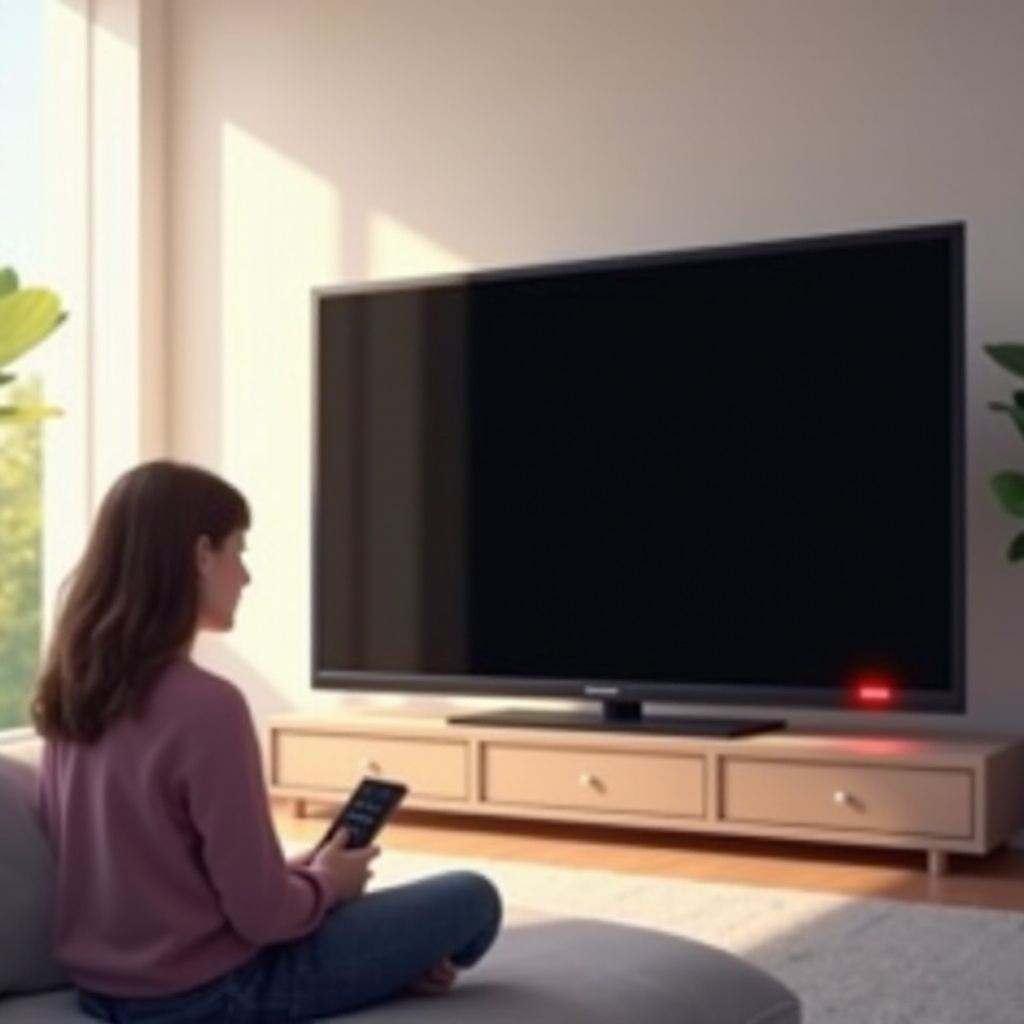
What the Red Standby Light on an Onn TV Really Means
Before you can fix anything, you need to understand what the red light is telling you. The red light on the front of your Onn TV is the standby indicator. It shows that the TV is getting power but is not fully turned on. Knowing how it should behave helps you decide where to focus your troubleshooting.
Normal standby behavior versus problem behavior
In normal use, the red standby light means:
- The TV is plugged in and receiving power.
- The TV is in standby mode, waiting for a power signal from the remote or the TV button.
- When you press the power button, the red light should turn off or change, and the screen should light up.
Problem behavior looks different:
- The red light stays solid, but the TV never powers up.
- The red light responds to the remote (blinks or flickers), but the screen stays black.
- The red light blinks in a repeated pattern and the TV does not turn on.
When the red light shows abnormal behavior, you likely have a power, software, or hardware issue rather than a simple standby state.
Solid red light vs blinking red light on Onn TVs
A solid red light usually means the TV is in standby and waiting for a command. If you press the power button and nothing changes, something is blocking the TV from waking up. That blockage might be a bad remote signal, a frozen system, or a power problem.
A blinking red light can mean:
- The TV detects an internal error.
- The TV is trying to boot but fails.
- The power supply or main board might be faulty.
Onn does not always publish detailed blink codes, but repeated blinking often points to hardware or firmware problems, especially if basic resets do not help.
When the red light is on but the screen stays black
If the red light is on but the screen is black, there are several possible causes:
- The TV never leaves standby mode.
- The TV turns on, but the backlight does not work.
- The TV is on the wrong input, and there is no signal.
- The TV has a firmware glitch and fails to boot.
Now that you know what the red light can tell you, the next step is to rule out the simplest issues. That starts with power and basic controls, which you will check before trying more advanced fixes.
Instant Checks Before You Try Anything Complex
Before you reset the TV or worry about hardware failure, confirm the basics. Many ‘onn tv not turning on but red light is on’ cases come down to simple power or button issues that you can fix in minutes.
Confirming the TV has power at the wall outlet
Start with the power source:
- Make sure the power plug is fully inserted into the wall socket.
- If you use a power strip or surge protector, check that it is switched on.
- Plug another device (like a lamp or phone charger) into the same outlet to confirm it works.
- If the outlet is controlled by a wall switch, verify the switch is on.
If the red light is on, the TV is getting some power, but a weak or unstable outlet can still cause problems. Using a known-good outlet removes this doubt.
Inspecting the power cord, surge protector, and extension leads
Next, inspect the hardware that delivers power to the TV:
- Look for cuts, kinks, or damage on the power cord.
- If you use an extension cord or surge protector, try plugging the TV directly into the wall.
- Make sure the power cord is firmly connected at the back of the TV and does not wiggle loose.
Budget TVs like Onn can be sensitive to poor power sources, so eliminating these issues is important before you suspect anything more serious.
Using the TV’s physical power button instead of the remote
A faulty remote can make it seem like the TV is dead when it is actually fine. To test this:
- Find the physical power button on the TV (often on the bottom edge or back).
- Press and hold it for a few seconds.
- Watch the red light and listen for any click or startup sound.
If the TV responds to the physical button but not the remote, your problem is likely remote-related, which you will address shortly. If these checks do not help, it is time to perform a proper power cycle to clear any internal glitches.
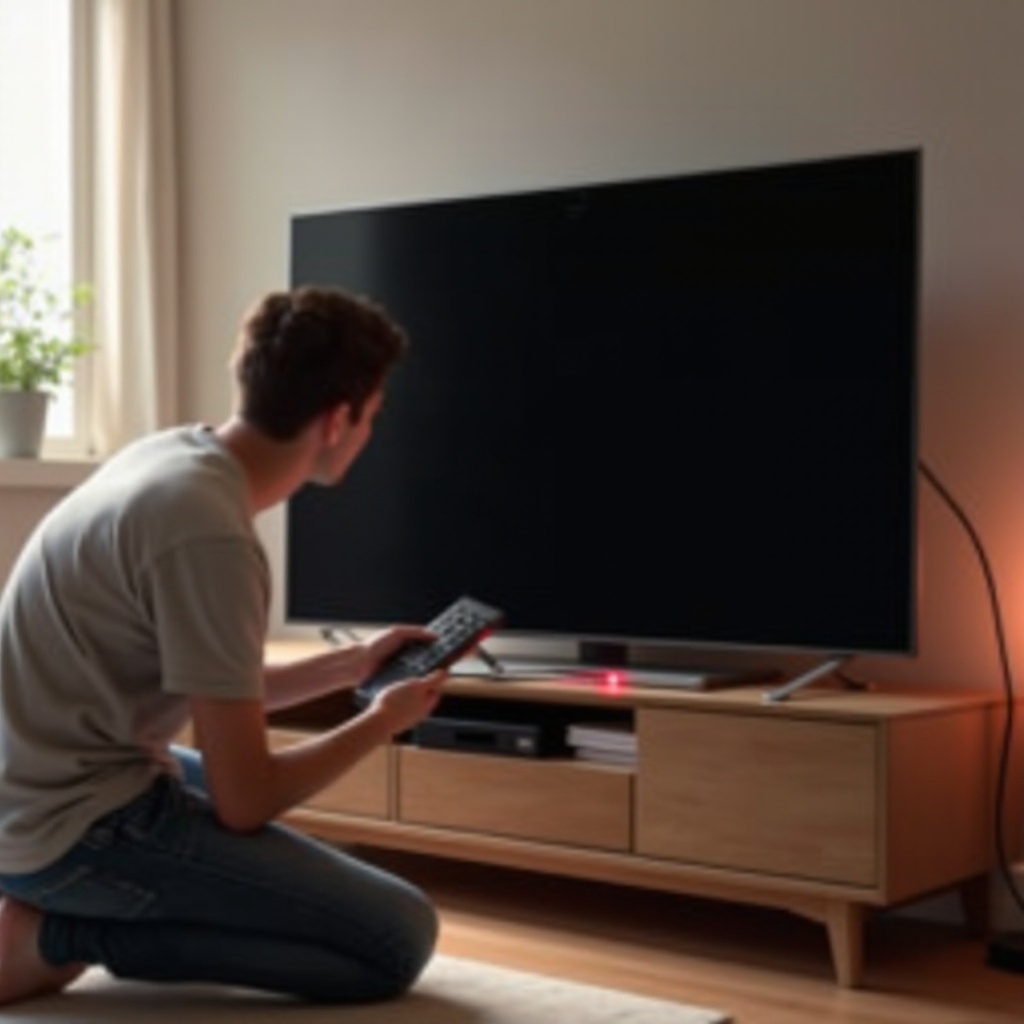
Performing a Proper Power Cycle on Your Onn TV
Power cycling clears temporary glitches in the TV’s internal electronics. It is one of the most effective fixes when your Onn TV has a red light but refuses to turn on, especially after power surges or software crashes.
Step-by-step unplug and discharge method
Follow this precise process:
- Turn the TV off with the remote or TV button, if possible.
- Unplug the TV from the wall outlet.
- Disconnect all HDMI, USB, and antenna cables.
- With the TV unplugged, press and hold the power button on the TV for 15–20 seconds. This helps discharge leftover power in the capacitors.
- Release the button and leave the TV alone for a while.
This reset can clear minor firmware or power circuit glitches that prevent the TV from leaving standby and can often restore normal startup.
How long to leave the TV unplugged for best results
For a deeper reset:
- Leave the TV unplugged for at least 5 minutes.
- For stubborn cases, wait 15–30 minutes.
Larger TVs and some power boards can hold a charge longer, so patience can make a difference. Giving the components time to fully discharge increases the chances that the power cycle will work.
Testing the TV with only the power cable connected
After the wait, test the TV in a simple state:
- Plug only the power cord back into the wall and the TV.
- Do not reconnect HDMI, USB, or antenna devices yet.
- Press the power button on the TV first.
- Watch the red light. If it turns off or changes and the screen flashes or shows a logo, the TV is waking up.
If the TV now turns on, one of your external devices or cables may have been causing the issue. You will test those in a later section. If not, the next logical step is to check the remote and sensor, because they control how the TV receives power commands.
Fixing Remote Control and Sensor Issues
If the red light responds when you press buttons on the remote but the TV does not fully turn on, the remote or the TV’s sensor may be the problem. Fixing this ensures that the TV actually receives the power signal you send.
Replacing remote batteries and checking for corrosion
Weak batteries often cause partial or unreliable signals:
- Open the battery cover on the remote.
- Remove the batteries and inspect for white or green corrosion on the terminals.
- Clean corrosion gently with a dry cloth or cotton swab if needed.
- Insert a fresh pair of high-quality alkaline batteries, matching the polarity.
Test the remote again and watch the red light. If it blinks when you press power, the TV is at least seeing the signal and the remote is likely working.
Testing the remote’s IR signal with a smartphone camera
Most Onn remotes use infrared (IR). You can test the signal with your phone:
- Open the camera app on your smartphone.
- Point the remote’s front end at the camera lens.
- Press and hold the power button on the remote.
- Look at the phone screen. If you see a flashing light from the remote tip, the IR LED is working.
If there is no flash, the remote may be dead or damaged. In that case, you may need a replacement remote or a universal remote programmed for Onn TVs.
Using the power button on the TV and mobile apps as backup
If the IR remote fails or is unreliable:
- Use the TV’s physical power button to control it.
- For Onn Roku TVs, you can use the official Roku app on your smartphone as a remote once the TV is on and connected to Wi-Fi.
- For Onn Google TVs, use the Google TV or Android TV remote app as a backup controller.
If the TV will not power up even with the physical button and a confirmed working remote, external devices and inputs may be interfering. The next step is to look at HDMI devices and the way they interact with the TV during startup.
HDMI Devices, Inputs, and CEC Conflicts
Modern TVs often interact with connected devices using HDMI-CEC, which lets devices control each other. Sometimes this causes power issues where the TV will not wake up correctly or gets stuck while trying to sync with another device.
How external devices can stop your Onn TV from waking up
Devices that can cause conflicts include:
- Streaming boxes and sticks.
- Game consoles.
- Cable or satellite boxes.
- Soundbars and AV receivers.
A faulty device or a bad HDMI cable can send confusing signals, leaving your TV stuck on the red light. It can also trigger a power loop where the TV turns on and off quickly or fails to fully start.
Disconnecting all HDMI, USB, and antenna cables
To rule out external device problems:
- Turn the TV off and unplug it from the wall.
- Disconnect all HDMI, USB, and antenna cables from the TV.
- Plug the TV back into power.
- Press the power button on the TV itself.
If the TV now turns on and shows a logo or a ‘No Signal’ screen, one of the removed devices or cables was causing the problem.
Reconnecting devices one by one and checking HDMI-CEC settings
Find the culprit by:
- Turning the TV off again.
- Reconnecting one device at a time.
- Turning the TV on after each device is connected.
When the problem returns after connecting a specific device, that device or cable is likely at fault. You can:
- Replace the HDMI cable with a new one.
- Use a different HDMI port on the TV.
- Check the TV’s Settings menu for HDMI-CEC (often called CEC, ARC, or similar) and turn it off to see if that solves the issue.
If the TV still refuses to start with no devices attached, the problem may be internal or software-related, especially on smart models. At this point, it helps to know whether you have an Onn Roku TV or an Onn Google TV, because each platform offers specific reset tools.
Onn Roku TV and Onn Google TV: Model-Specific Fixes
Onn smart TVs run either Roku TV or Google TV. Each system has its own quirks, so model-specific steps can help when the red light is on but the TV will not fully boot. Correctly identifying your platform unlocks more targeted restart and reset options.
How to identify whether you own an Onn Roku TV or Onn Google TV
You can identify the model by:
- Checking the logo on the remote (Roku or Google TV branding).
- Looking at the home screen interface when the TV previously worked (Roku grid vs Google TV content rows).
- Checking the model number on the back of the TV and searching it online or in the manual.
Knowing your platform helps you use the right reset and software options and avoid guesswork.
Using the reset button on the back or side of the TV
Many Onn Roku and Onn Google TVs have a small reset button:
- Find the pin-hole labeled ‘Reset’ on the back or side of the TV.
- Straighten a paperclip or similar object.
- With the TV powered on or in standby (red light on), press and hold the reset button for about 10–15 seconds.
- Release when the TV restarts or the brand logo appears.
This hard reset can clear deeper software issues that prevent the TV from turning on properly and force the system to reboot from a clean state.
System restart and factory reset options from the on-screen menus
If you can sometimes get an image:
- On Onn Roku TV:
- Go to Settings > System > Power.
- Choose System restart or power cycle options.
- If problems continue, go to Settings > System > Advanced system settings > Factory reset and follow the prompts.
- On Onn Google TV:
- Open Settings > System.
- Choose Restart to refresh the system.
- As a last resort, use Factory reset and follow the on-screen steps.
A factory reset removes your apps and settings but can solve persistent software glitches. If the TV still will not turn on or shows only a brief flash before going dark, you may be dealing with a backlight or hardware failure rather than a software problem.
Checking for Backlight and Internal Hardware Problems
When basic troubleshooting fails, the issue may be inside the TV: the backlight, power board, or main board. You can perform a few non-invasive tests at home to get clues before you call a technician.
Using the flashlight test to spot a very dim image
The backlight might be dead even if the screen is still working faintly. To check this:
- Turn the TV on (or try to) so the red light goes off or indicates that the TV is ‘on’.
- In a dark room, shine a bright flashlight at the screen from a close distance.
- Look for a faint image, menu, or moving shapes behind the dark screen.
If you see a very dim picture, the panel and electronics are working, but the backlight is not. Backlight repair usually requires opening the TV and replacing LED strips or boards, which most users should not attempt themselves.
Signs of power board or main board failure
You may have a failing power supply board or main board if:
- The red light blinks repeatedly and the TV never starts.
- The TV clicks or makes small sounds but the screen stays black.
- The TV turns on for a second, then shuts off again.
- There is a burnt smell or visible damage on the back vents.
These issues almost always require professional diagnosis and repair because they involve internal circuits and components.
Why internal hardware repairs are often not DIY-friendly
Inside the TV, high voltages and delicate parts can be dangerous and easy to damage. DIY board replacement may:
- Void your warranty.
- Cause further damage if parts are mismatched or installed incorrectly.
- Expose you to electric shock if capacitors still hold a charge.
For most owners, professional repair or replacement of the TV is safer and more cost-effective than opening the unit themselves. Once you suspect a hardware issue, it is time to think about warranty, support, and whether repair or replacement makes more sense.
Warranty, Support, and When to Repair or Replace
If your Onn TV still will not turn on despite all the steps above, you should consider your warranty and support options. This helps you decide if you should repair the TV or replace it with a new one.
How to check your Onn TV warranty and purchase details in 2024
To check coverage:
- Find the receipt or order confirmation from Walmart or another retailer.
- Look up the purchase date and compare it with the standard warranty period listed in your manual or on the Onn support site.
- Check if you bought an extended protection plan at checkout.
Many budget TVs have limited warranties, but if your TV is still covered, you may get repair or replacement at low or no cost, which can save you more than attempting a paid repair.
Contacting Walmart / Onn support and what information to provide
When you contact support, have these details ready:
- TV model number and serial number (found on the back of the TV).
- Proof of purchase and purchase date.
- Clear description of the issue: ‘Onn TV not turning on but red light is on,’ plus any blink patterns or sounds.
- Steps you have already tried (power cycle, reset, different outlets, removing devices, etc.).
You can reach out through Walmart customer service channels or the support contact listed in your manual or on the Onn website. Providing detailed information speeds up the process and helps the support team decide the best next step.
Comparing repair quotes to the cost of a new budget TV
Before you pay for repairs, compare:
- The age of your TV and how long you expect to keep it.
- The estimated repair cost for power board, main board, or backlight issues.
- Current prices for new Onn or other budget TVs in similar sizes.
Repairing a low-cost TV can sometimes cost as much as buying a new one. If the repair estimate is close to or higher than a new unit, replacement often makes more sense. If you decide to keep or replace the TV, it is worth learning how to avoid similar power and startup issues in the future.
Preventing Future Power and Startup Issues
Once your TV is working again, or you replace it with a new model, it is smart to avoid the same ‘onn tv not turning on but red light is on’ problem. Simple habits can extend the life of your next TV and reduce the risk of power-related failures.
Using surge protectors and avoiding frequent unplugging
Protect your TV from power damage by:
- Plugging it into a quality surge protector or UPS (battery backup) instead of directly into the wall.
- Avoiding frequent unplugging and plugging in of the power cable.
- Turning the TV off with the remote or power button instead of pulling the plug.
Power spikes and abrupt outages can damage the power board and cause the red light and startup issues you just fixed. A small investment in surge protection can prevent major problems later.
Ensuring proper ventilation and avoiding overheating
Heat is one of the main enemies of electronics:
- Make sure there is space around the TV for airflow.
- Do not block vents with cloth, furniture, or tight wall mounts.
- Dust the vents gently from time to time to keep them clear.
Good ventilation helps protect the backlight and internal boards from heat stress, which can cause intermittent shutdowns and early hardware failure.
Keeping your Onn TV software and apps updated
Software bugs can also cause startup problems:
- On Onn Roku TV, go to Settings > System > System update regularly to check for updates.
- On Onn Google TV, open Settings > System > About > System update and install available updates.
- Allow the TV to complete updates without unplugging it or cutting power.
Staying updated reduces the risk of firmware glitches and keeps your smart features working smoothly. That, combined with good power and ventilation habits, lowers the chances that you will face the same red light issue again.
Conclusion
When your Onn TV is not turning on but the red light is on, you still have many options before you give up. Most problems fall into a few categories: power issues, remote failures, HDMI conflicts, software glitches, or hardware faults. By checking your outlet, power cable, and remote, performing a proper power cycle, and isolating external devices, you can solve many cases at home.
Model-specific resets for Onn Roku and Onn Google TV can fix deeper software issues that keep the TV stuck on standby. If you suspect a backlight or internal board failure, it is safer to rely on warranty service or a professional technician. For older or low-cost units, replacement may be the most sensible option once you compare repair costs with the price of a new TV.
Use surge protection, good ventilation, and regular software updates to keep your TV running well. With these steps, the ‘onn tv not turning on but red light is on’ problem becomes manageable, and you will know exactly what to do the next time it appears.
Frequently Asked Questions
Why does my Onn TV have a red light but will not turn on even after a power cycle?
If a proper power cycle does not help, the cause may be deeper than a simple power glitch. Check your remote batteries and test the TV’s physical power button. Disconnect all HDMI and USB devices and try again. If the TV still will not turn on, you may have a firmware issue that needs a hard reset using the reset button, or a hardware problem such as a faulty power board, main board, or backlight. At that point, contact support or a repair shop for diagnosis.
Can a firmware update fix an Onn TV that shows a red light but no picture?
A firmware update can fix some boot and stability issues, but you usually need to get the TV to turn on at least once to install it. If the TV occasionally starts, update the system software through the Settings menu and restart the TV afterward. However, if you never get a picture or logo and the red light only blinks or stays solid, the problem is more likely hardware-related and not something a firmware update alone can repair.
When should I stop troubleshooting and call a professional for my Onn TV?
Stop troubleshooting and call a professional when the TV shows a red light but never turns on after you tried different outlets, power cycling, and disconnecting all devices; when the screen stays black but you hear sounds or see a faint image with a flashlight, suggesting a backlight failure; or when the red light blinks in a pattern, the TV clicks, or there is a burning smell or visible damage. At that point, further DIY attempts can be risky. Check your warranty status and contact Walmart or Onn support, or get a quote from a local repair technician to decide if repair or replacement is the better option.