
Introduction
You open the Google Home or Nest app to change the temperature or check your camera, and the same message pops up again: ‘Offline.’ When your Nest keeps going offline, routines break, security feels weaker, and the entire smart home experience becomes frustrating.
Offline Nest devices usually indicate a problem somewhere along the connection path: the device, your Wi‑Fi network, your router settings, your power supply, or the cloud service itself. These issues often overlap, which is why random disconnects can feel hard to diagnose.
This guide gives you a clear, step‑by‑step way to fix the problem. You will start with simple checks, then move into the most common causes of offline Nest devices, and finally walk through 12 practical fixes that work in real homes. Whether your Nest thermostat, camera, or doorbell keeps dropping offline, you will learn how to stabilize the connection and keep it that way.
To make those fixes effective, you first need to understand what ‘offline’ actually means for a Nest device and how to confirm what is happening.
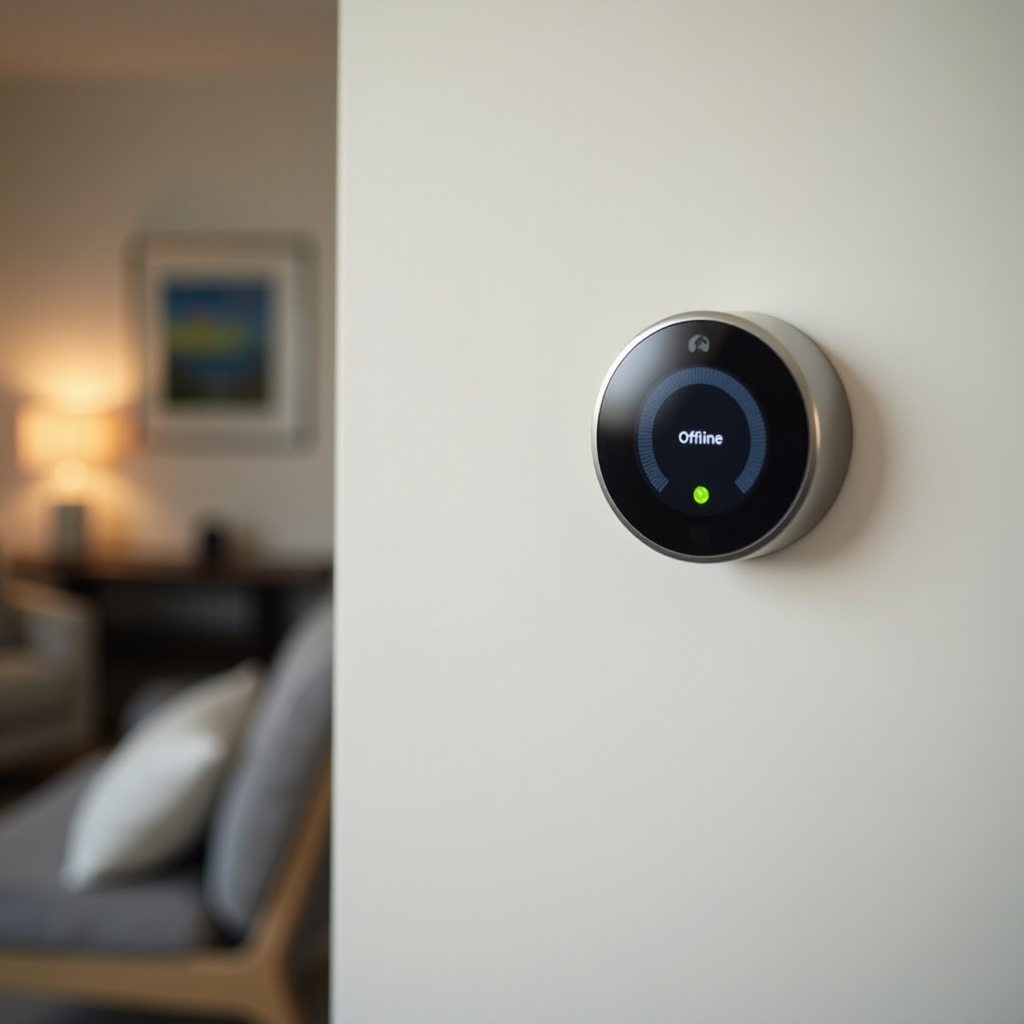
What ‘Nest Keeps Going Offline’ Really Means
When the app says a Nest device is offline, it means that the device cannot talk to Google's servers through your Wi‑Fi network. Somewhere between the Nest and the cloud, the link is broken or unstable. That can happen in several ways:
- The Nest device lost its Wi‑Fi connection.
- The router or internet connection is down or unstable.
- The device is rebooting or shutting down due to power issues.
- Google's cloud service is experiencing a temporary outage.
In many cases, the device may still work in a limited local mode. For example, a Nest thermostat may keep following its last known schedule even when the app shows it as offline. The app, however, cannot see or control it through the cloud, so it flags the device as unavailable.
Before you start changing settings or resetting equipment, you should confirm that the problem is real, consistent, and not just a momentary glitch. That is where a few quick checks help you avoid unnecessary work.
Quick Checks Before Deep Troubleshooting
A few fast checks can tell you whether the problem is with your Nest device, your network, or the cloud. Doing these first will help you narrow down the root cause and choose the right fix later.
Confirm the Device Is Actually Offline
Start by going to the device itself rather than trusting the app alone:
- Look at the Nest thermostat display or the status light on your camera or doorbell.
- Try using the physical controls on the device.
- Check for any error icons or Wi‑Fi symbols.
If the device responds normally, shows a healthy Wi‑Fi symbol, and works locally, the app may simply be lagging or recovering from a brief disconnect. If the screen is blank, frozen, or clearly shows a Wi‑Fi error, the device is truly offline and needs deeper troubleshooting.
Test Your Home Wi‑Fi on Other Devices
Next, test your network from the same area where the Nest device sits:
- Stand near your Nest device with your phone or laptop.
- Connect to the same Wi‑Fi network.
- Load a website or run a quick speed test.
If other devices struggle in that spot or also drop their connection, the issue is likely with your Wi‑Fi coverage or router, not only with the Nest device. If other devices work fine near the Nest, you may be dealing with a device‑specific or power‑related problem.
Check Google Home / Nest App Alerts
Open the Google Home or Nest app and review any notifications:
- Look for alerts about devices going offline, reconnecting, or losing power.
- Note whether several Nest devices report offline status at the same time.
- Pay attention to how often the app reports drops and reconnections.
If multiple Nest devices disconnect together, that pattern usually points to a network issue, router problem, or cloud outage. If only one device keeps going offline while others stay stable, the problem is more likely tied to that specific unit or its location.
These quick checks give you a snapshot of what is really happening. With that context in hand, you can now look at the most common reasons a Nest keeps going offline and decide where to focus.
Common Reasons Your Nest Keeps Going Offline
Most offline Nest problems trace back to a few categories. Understanding these high‑level causes will help you match your symptoms to the most likely issue and pick the right fix instead of guessing.
Weak Wi‑Fi Signal or Interference
If your Nest is far from the router or has several walls and floors between it and the access point, the Wi‑Fi signal can be weak or unstable. This leads to:
- Frequent disconnects, especially when other activity spikes.
- Laggy video streams or delayed thermostat responses.
- Devices that appear offline for a few minutes and then reconnect.
Interference from neighboring Wi‑Fi networks, microwaves, cordless phones, baby monitors, and even thick building materials can degrade the signal further, even when your router looks strong on paper.
Power and Wiring Problems on Nest Devices
Power issues are another major cause. Nest devices need stable power to keep their Wi‑Fi radios and processors running:
- Thermostats may reboot or go black when the HVAC system turns on if voltage drops.
- Wired cameras and doorbells can cut out when transformers are undersized or wiring is loose.
- Battery‑powered Nest products can disconnect unexpectedly when the battery is low or aging.
These sorts of problems often show up as devices that reboot randomly, go offline at certain times, or never stay connected for long.
Router, Firmware, and App Glitches
Sometimes the issue is not signal strength or power, but the way your router and software handle smart devices:
- Outdated router firmware can cause random device drops.
- Features like band steering, client isolation, or aggressive power saving can confuse Nest products.
- Bugs in the Google Home or Nest app can misreport status or delay updates.
If your Nest keeps going offline across several devices, especially after you changed routers, updated firmware, or modified network settings, your configuration may need tuning.
Now that you know the main culprits, you can start applying specific fixes. The first step is often the most effective: improving the Wi‑Fi signal where your Nest devices live.
Fix 1 – Improve Wi‑Fi Signal to Your Nest Device
Wi‑Fi signal strength is one of the biggest factors in whether a Nest device stays online. Strengthening the signal between the router and the Nest can dramatically reduce disconnects.
Check Signal Strength Near the Device
Use your phone or laptop to measure how good the signal is near the Nest device:
- Stand next to the thermostat, camera, or doorbell.
- Check how many Wi‑Fi bars you see.
- Run a basic speed test, especially for upload speed if you use Nest cameras.
If the signal is weak or speeds are very low, your Nest is likely dealing with the same poor conditions, which triggers offline events.
Move or Elevate the Router for Better Coverage
Router placement can make or break coverage:
- Place the router in a central, open location instead of hiding it in a closet.
- Elevate it on a shelf or table rather than putting it on the floor.
- Keep it away from large metal objects and dense furniture.
Even moving a router a few meters or changing its height can improve signal enough to keep your Nest connected more consistently.
Reduce Interference from Walls and Appliances
Signals lose strength as they pass through objects. Some materials and appliances are especially harsh on Wi‑Fi:
- Thick brick, concrete, and stone walls weaken signals more than drywall.
- Large appliances like refrigerators or metal cabinets can block or reflect signals.
- Microwaves, baby monitors, and older cordless phones can interfere when they are in use.
If possible, adjust the router location so the Wi‑Fi path to your Nest devices passes through fewer heavy barriers and avoids major sources of interference.
If you improve the signal and your Nest stays online longer but still drops sometimes, the next step is to fine‑tune your Wi‑Fi band and network settings so the connection is as compatible and stable as possible.
Fix 2 – Use the Right Wi‑Fi Band and Network Settings
Nest devices often work best when connected to a 2.4 GHz network with simple, compatible security settings. The wrong band or advanced features can create instability, even with good signal strength.
2.4 GHz vs 5 GHz for Nest Devices
Each Wi‑Fi band has different strengths:
- 2.4 GHz offers better range and penetrates walls more easily. It is well suited for thermostats, doorbells, and cameras that sit far from the router.
- 5 GHz provides higher speeds but has shorter range and is more easily blocked by walls.
If your Nest devices are at the edges of your home or outside, try connecting them to the 2.4 GHz band. Some routers let you split the bands into separate network names, such as 'Home_2G' and 'Home_5G,' which makes it easier to control what uses which band.
Disable Problematic Features like Band Steering
Band steering, also called smart connect or similar names, automatically pushes devices between 2.4 GHz and 5 GHz based on router logic. While this can work well for phones and laptops, it can confuse smart devices that expect a stable band.
If your router supports it, consider these steps:
- Turn off band steering or smart connect features.
- Give the 2.4 GHz and 5 GHz bands different SSID names.
- Connect your Nest devices only to the 2.4 GHz SSID.
This prevents the router from moving the Nest device between bands, which can cause temporary disconnects that show up as offline events.
Ensure Compatible Security and SSID Names
Smart home devices can be picky about Wi‑Fi security and network names:
- Use WPA2‑Personal (AES) security, which most Nest devices support reliably.
- Avoid using WPA3‑only mode unless your router offers a mixed WPA2/WPA3 mode and the Nest device is confirmed to support it.
- Keep SSID names simple. Use standard letters and numbers, avoid special characters where possible, and do not add extra spaces at the beginning or end.
With band and security set correctly, your Nest connection will be more stable. If offline issues continue, the next area to examine is how much traffic and how many devices your router is handling.
Fix 3 – Reduce Network Overload and Device Congestion
A modern smart home often includes dozens of devices. If your router is old, underpowered, or overloaded, some devices will get dropped, and Nest products may be among the first to suffer.
How Too Many Devices Can Knock Nest Offline
Every connected device consumes router resources:
- Each phone, laptop, TV, and smart device uses part of the available bandwidth.
- High‑demand tasks like streaming 4K video or cloud backups can spike usage.
- Entry‑level or aging routers struggle when many devices connect at once.
When the router hits its limits, it may slow down, drop connections, or restart. Your Nest devices may then report offline until the router recovers.
Prioritize Nest Devices or Add a Separate SSID
If your router supports Quality of Service (QoS) or device prioritization, you can give Nest devices special treatment:
- Mark your Nest thermostat, cameras, and doorbell as high‑priority devices.
- De‑prioritize less important devices like guest phones or secondary TVs.
Another approach is to create a dedicated SSID just for smart home devices and Nest products. This can reduce congestion on your main network and make it easier to tune settings for stability rather than raw speed.
When to Upgrade an Old or Budget Router
Sometimes the best fix is to replace hardware that is too limited for a busy smart home:
- If your router is several years old and was basic when you bought it, it may not handle the number of devices you have now.
- If you frequently experience slow speeds, random reboots, or multiple devices dropping at once, the router may be at its limit.
Upgrading to a stronger router or a mesh Wi‑Fi system can provide more capacity and better coverage, which often solves persistent 'Nest keeps going offline' issues.
Once you have addressed coverage, bands, and congestion, you should also make sure that both the Nest devices and your controlling apps run the latest software.
Fix 4 – Update Nest Firmware and Google Home / Nest App
Outdated firmware or app versions can cause connection bugs, mis‑reported status, and poor recovery from short outages. Keeping everything up to date is a simple but vital step.
Why Updates Matter for Connectivity
Updates often include improvements specifically aimed at stability:
- Bug fixes for Wi‑Fi handling and reconnect behavior.
- Better performance when recovering from brief power or network loss.
- Security patches that protect your network and devices from known exploits.
If your Nest keeps going offline, you do not want to be stuck with older firmware that still has known connection issues.
How to Confirm Your Nest Device Is Up to Date
You can check firmware versions in the app:
- Open the Google Home or Nest app and tap the device.
- Go to settings and look for 'Device information' or a similar section.
- Note the firmware version and compare it to the latest version listed on Google's official support site.
Most Nest devices update automatically when they have a stable connection. If yours is frequently offline, leave it connected for a while after stabilizing the network so it can download and apply any pending updates.
Keeping the Google Home / Nest App Current
The app itself also needs attention:
- Open your device's app store.
- Check for updates to the Google Home or Nest app.
- Enable automatic updates if they are not already turned on.
An updated app reduces the chance that the software on your phone is showing incorrect status, misreading errors, or failing to reconnect to devices that are back online.
If your Nest devices are updated but still show offline regularly, it is time to look more closely at power and wiring, especially for thermostats, cameras, and doorbells that rely on external power sources.
Fix 5 – Power and Wiring Checks for Thermostats, Cameras, and Doorbells
Even perfect Wi‑Fi cannot keep a device online if its power source is unstable. Power and wiring issues are a hidden but common reason why a Nest keeps going offline.
Spotting Low‑Power Issues on Nest Thermostats
Nest thermostats draw power from your HVAC system. If they do not get enough, they can misbehave:
- The screen may go black or restart on its own.
- You may see error codes related to power or a missing common wire.
- The thermostat may go offline when heating or cooling equipment starts up.
These are strong signs that the thermostat is not receiving consistent power and may need wiring changes or a dedicated common wire.
Verifying Power Bricks and Wiring on Cameras and Doorbells
For Nest cameras and doorbells, check the entire power path:
- Confirm that the power adapter or transformer meets Nest's voltage and power specifications.
- Inspect cables for signs of damage, pinching, or wear.
- Verify that all wire connections are snug at the device and at the power source.
If your camera or doorbell restarts when you ring the bell, turn on lights, or run other high‑load equipment, the transformer may be too weak or the wiring may be inadequate.
When to Add a C‑Wire or Power Adapter
Adding a dedicated power source can stabilize many setups:
- A C‑wire (common wire) provides steady power to a Nest thermostat instead of relying on power stealing from control lines.
- Some systems can accept a C‑wire directly, while others may need a power extender kit.
- For cameras and doorbells, an approved Nest power adapter or a compatible, higher‑capacity transformer can stop reboots and dropouts.
If you are unsure about electrical work or HVAC wiring, hiring a professional is safer and can prevent damage to your equipment.
With power and wiring verified, your devices should be more stable. The next step is to tune advanced router settings that impact how well your Nest devices stay connected.
Fix 6 – Adjust Router Settings for Stable Nest Connections
Beyond basic Wi‑Fi options, certain router settings can either support or disrupt smart devices. Adjusting these can remove the final sources of random drops.
Set IP Reservations for Key Nest Devices
IP reservations, also known as DHCP reservations, give devices a consistent address:
- This reduces the chance of IP conflicts on busy networks.
- It helps devices reconnect cleanly after reboots.
In your router's admin page, find the DHCP or LAN section and assign a reserved IP to each Nest device based on its MAC address. This small change can improve stability in dense smart home environments.
Tune Channels and Disable Client Isolation
Two other important settings can influence connection quality:
- Wi‑Fi channels: If many neighbors use the same channel, your router competes for air time. Switching to a less crowded channel on 2.4 GHz (often 1, 6, or 11) can reduce interference.
- Client isolation: Some routers isolate wireless clients so they cannot talk to one another. If this is enabled on the network your Nest devices use, it can cause communication issues between your phone, router, and Nest.
After making changes, reboot your router and wait for your Nest devices to reconnect. Then monitor them for a while to see if the offline behavior improves.
Update Router Firmware Safely
Router firmware updates can fix deep stability issues:
- Log in to your router's web interface or management app.
- Check for firmware updates from the manufacturer.
- Apply updates when you can tolerate a brief period of downtime.
Once the router restarts and comes back online, watch how your Nest devices behave over the next day or two. If issues persist, a controlled reboot or reset of the entire chain may be needed.
Fix 7 – Reboot or Factory Reset as a Last Resort
Sometimes, lingering glitches in modems, routers, or devices require a clean restart of everything in the connection path. In more stubborn cases, a factory reset can restore stable behavior.
Correct Reboot Order: Modem, Router, Nest Devices
Follow this order when rebooting your network:
- Turn off or unplug your modem and router.
- Wait at least 30 seconds.
- Plug in and power on the modem.
- Wait until all modem lights settle and the internet connection is active.
- Power on the router and wait until Wi‑Fi is broadcasting.
- Restart your Nest devices or allow them to reconnect on their own.
This sequence helps clear IP conflicts and forces all components to reconnect in a clean, predictable way.
When a Factory Reset Is Worth the Effort
Consider a factory reset on a Nest device only after other fixes fail:
- The same device keeps dropping offline while others in the home are stable.
- The problem started after moving, changing networks, or making heavy configuration changes.
- Firmware and app updates did not solve the issue.
Remember that a factory reset erases settings, schedules, and preferences. Be prepared to spend a few minutes setting the device up again.
Re‑Adding Devices to the Google Home / Nest App
After a reset:
- Open the Google Home or Nest app.
- Choose to add a new device and follow the pairing instructions.
- Re‑create your routines, schedules, activity zones, and notification settings.
If the device still keeps going offline even after a reset, and other devices show similar behavior, the problem may lie outside your home network.
Fix 8 – Check for Google Nest Service or Cloud Outages
At times, everything inside your house is fine, but the cloud service that Nest devices rely on is having trouble. In these moments, your local fixes will not resolve the issue until the service recovers.
How to Tell If the Problem Is on Google's Side
Signs that a cloud outage may be involved include:
- Several Nest devices go offline at nearly the same time.
- Your internet works fine for other websites and smart devices.
- Online status pages, news, or communities report issues with Nest or Google Home.
If you see a pattern that matches these conditions, there may be little you can do besides wait for Google to fix the problem.
Temporary Workarounds During Cloud Issues
While waiting for service to return to normal, you can still do a few things:
- Use local controls on your Nest thermostat to change temperature or modes directly.
- Keep existing automations and schedules intact; avoid major configuration changes.
- Monitor official channels or support pages for updates on the outage.
After cloud services stabilize, it makes sense to think long term. You want to avoid repeating the same 'Nest keeps going offline' story as you grow your smart home.
Long‑Term Solutions to Stop ‘Nest Keeps Going Offline’ for Good
If you rely on Nest for comfort and security, investing in a more robust, well‑planned network can pay off. A strong foundation keeps new devices from tipping your system into instability.
Build a Mesh Wi‑Fi Network Around Your Smart Home
Mesh Wi‑Fi systems use multiple nodes to spread coverage:
- Each node broadcasts Wi‑Fi, and devices connect to whichever node offers the best signal.
- You can place nodes close to problem areas, such as far‑flung thermostats or outdoor cameras.
- Mesh systems are designed to handle many devices and maintain stable connections.
With a good mesh setup, it becomes far less likely that a Nest device goes offline due to weak signal or distance from the router.
Create a Dedicated IoT Network for Nest Devices
Many newer routers and mesh systems let you create more than one SSID:
- Put Nest devices and other smart home gear on a dedicated 'IoT' or 'SmartHome' network.
- Keep laptops, phones, and work devices on your main or a separate network.
- Apply settings on the IoT network that prioritize stability and compatibility over raw speed.
This separation helps you manage congestion and security while giving Nest devices a more predictable environment.
Plan Coverage and Placement Before Adding More Nest Products
Before you install a new Nest device, check the network in that location:
- Walk to the planned spot with your phone and test Wi‑Fi strength and speed.
- Confirm that both signal quality and upload speed are adequate, especially for cameras.
- Add mesh nodes or access points where coverage is weak before installing the device.
Planning ahead ensures that every new Nest product joins a stable network rather than pushing it toward its limits.
Even with a strong network and careful planning, some issues still call for help from Google support or a professional technician. Knowing when to ask for help can save time and prevent frustration.
When to Contact Google Nest Support or a Professional
If you have tried the major fixes and your Nest keeps going offline, contacting support or bringing in a professional can help you uncover uncommon problems or hardware faults.
What to Document Before Contacting Support
Good documentation helps support teams troubleshoot quickly:
- Note the exact Nest model, serial number, and firmware version.
- Record your router make, model, and firmware version.
- Write down how often the device goes offline and any patterns you notice.
- Capture screenshots of error messages or alerts in the app.
Sharing these details with Google Nest support gives them a clear picture and helps them provide targeted advice instead of generic suggestions.
Recognizing Signs of Hardware Failure
Sometimes the problem is not configuration but failing hardware:
- Only one device misbehaves while other Nest products on the same network stay perfectly stable.
- The device feels unusually hot, shows physical damage, or makes strange noises.
- The device fails to stay connected even when tested on a different, known‑good network.
In these cases, the most realistic solution may be repair or replacement under warranty or through a service program.
When to Bring in a Network or HVAC Professional
There are situations where professional help is the safest and most effective option:
- You need to add or modify a C‑wire or fix HVAC wiring for a thermostat.
- Your electrical system or doorbell transformer needs upgrading for a camera or doorbell.
- Your home network is complex, and deep configuration changes are outside your comfort zone.
A qualified technician can often diagnose and solve persistent problems in a single visit, saving you hours of trial and error.
Conclusion
When your Nest keeps going offline, it affects comfort, security, and your trust in your smart home. The issue can feel random, but it almost always traces back to clear causes: weak Wi‑Fi, overloaded or misconfigured routers, unstable power, outdated software, or temporary cloud outages.
By working through the steps in this guide, you can tackle each of those causes in a logical order. Start by confirming the problem and checking basic network health. Then improve Wi‑Fi coverage, choose the right band and settings, reduce congestion, and keep firmware and apps up to date. From there, verify power and wiring, refine router settings, and only then move to reboots or factory resets.
Once your network is stable and your devices are powered and configured correctly, long‑term improvements like mesh Wi‑Fi and dedicated IoT networks will help you avoid future headaches. If problems persist, do not hesitate to contact Google Nest support or a professional who can look at your specific setup.
With a methodical approach, 'Nest keeps going offline' can shift from a constant frustration to a solved problem, and your smart home can finally work the way you expect.
Frequently Asked Questions
Why does my Nest keep going offline even though my Wi‑Fi is fine?
Your Wi‑Fi may look fine on phones or laptops, but Nest devices are often farther from the router and more sensitive to weak signal, interference, and power issues. A Nest device can go offline if the signal at its exact location is poor or unstable, even if the router appears strong elsewhere. Router settings such as band steering, security mode, or outdated firmware can also affect smart devices differently than other gear. Check signal strength near the Nest device, review your router configuration, and confirm the device has steady power.
Will a mesh Wi‑Fi system stop my Nest devices from going offline?
A mesh Wi‑Fi system can greatly reduce offline issues by improving coverage and stability. Multiple nodes spread through your home help ensure Nest thermostats, cameras, and doorbells all sit within range of a strong nearby access point. This reduces dead zones and weak spots that often cause disconnects. While mesh Wi‑Fi is not a guarantee that no device will ever drop, it usually makes smart home setups far more reliable, especially in large homes or multi‑story layouts.
How do I know if my Nest is offline because of a Google outage?
If several Nest devices go offline at the same time while other internet services work normally, a Google or Nest cloud outage is a likely cause. Check outage trackers, Google status pages, or online communities to see if others report similar issues at the same time. When the problem is on the cloud side, your local network, router, and devices may be perfectly fine, and there is usually little you can do except wait for the service to recover. During that time, use local controls on devices like thermostats when possible.