
Introduction
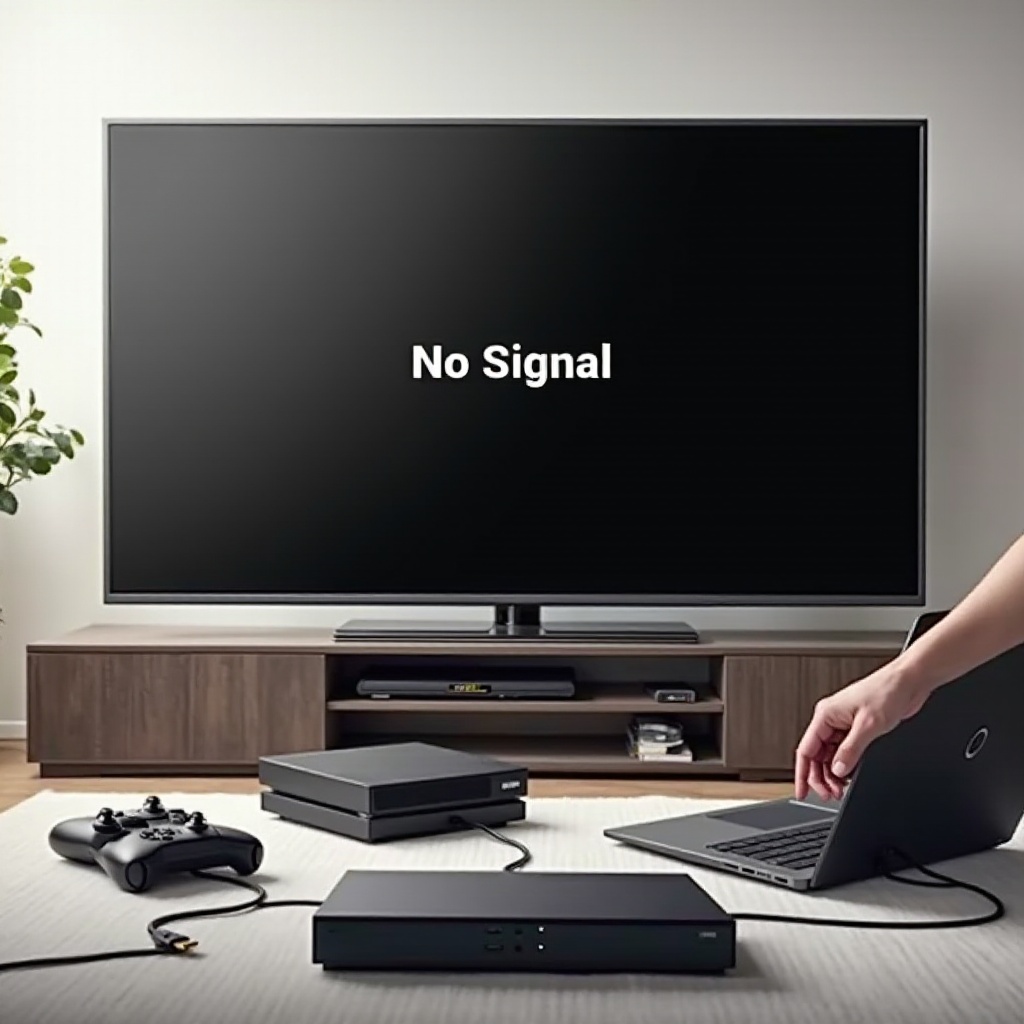
HDMI ports not working on a Vizio TV can ruin movie night or game time fast. You power on your console or streaming stick, select the input, and the screen shows ‘No Signal’ or stays black. Sometimes the picture flickers or only one HDMI port works while others are dead.
This guide explains why HDMI problems happen on Vizio TVs and walks you through practical fixes you can try at home. You will learn how to:
- Check if the issue is the TV, cable, or device
- Use power cycling and reset methods that fix most HDMI glitches
- Adjust Vizio picture and input settings that often cause ‘No Signal’
- Troubleshoot consoles, streaming devices, PCs, and receivers
- Recognize when the HDMI ports have a hardware fault and what to do next
By the end, you should know exactly where the problem sits and which steps to take to get your HDMI ports working again.
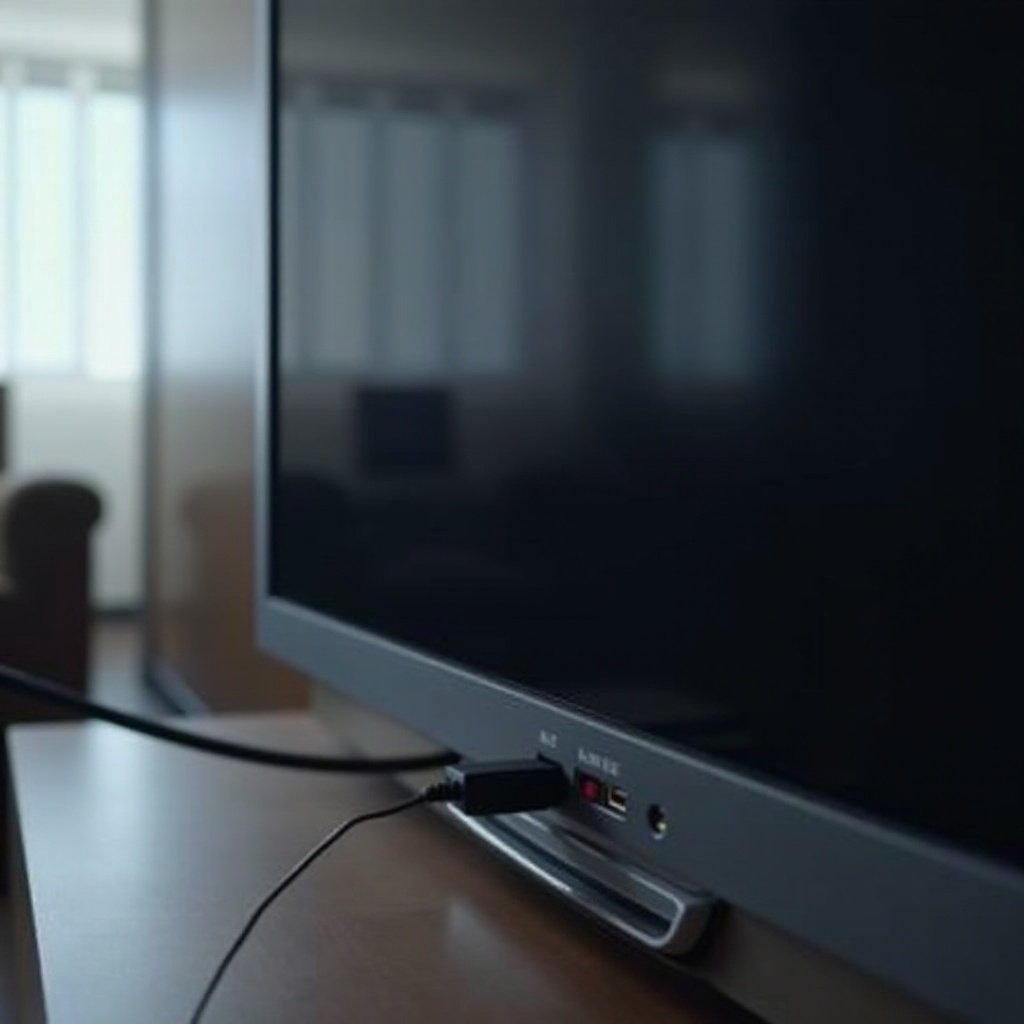
How Vizio HDMI Ports Work and Why They Fail
Before you start unplugging everything, it helps to understand how Vizio HDMI ports work. That makes it easier to tell whether the TV, the cable, or the device needs attention and sets you up for the quick checks in the next section.
Common HDMI Symptoms on Vizio TVs (No Signal, Black Screen, Flickering)
Most Vizio HDMI issues fall into a few clear patterns:
- ‘No Signal’ or ‘No Input Detected’ message
- Black screen with sound still working through a soundbar or receiver
- Picture flickers, cuts in and out, or shows static for a second
- One HDMI port works but others do nothing
- HDMI ARC or eARC stops sending audio to a soundbar
Each symptom points to a weak link in the HDMI chain: the TV port, the cable, the device, or the settings.
HDMI Handshake, HDCP, and Compatibility in Simple Terms
When you plug a device into a Vizio HDMI port and turn everything on, a ‘handshake’ happens. The TV and the device exchange information:
- What resolution and refresh rates can you handle?
- Is HDCP copy protection enabled and compatible?
- Should we send HDR or SDR video?
If that handshake fails, you see ‘No Signal’, a black screen, or an unstable picture. Modern devices and Vizio TVs support different HDMI and HDCP versions. If they do not agree on a mode they both support, the connection fails.
Differentiating TV Port Issues from Device or Cable Problems
You do not want to replace a TV when the real issue is a low-cost cable. To narrow things down, ask:
- Do all devices fail on the same HDMI port?
- Does the same device work on another TV?
- Does a different cable fix the problem?
If every device fails on a single port but works on other ports, that port may be damaged. If one device fails on all ports but works on another TV, the device needs attention. If swapping the cable fixes everything, you found the culprit.
With this basic understanding of how HDMI works on a Vizio TV, you are ready to run through some simple checks that often fix the issue without any deeper troubleshooting.
Quick Checks Before Deep Troubleshooting
Many Vizio HDMI issues disappear once you cover a few simple but easy-to-miss steps. Starting with these quick checks saves time and helps you avoid unnecessary resets or service calls.
Confirm the Correct HDMI Input Is Selected on Your Vizio TV
Input selection causes a lot of ‘hdmi ports not working vizio’ complaints.
Do this:
- Press the ‘Input’ or ‘Source’ button on your Vizio remote.
- Cycle through HDMI 1, HDMI 2, HDMI 3, and any other inputs.
- Pause on each input for a few seconds to see if a picture appears.
If your streaming stick is in HDMI 2 but the TV sits on HDMI 1, you will always see ‘No Signal’ even if everything else is fine.
Test Different HDMI Cables and Ports
Cable problems are common, especially with 4K and gaming setups.
Try this quick test:
- Unplug the HDMI cable from both the TV and the device.
- Use a different HDMI cable that you know works on another TV or device.
- Plug it into another HDMI port on the Vizio TV, for example, move from HDMI 1 to HDMI 3.
If the picture appears with a new cable or on a different port, you have isolated the issue. Replace the cable or avoid the bad port.
Try Multiple Devices on the Same HDMI Port
To know if a port is bad, test more than one device:
- Connect a streaming stick, console, or laptop to HDMI 1.
- If it fails, unplug it and connect a second device to the same HDMI 1 port.
- If both fail while working on other TVs or ports, HDMI 1 may be faulty.
Once you complete these quick checks, you will know whether you have a basic setup problem or a deeper HDMI issue that needs reset steps. If the basics look fine but HDMI still does not work, the next step is to clear temporary glitches with power cycling and resets.
Power Cycling and Reset Methods That Fix Most Vizio HDMI Issues
If cables and inputs look fine, the next step is to clear glitches in the TV and connected devices. Power cycles and resets resolve many HDMI handshake failures on Vizio TVs and are safe to try before changing advanced settings.
Soft Reboot vs Full Power Drain of Your Vizio TV
A soft reboot restarts the TV software without cutting all power:
- Press and hold the Power button on the remote until the TV turns off and back on.
If that does not help, try a full power drain:
- Turn off the TV and unplug it from the wall.
- Press and hold the TV’s physical power button for 10–15 seconds.
- Wait another 30–60 seconds with the TV unplugged.
- Plug it back in and power it on.
This clears residual power and often restores HDMI ports that seemed dead.
Resetting the HDMI Connection on Consoles and Streaming Devices
Sometimes the problem lives on the device side, not the Vizio TV. To reset the HDMI connection:
- Turn off the device, such as a console, streaming stick, or Blu-ray player.
- Unplug its power cable.
- Unplug the HDMI cable from both the TV and the device.
- Wait 30 seconds, then reconnect HDMI firmly.
- Plug the device back in and power it on while the TV is already on the correct HDMI input.
This sequence forces a fresh HDMI handshake and often clears stubborn ‘No Signal’ errors.
When and How to Do a Factory Reset on a Vizio TV
If HDMI ports still do not work after power cycles, a factory reset can clear deeper software bugs. Be aware: this wipes apps, settings, and Wi-Fi details.
To factory reset most Vizio TVs:
- Press ‘Menu’ on the remote.
- Go to ‘System’ > ‘Reset & Admin’ (names may vary slightly).
- Select ‘Reset TV to Factory Defaults’.
- Enter the PIN if prompted, often 0000 or 1234 if you did not change it.
Only use this step after you try simpler fixes, because you will need to set up the TV again from scratch. Once you have a clean system, it is time to look at Vizio settings that directly affect HDMI behavior.
Adjusting Vizio TV Settings That Affect HDMI Ports
Vizio TVs include features that can improve HDMI performance, but some settings can also cause black screens or ‘No Signal’ if misconfigured. After you clear temporary glitches, tuning these settings can bring apparently dead HDMI ports back to life.
Checking Input Settings, Renaming, and Enabling the Right HDMI Port
First, make sure the TV recognizes the port you are using:
- Press ‘Menu’ on your Vizio remote.
- Go to ‘Input’ or ‘Inputs’.
- Ensure the HDMI input you use is set to ‘On’ and not hidden or disabled.
You can also rename inputs, for example, change HDMI 1 to PS5, to keep track of where each device is plugged in. This does not fix HDMI by itself, but it prevents you from choosing the wrong input and makes ongoing troubleshooting easier.
Managing CEC, ARC, and eARC to Avoid Signal Loss
CEC allows devices to control the TV, and ARC or eARC sends audio back to a soundbar or receiver. These features sometimes cause HDMI issues:
- TV turns on but shows ‘No Signal’
- Soundbar does not receive audio over ARC
- TV input changes by itself
To adjust these:
- Open the Vizio menu and go to ‘System’ or ‘Settings’.
- Look for ‘CEC’ or ‘HDMI-CEC’ and toggle it Off, then On, to refresh it.
- For soundbar setups, check ‘Audio’ > ‘ARC/eARC’ and confirm the correct port is set for audio return.
If you keep losing signal when CEC is on, try leaving CEC off for a while and see if HDMI becomes stable.
Matching Resolution, Refresh Rate, and HDR Settings to Your Devices
Some HDMI ports or cables cannot handle very high resolutions or frame rates. This is common with 4K 120 Hz gaming or HDR content.
If your screen is black when a console or PC boots:
- On the device, lower the resolution to 1080p and 60 Hz.
- Disable advanced features like VRR (Variable Refresh Rate) and ALLM (Auto Low Latency Mode) temporarily.
- Turn off HDR in the device settings and test again.
If the picture appears after lowering these settings, the issue is compatibility between your device’s output and the TV port or cable. Keep the stable settings or upgrade your HDMI cable to a certified high-speed or Ultra High Speed cable.
Once TV settings look correct and basic compatibility is confirmed, you can dive into device-specific troubleshooting to handle issues with particular consoles, streamers, or PCs.
Fixes for Specific Devices Connected to Vizio HDMI Ports
Different devices behave differently on Vizio HDMI ports. Consoles, streaming sticks, PCs, and AV receivers all have unique quirks. Adjusting settings on each device often fixes HDMI issues that TV changes alone cannot solve.
Streaming Sticks and Boxes (Roku, Fire TV, Chromecast, Apple TV)
For streaming devices, focus on power and simple output settings:
- Plug the streamer directly into the Vizio HDMI port, not through a switch or receiver, when testing.
- Use the supplied power adapter instead of the TV’s USB port to avoid low-power issues.
- In the device’s display settings, choose a fixed resolution like 1080p or 4K 60 Hz instead of ‘Auto’, which sometimes misdetects TV capabilities.
If the device works on another TV, but not on your Vizio, lower the resolution, test each HDMI port with a known-good cable, and confirm the TV firmware is current.
Game Consoles (PS5, Xbox Series X|S, Nintendo Switch) and Game Mode
For high-end consoles:
- Make sure you plug the console into the recommended HDMI port on your Vizio, often labeled for 4K or 2.1.
- On the Vizio, enable ‘Game Mode’ in the Picture settings if you game, but turn it off during troubleshooting if you suspect HDMI instability.
- On the console:
- Set resolution to 1080p or 4K 60 Hz first.
- Turn off VRR and ALLM temporarily.
- Apply the changes, then test.
If HDMI works at lower settings, slowly re-enable features until you find the one that breaks the connection. That tells you which advanced option your TV or cable cannot reliably support.
PCs, Laptops, and AV Receivers Connected via HDMI
For a PC or laptop:
- Extend or duplicate the display to the Vizio in your operating system’s display settings.
- Set the refresh rate to 60 Hz and the resolution to match the TV, such as 1080p or 4K.
- Disable HDR until you confirm a stable signal.
For AV receivers or soundbars between the device and the TV:
- Confirm the HDMI cable from the receiver to the Vizio is high quality and placed in the correct ARC or eARC port if you use audio return.
- Try bypassing the receiver: connect the source device directly to the TV. If it works, the receiver or its HDMI settings need adjustment.
If device-specific tweaks still do not solve your problem, it is time to move on to more advanced HDMI tests that can reveal whether you face a deeper compatibility issue or a failing HDMI board.
Advanced HDMI Troubleshooting for Stubborn Vizio Issues
Some HDMI problems remain even after careful checks and resets. At this stage, you want to isolate the faulty part and try workarounds that can keep your system usable while you decide on repair or replacement.
Testing With Another TV or Monitor to Isolate the Fault
To see if your Vizio TV is truly at fault:
- Take the device and HDMI cable that fail on your Vizio.
- Connect them to another TV or monitor.
- If they work perfectly there, the problem likely sits with the Vizio HDMI port or its settings.
If they also fail on another screen, replace the HDMI cable first. If the cable is fine, the device may be the real issue.
Using an HDMI Switch or Splitter as a Workaround
Sometimes a Vizio HDMI port is weak but still works when you use an external HDMI switch or splitter between the TV and devices. This is not ideal but can serve as a workaround.
Try:
- Connecting all devices to an HDMI switch, then connecting the switch to one working HDMI port on the Vizio.
- Using a powered switch to ensure a strong signal and clean handshake.
If devices work through the switch but not directly, the TV port may be borderline, and the switch stabilizes the signal.
Dealing With HDCP and HDMI 2.1 Features That Cause Problems
Copy protection (HDCP) and advanced HDMI 2.1 features can break HDMI connections:
- If you use capture cards, older receivers, or older monitors in the chain, HDCP may block the signal.
- Some devices let you change HDCP modes, for example, ‘Automatic’, ‘1.4’, or ‘2.2’. Try a lower mode if possible.
- If you use 4K 120 Hz or VRR on a console, try disabling those and running at 4K 60 Hz or 1080p 60 Hz and see if the issue goes away.
If advanced features always break the connection and basic modes work, the limitation lies in the TV, device, or cable compatibility. When that happens, you may need to keep settings conservative or consider upgrading hardware.
Recognizing Hardware Failure on Vizio HDMI Ports
If you have tried cables, power cycles, resets, settings, and different devices, hardware failure becomes more likely. At this point, you want to confirm whether the HDMI ports or mainboard have physical damage before you call support or plan a replacement.
Signs of a Damaged HDMI Port or Mainboard
Look for these clues:
- HDMI ports feel loose, wobble, or move when you plug in a cable.
- You see visible damage inside the port, such as bent or broken pins.
- Only one or two ports completely fail while others still work for the same device and cable.
- HDMI works for a few seconds, then drops every time, even after resets and settings changes.
These symptoms suggest a failing HDMI port or mainboard inside the TV.
Warranty, Support, and Typical Repair Options From Vizio
If you suspect hardware failure:
- Check your proof of purchase and see if the TV is still under warranty.
- Visit Vizio’s support site and enter your model number and serial number.
- Contact Vizio support and describe the tests you already performed, including cable swaps, power cycles, and factory reset.
Under warranty, Vizio may offer repair, replacement, or a refurbished unit. Out of warranty, a local TV repair shop can sometimes replace the HDMI board, but cost may be close to a new TV for older models.
When It’s More Practical to Replace the TV Instead of Repairing
If:
- Several HDMI ports are dead,
- The TV is older and out of warranty, and
- Repair quotes are high,
it may be more practical to replace the TV. You can still use a surviving HDMI port with a switch as a temporary solution while you shop for a new model. Before you move on, it is smart to adopt a few habits that reduce the chance of future HDMI port failures.
Preventing Future HDMI Problems on Vizio TVs
Once you get your HDMI ports working again, a few habits can help you avoid the same headache later. Good cables, safe power, and gentle handling give your Vizio HDMI ports a much longer life.
Choosing Quality, Certified HDMI Cables and Proper Cable Management
Use:
- High-speed or Ultra High Speed certified HDMI cables for 4K and gaming.
- Shorter cables when possible to reduce signal loss.
Avoid:
- Tight bends near the HDMI port.
- Heavy cables hanging from the port without support.
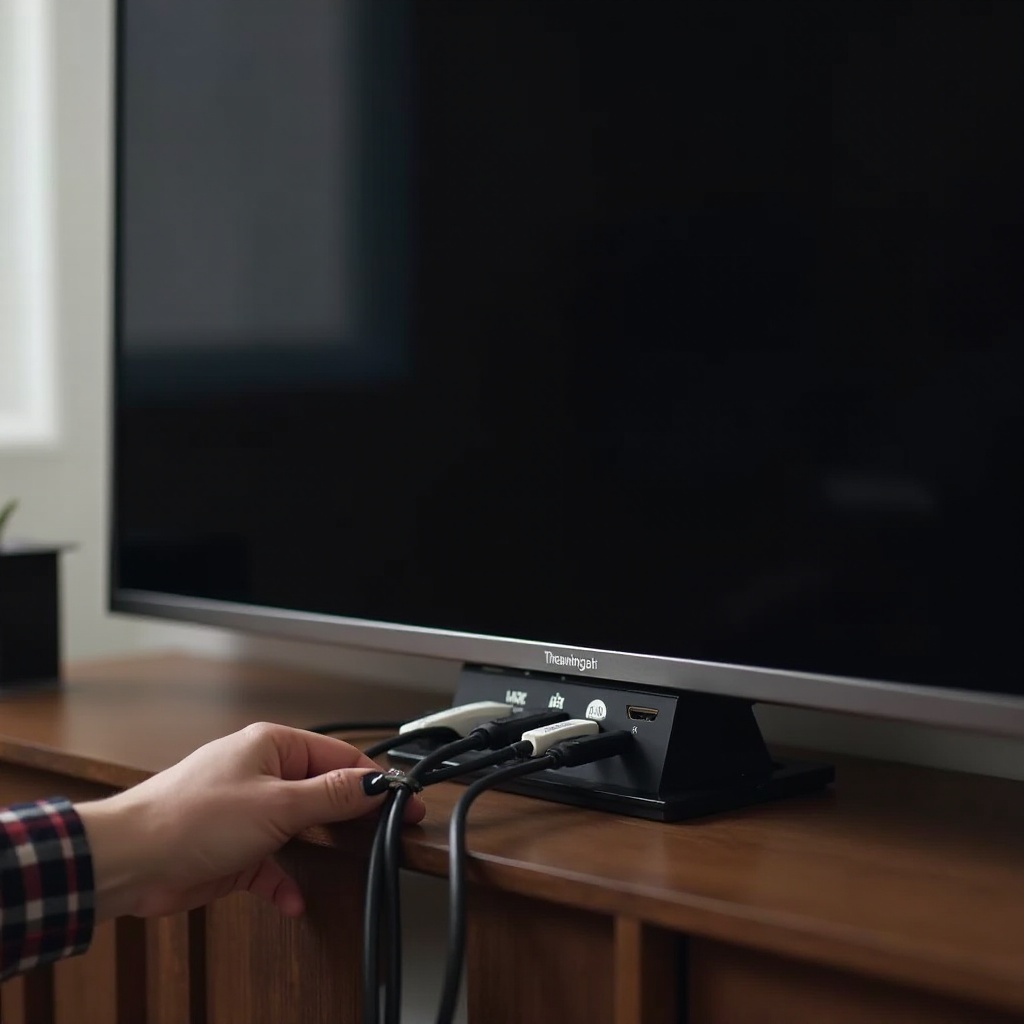
Use cable clips or ties to relieve strain on the connectors and keep your setup neat.
Protecting Your TV From Power Surges and Unstable Outlets
Power spikes can damage HDMI boards inside the TV. To reduce that risk:
- Plug the TV and sensitive devices into a surge protector or power conditioner.
- Avoid plugging and unplugging devices while they are powered on during storms or unstable power periods.
Stable power helps keep digital ports healthy and reduces random lockups or failures.
Best Practices for Plugging, Unplugging, and Updating Devices
To keep HDMI ports stable long term:
- Turn off devices before unplugging or plugging HDMI cables when possible.
- Do not yank cables out; grip the plug and pull straight.
- Keep your Vizio TV and connected devices updated with the latest stable firmware.
These simple steps reduce physical wear and software conflicts that lead to ‘hdmi ports not working vizio’ issues in the future.
Conclusion
HDMI ports not working on a Vizio TV usually trace back to a handful of causes: wrong input selection, bad cables, power or handshake glitches, misconfigured settings, or hardware failure. By following a clear path, checking inputs and cables, power cycling, resetting devices, adjusting Vizio settings, and testing each device, you can narrow down the problem fast.
If a single port fails while others work, or if you see visible damage, the HDMI hardware may be at fault. At that point, you can consider warranty service, repair, or a replacement TV, and use an HDMI switch as a temporary workaround.
Use this guide as a reference whenever a ‘No Signal’ or black screen appears. With a calm, step-by-step approach, most Vizio HDMI issues are fixable without guesswork, and you can get back to watching, streaming, and gaming with confidence.
Frequently Asked Questions
Why do all my Vizio HDMI ports suddenly show ‘No Signal’?
When every HDMI port shows ‘No Signal’, the issue is often a system-wide glitch or a device problem, not just one port. Try these steps: 1) Power cycle the TV by unplugging it and holding the power button for 10–15 seconds before plugging it back in. 2) Test another known-good device and cable on each HDMI port. 3) Make sure you select the correct input on the remote and leave it on that input while you power on the device. 4) If nothing works, perform a factory reset and update the TV firmware. If all that fails and other TVs work fine with the same devices and cables, the Vizio HDMI board may have a hardware fault and you should contact Vizio support or a repair shop.
Can a Vizio HDMI port be repaired, or do I need a new TV?
Yes, HDMI ports on a Vizio TV can often be repaired, but it usually requires professional service. A technician may replace the HDMI board or re-solder a damaged port. For newer TVs still under warranty, contact Vizio support first and provide your model, serial number, and troubleshooting steps already taken. For older, out-of-warranty models, compare the repair cost to the price of a new TV. If only one port fails and others still work, you can also use an HDMI switch on a working port as a low-cost workaround instead of repairing the TV immediately.
How do I know if my HDMI cable or my Vizio TV port is the real problem?
To find the real problem, follow a simple process: 1) Use the same HDMI cable and device on another TV. 2) If it works there, the Vizio HDMI port or its settings are likely the issue. 3) If it fails on the second TV as well, replace the HDMI cable and test again. 4) On your Vizio, try another cable and device on the same port. If several different cables and devices all fail on one specific HDMI port but work on other ports, that port is probably faulty. If all ports behave the same with good cables and devices, the TV may have a wider HDMI board issue.