
Introduction
The Nintendo Switch offers outstanding flexibility for gamers, allowing play both at home and on the go. However, persistent charging problems can quickly become a major inconvenience. Fortunately, most of these issues have straightforward fixes. In this guide, we’ll provide step-by-step solutions to help you identify the problem and get back to playing your favorite games without further delay.
Understanding the Charging Process
Grasping how the Switch charges is crucial to troubleshooting why it might be failing to do so. This insight can direct you to the root cause of any charging issue.
How the Nintendo Switch Charges
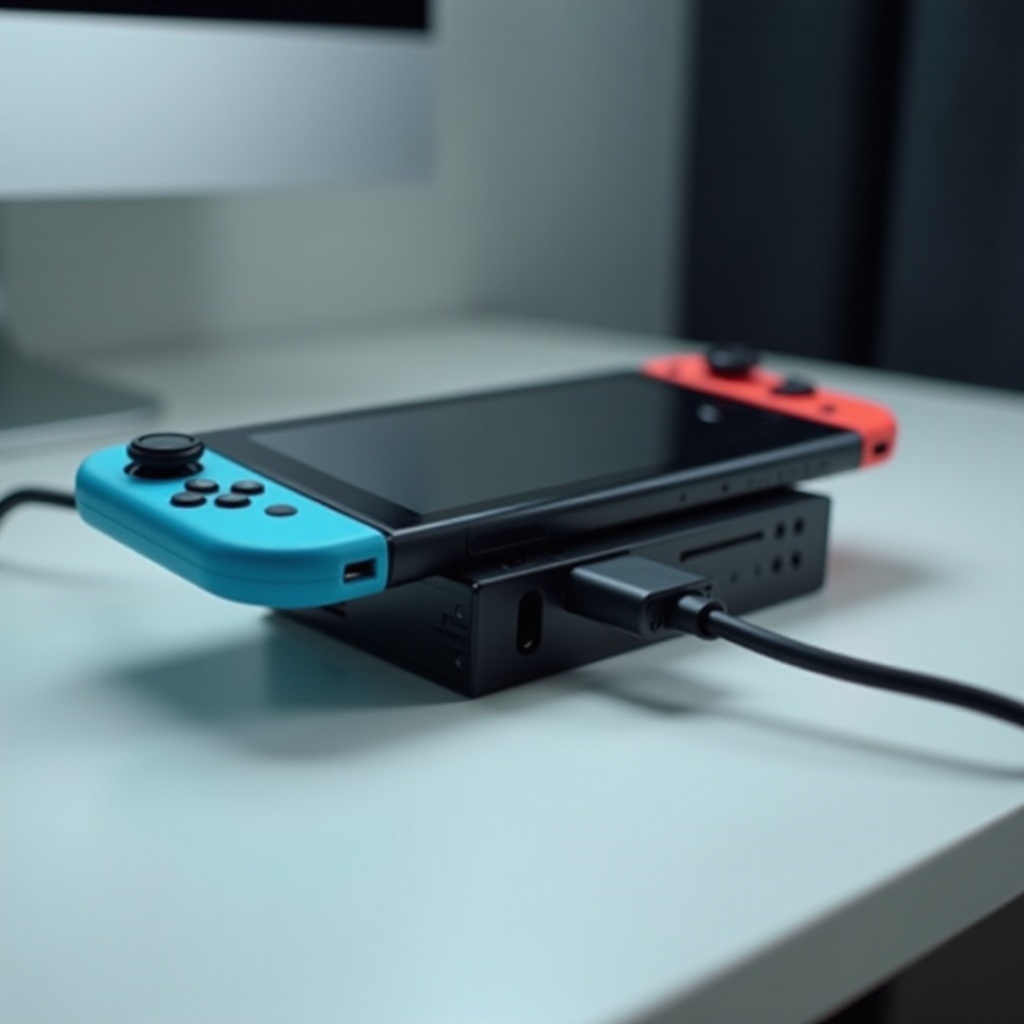
The Nintendo Switch charges by drawing power through a USB-C cable connected either directly to its AC adapter or via the Nintendo Switch Dock linked to an outlet. This setup supports the console both in handheld mode and docked. Knowing this basic mechanism helps pinpoint where a breakdown might occur.
Common Components Involved
Several components play a role in delivering power to your device: the USB-C charging cable, the AC adapter, the dock, and the Switch’s charging port. Any of these can malfunction, thus understanding their roles helps target troubleshooting efforts effectively. Let’s move to simple checks first.
Initial Troubleshooting Steps
Often, a few initial checks will resolve the issue quickly. It’s important to tackle the most simple potential problems before moving to more intricate solutions.
Checking Your Power Source and Outlet
- Confirm the functionality of your wall outlet by testing it with another device.
- Inspect your home’s circuit breakers for any that might have tripped.
- Move to a different outlet to remove the possibility of the outlet itself being defective.
Ensuring Cable and Adapter Functionality
- Look for visible damage on the USB-C cable.
- Swap in a known-good cable or adapter if you suspect defects.
- Ensure a snug connection between cable end, device, and power source.
Once you’ve ruled out these simple solutions, the problem might lie with the hardware.
Inspecting Hardware Issues
Should the initial steps fail, it’s time to scrutinize the hardware for faults. Faulty hardware often disrupts the charging process.
Analyzing the Charging Port
- Check the USB-C port for accumulated dust or dirt. A can of compressed air is helpful for cleaning.
- Assess the port for physical damage that might prevent effective charging.
Evaluating the Condition of the Dock and Cables
- Look for damage on the dock if used regularly.
- Bypass the dock and charge the Switch directly to identify if the dock is the issue.
- Test the cable on another device to ensure its reliability.
If none of these steps yield positive results, you may be dealing with software-related interference.
Solving Software-Related Problems
Complications with the software can occasionally cause charging issues. Addressing these normally resolves the problem quickly.
Restarting and Soft Resetting the Console
- Initiate a force shutdown by pressing the power button down for 12 seconds.
- Wait a few seconds and then turn it back on to see if charging resumes.
Performing System Updates
- Access ‘System Settings’ from the home screen.
- Navigate to ‘System’ and select ‘System Update’ to check for new updates.
- Install any updates and restart to see if this resolves the charging issue.
Persistent troubles after a software update may necessitate additional advanced methods.
Advanced Troubleshooting Methods
If simpler fixes don’t work, progressing to advanced troubleshooting might just do the trick.
Hard Resetting the Nintendo Switch
- Power off the device completely.
- Hold down the power button, along with volume up and volume down buttons simultaneously for around 15 seconds.
- After releasing the buttons, the system should restart with a reset.
Testing with Alternative Chargers and Docks
- Borrow a friend’s charger to see whether the issue lies with your charging accessories.
- Use a different dock to identify if there’s dock-related interference.
If these options have not solved your charging conundrum, it’s reasonable to seek professional intervention.
When to Seek Professional Help
Some issues elude DIY efforts, necessitating professional assessment. Here’s when to reach out.
Identifying Serious Hardware Failures
- Look for signs of severe damage like broken internal pins in the charging port, which demand professional attention.
- Symptoms like consistent overheating may indicate battery issues requiring official repair.
Navigating Warranty and Repair Options
- Verify warranty coverage before reaching out to Nintendo’s customer support for repair services.
- Locate authorized service centers for reliable post-warranty repair services.
To avoid future complications, embody preventive care and maintenance for your console.
Preventive Maintenance Tips
Implementing preventive measures ensures the longevity and smooth performance of your device.
Proper Charging Habits
- Unplug the charger after achieving full battery to avoid overcharging.
- Always utilize approved Nintendo chargers to safeguard battery health.
Regular Cleaning and Inspection
- Incorporate routine cleaning of ports and connectors into your maintenance routine.
- Regularly inspect cables for signs of wear to replace before failure.
Conclusion
Resolving why your Nintendo Switch won’t charge can often be achieved by following these guided steps. However, should these methods not resolve the problem, professional assessment ensures the device continues to function effectively. By understanding and maintaining your console, you can enhance its lifespan and enjoy seamless gaming.
Frequently Asked Questions
Can I use any USB-C charger for my Nintendo Switch?
Always use a charger approved by Nintendo. Unofficial or incompatible USB-C chargers can harm the battery and potentially lead to charging issues or damage.
Why does my Switch only charge while turned off?
This could be due to a software glitch, excessive background activities draining battery faster than charging, or an issue with the charger.
How do I know if my Switch battery needs to be replaced?
A declining battery life, increased heat, or the device turning off randomly indicate potential battery failure needing replacement.