
Introduction
Your iPhone’s camera and flashlight are crucial parts of your daily routine, so when these features fail, it can be incredibly frustrating. Issues with the back camera and flashlight might emerge due to software anomalies or physical damages. Prompt diagnosis and resolution are key to restoring these functions. While software glitches and hardware reasons often cause these malfunctions, they are frequently repairable with some guided troubleshooting steps. In this guide, we will delve into how you can fix these issues and prevent them from occurring in the future.
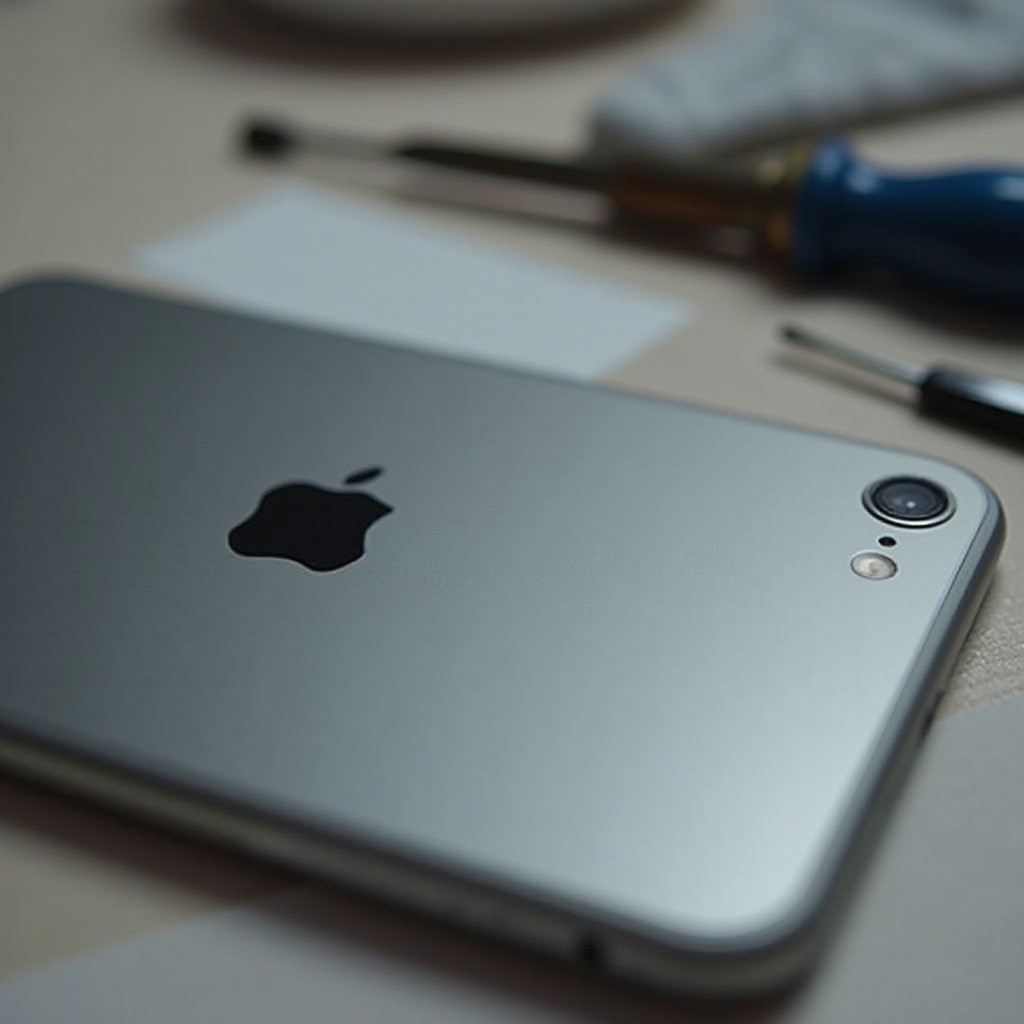
Understanding the Common Causes
Several factors might cause your iPhone’s camera and flashlight to stop working:
– Software Glitches: Updates may inadvertently introduce bugs. Sometimes, the phone’s operating system encounters temporary glitches disrupting camera functions.
– Physical or Environmental Factors: Physical damage from impacts or extreme temperature exposure can impair internal components essential for these features.
– Misconfigured Settings: Sometimes, inadvertent setting changes may disable the camera or flashlight.
Understanding these causes helps in applying the appropriate troubleshooting steps, thereby minimizing time and effort.
Quick Fixes for Common Issues
If you encounter these issues, try these initial quick fixes:
1. Restart Your iPhone: Often, a simple restart can resolve temporary issues. Hold the power button until the power-off slider appears, turn the device off, wait briefly, and restart.
2. Check for Software Updates: Navigate to Settings > General > Software Update. Install any available iOS updates as they often provide bug fixes.
3. Reset Camera App: Close the camera app completely by swiping up or double-clicking the home button to access recent apps and swipe up on the camera app to close it.
These quick solutions might solve the problem without further intervention. If the trouble remains, proceed with more advanced troubleshooting.
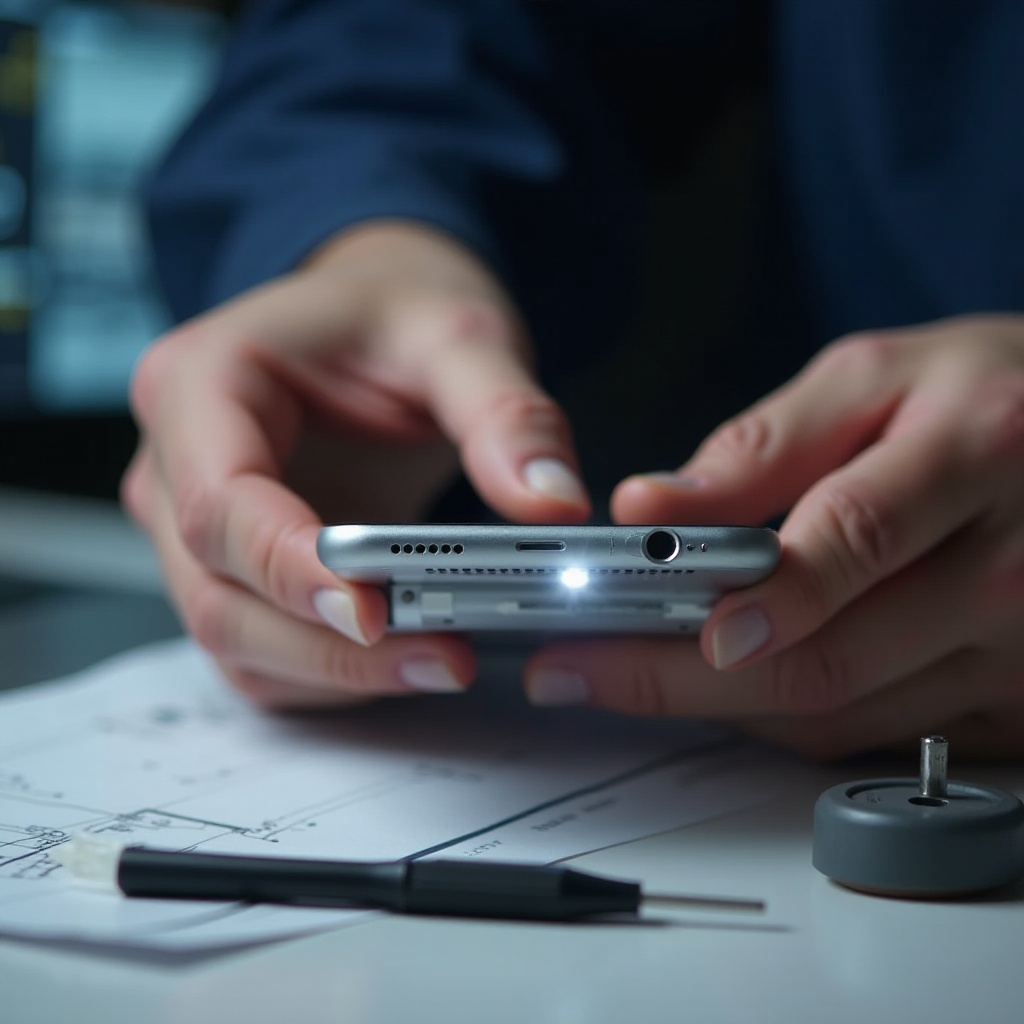
Advanced Troubleshooting Steps
For issues that persist, consider these advanced solutions:
1. Perform a Factory Reset: As a last resort, reset your iPhone to factory settings. Remember to back up your data. Go to Settings > General > Reset > Erase All Content and Settings.
2. Utilize DFU Mode: DFU Mode allows you to restore your iPhone to factory settings with more depth than a regular reset. Connect to a computer, access DFU mode using specific button sequences per your model, and restore via iTunes.
3. Inspect for Hardware Damage: Check for visible signs of harm. If internal damage is suspected, visiting an Apple-certified repair center is advised.
Undertaking these measures can resolve more entrenched issues, though caution and data backups are advisable before proceeding.
When to Contact Apple Support
If the above solutions do not resolve the problem:
– Persistent Software Issues: Continuous software-related troubles may need technical support.
– Hardware Malfunctions: Visible physical damage or liquid exposure typically necessitates professional assessment.
– Warranty and Repair Options: Verify your warranty. You may access complimentary or discounted services through Apple Care.
Professional support aids in diagnosing and repairing complex issues, especially when hardware intervention is necessary.
Preventive Measures to Avoid Future Problems
Preventative care is vital for consistent device performance:
– Regular Software Updates: Keep the device updated to prevent bugs and enhance security. Enable automatic updates in Settings > General > Software Update.
– Protective Accessories: Invest in sturdy protective cases and screen protectors to minimize physical damage risk.
– Routine Maintenance: Regularly clean your phone’s exterior and ensure lens areas are unobstructed. Avoid exposure to extreme weather OR environmental conditions.
Establishing strong preventive habits will ensure your iPhone’s longevity and consistent performance.
Conclusion
Addressing iPhone camera and flashlight problems involves identifying the cause, undertaking quick and advanced fixes, and knowing when to seek expert help. Ensuring regular maintenance and updates can prevent these issues from disrupting your phone’s performance in the future.
Frequently Asked Questions
What should I do if my iPhone flashlight is not working after an update?
Try restarting your iPhone or reinstalling recent updates. If the issue persists, consider resetting your settings.
Can third-party apps affect my camera or flashlight functionality?
Yes, some apps may interfere with these features. Ensure app permissions are correctly set, or remove any suspicious apps.
How can I test my iPhone’s camera hardware at home?
Use your camera’s default app to take pictures/videos and review them. Check for obstructions or damage near the camera area.