
Introduction
iPhones are valuable devices that serve multiple purposes, but they can encounter issues like screen overheating. Addressing it is crucial not only for user experience but also for the device’s health. This guide discusses the causes of iPhone screen overheating, its impact, and comprehensive strategies to prevent and troubleshoot the issue effectively.
Common Causes of iPhone Screen Overheating
Understanding the root causes of overheating is the first step in prevention.
-
Intensive Usage: Prolonged gaming or streaming video sessions can overwork your iPhone, leading to excessive heat production.
-
Software Glitches and Outdated iOS: Running outdated software or encountering unresolved bugs can contribute to overheating. Regularly updating iOS can mitigate this.
-
Environmental Conditions: Exposure to direct sunlight or high temperatures can overpower the iPhone’s cooling mechanisms, causing overheating.
Recognizing these causes prepares us to understand their potential effects and the importance of managing your device’s temperature.
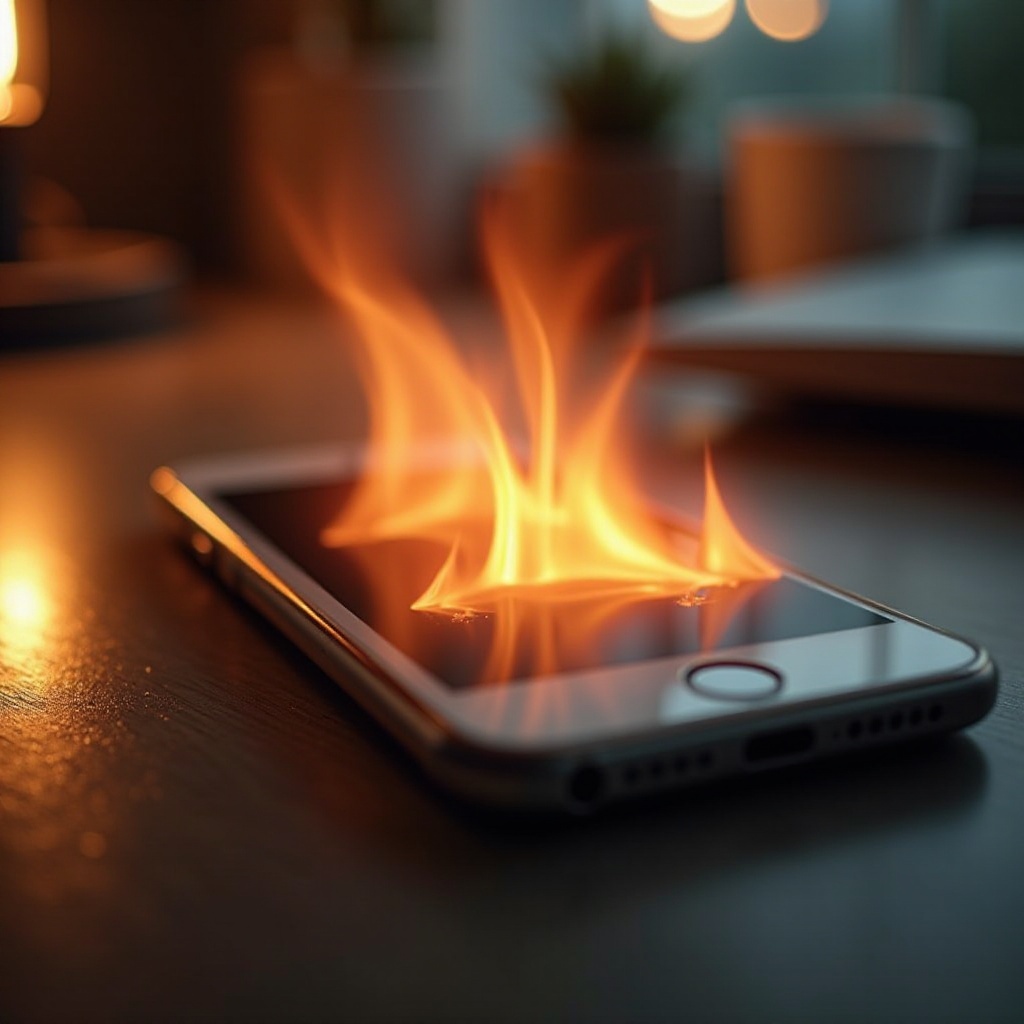
Impact of Overheating on iPhone Performance and Safety
Overheating is more than an inconvenience; it can have several adverse effects.
-
Battery Health and Longevity: Persistent overheating degrades battery health, reducing its effectiveness and lifespan.
-
Overall Device Performance Degradation: Frequent overheating can lead to slowdowns, unresponsiveness, or unexpected shutdowns, impacting the device’s usability.
-
Potential Safety Hazards: In extreme cases, overheating may damage internal components or compromise device safety.
Understanding these impacts highlights the value of taking preventive actions to ensure your device remains effective and secure.
Effective Preventive Measures for Overheating
By taking specific preventive measures, you can help manage your iPhone’s temperature:
-
Regular iOS Updates: Keeping your software current resolves bugs that could cause overheating.
-
Managing Background Apps and Functions: Closing unnecessary apps and disabling unwanted background activities reduce the load on your device.
-
Environmental Tips and Usage Best Practices: To avoid overheating, limit exposure to high temperatures and direct sunlight, and activate Low Power Mode during extended use.
Adopting these measures can keep your iPhone cooler and extend its longevity.
Step-by-Step Troubleshooting Guide for Overheating Issues
If preventive measures don’t suffice, follow these steps to troubleshoot overheating:
- Immediate Actions to Take
- Disable unused features such as Bluetooth and Location Services to lighten the processor’s load.
-
Remove your phone case to help dissipate trapped heat.
-
Advanced Troubleshooting Solutions
- Reset all settings to default without erasing content, which can resolve issues causing overheating.
-
Restore your iPhone to factory settings if problems persist, ensuring you backup your data first.
-
When to Contact Apple Support
- If these solutions do not work, seek Apple Support assistance. A hardware issue may require professional help.
These troubleshooting steps are designed to address and resolve overheating, ensuring sustained device performance.
Conclusion
Managing device temperature helps maintain your iPhone’s performance and lifespan. By understanding the causes of overheating and taking steps to prevent and troubleshoot these issues, users can enjoy an optimal experience and the secure functioning of their iPhones.
Frequently Asked Questions
Why does my iPhone get hot when charging?
It’s normal for some heat while charging, especially with fast chargers. If excessively hot, use a different charger or change charging habits.
Is it normal for my iPhone to overheat while using certain apps?
Yes, graphics-intensive apps can cause heat. Limit usage time and close other apps to help manage temperature.
Will a factory reset fix the overheating problem?
A factory reset might resolve software issues leading to overheating. Persistent problems may indicate hardware issues needing professional evaluation.