
Introduction
The auto brightness feature on your iPhone is a convenient tool that adjusts the screen’s brightness according to the light around you, aiming to provide an optimal viewing experience while saving battery life. When this feature stops functioning properly, it can lead to frustration and eye strain. This comprehensive guide will help you understand why these issues occur and offer practical solutions.
Understanding iPhone Auto Brightness
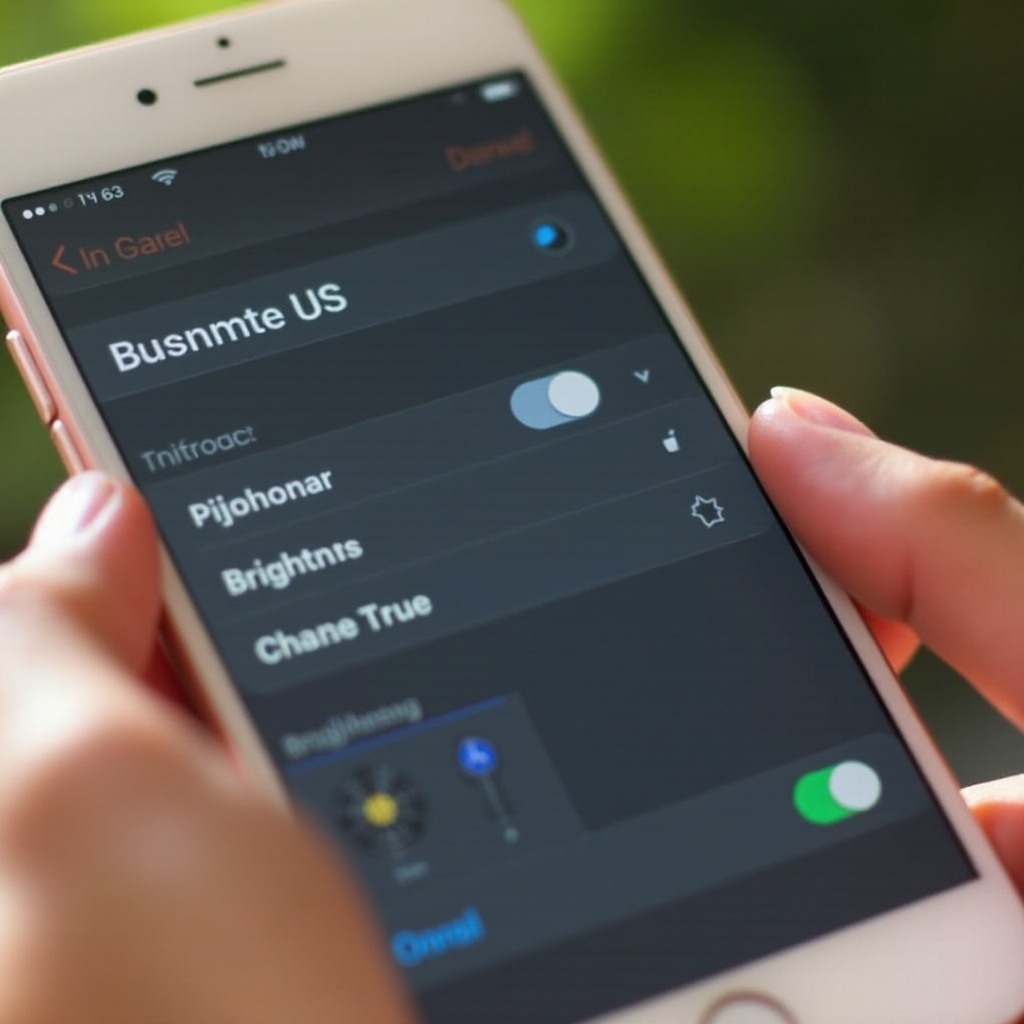
Before delving into fixes, it’s helpful to grasp how auto brightness operates. iPhones are equipped with ambient light sensors located near the front camera. These sensors adjust the screen brightness automatically based on surrounding light conditions. This process not only enhances user experience but also conserves battery power. Familiarity with this mechanism enables you to better diagnose and address any problems.
Common Causes of Auto Brightness Problems
The reasons behind auto brightness issues can vary, but understanding the typical causes can streamline your troubleshooting:
- Software Glitches: Software bugs or outdated iOS versions can sometimes interfere with auto brightness functionality.
- Sensor Blockages: Dust, dirt, or even phone cases can obstruct the light sensor, affecting its performance.
- Settings Misconfigurations: Accidental changes to your iPhone’s settings might disable or alter the auto brightness feature.
Understanding these potential causes lays the foundation for effective troubleshooting, ensuring you’re prepared to implement the appropriate solutions.
Simple Troubleshooting Steps
Here are some straightforward steps to potentially resolve auto brightness issues:
- Restart Your Device: A simple restart can often clear minor glitches causing problems.
- Toggle Auto Brightness Setting:
- Navigate to ‘Settings’ > ‘Accessibility’ > ‘Display & Text Size’.
- Turn off ‘Auto-Brightness’ and then turn it back on.
- Update Your Software:
- Go to ‘Settings’ > ‘General’ > ‘Software Update’.
- Ensure your iPhone is running the latest iOS version.
These fundamental fixes frequently solve the common problems with auto brightness. If the issue persists, consider more advanced troubleshooting techniques.
Advanced Troubleshooting Techniques
For stubborn issues, try the following more advanced solutions:
- Reset All Settings:
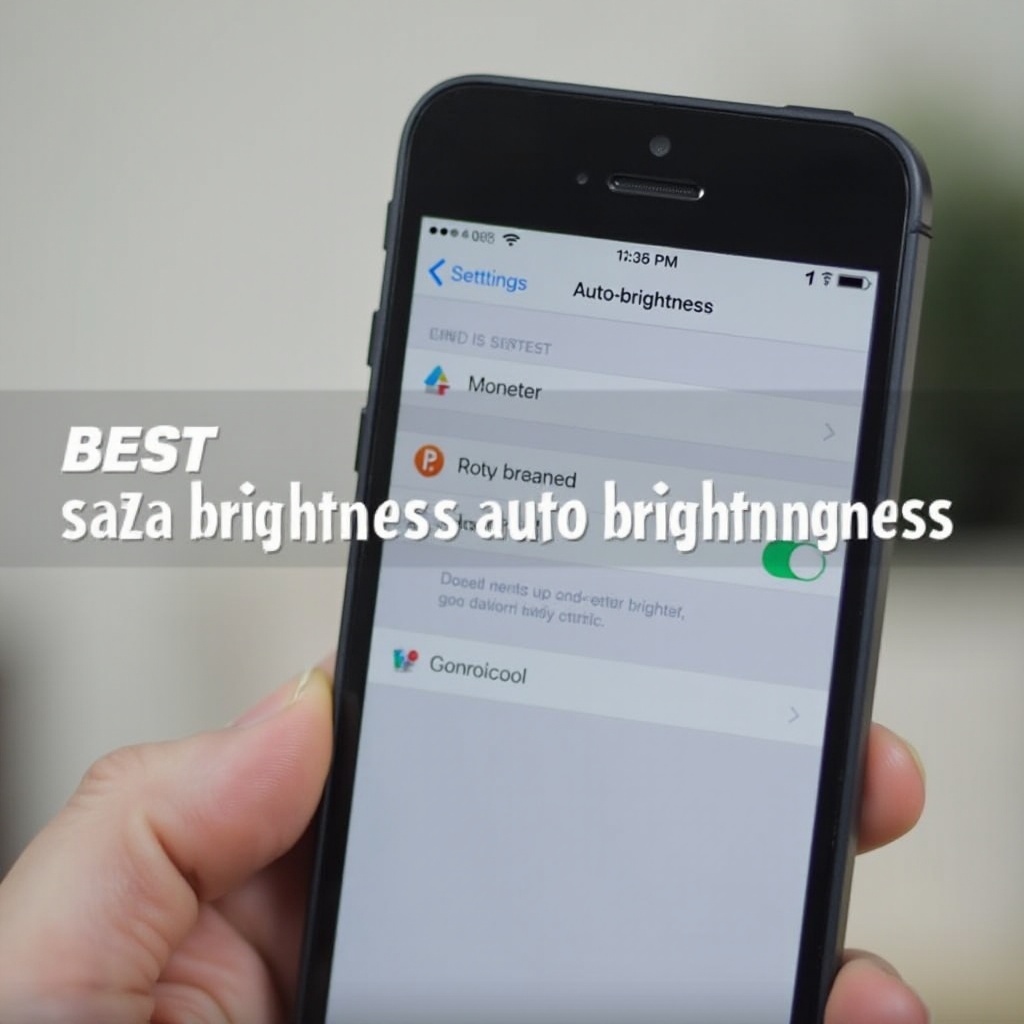
- Go to ‘Settings’ > ‘General’ > ‘Transfer or Reset iPhone’ > ‘Reset’ > ‘Reset All Settings’.
- This process won’t affect your data but will restore default settings.
- Calibrate the Screen Sensor:
- Lock the screen and cover the part above the front camera.
- Unlock and uncover it, giving the sensor a chance to recalibrate.
- Restore with iTunes or Finder:
- Use a USB cable to connect your iPhone to a computer.
- Open iTunes (on Windows or older macOS) or Finder (on newer macOS).
- Select your device and click ‘Restore iPhone’.
Advanced troubleshooting can address deeper systemic or software issues disrupting your display. If these steps fail, further assistance may be necessary.
Maintenance and Prevention Tips
Regular maintenance can help prevent future auto brightness issues:
- Clean Device Sensors: Regularly clean around the front camera and sensor area to prevent dust build-up.
- Stay Updated: Always keep your iOS updated to the latest version for enhanced performance.
- Use Sensor-Friendly Accessories: Opt for phone cases and screen protectors that don’t block the sensor.
Implementing these tips helps keep your iPhone’s auto brightness function running smoothly and prolongs its effectiveness.
When to Seek Professional Help
When DIY fixes aren’t enough, it might be time to consult a professional:
- Hardware Concerns: Physical damage to the sensor or exposure to moisture might warrant professional intervention.
- Apple Support: Contact Apple Support online or visit an Apple Store to arrange for repair or replacement.
Recognizing when to seek professional help ensures that you don’t cause more harm to your device while attempting personal repairs.
Conclusion
This guide has shown how to diagnose and resolve iPhone auto brightness issues. By keeping your device updated and clean, you can prevent many problems from developing. Should issues persist, professional assistance is always available.
Frequently Asked Questions
Why is my iPhone auto brightness still not working after a reset?
Persistent issues might indicate a defect in the light sensor or a deeply embedded software issue, requiring professional inspection.
Can a cracked screen affect auto brightness functionality?
Yes, a cracked screen can obstruct the light sensor and hinder its function. Repair may be needed to restore full functionality.
How do I know if my iPhone’s light sensor is damaged?
If auto brightness fails despite troubleshooting and there are sudden brightness shifts, the sensor might be damaged, needing professional repair.